

WeChat ClawBot
- Currently only supports single-round Q&A
- Forwarding to WeChat ClawBot is not supported due to WeChat limitations
- Try asking OmniBox some questions!
Connect your WeChat ClawBot to easily save information, store it in your knowledge base with one click, and enable Q&A within WeChat.
Binding
By binding WeChat ClawBot, you agree to the Terms of Service and Privacy Policy
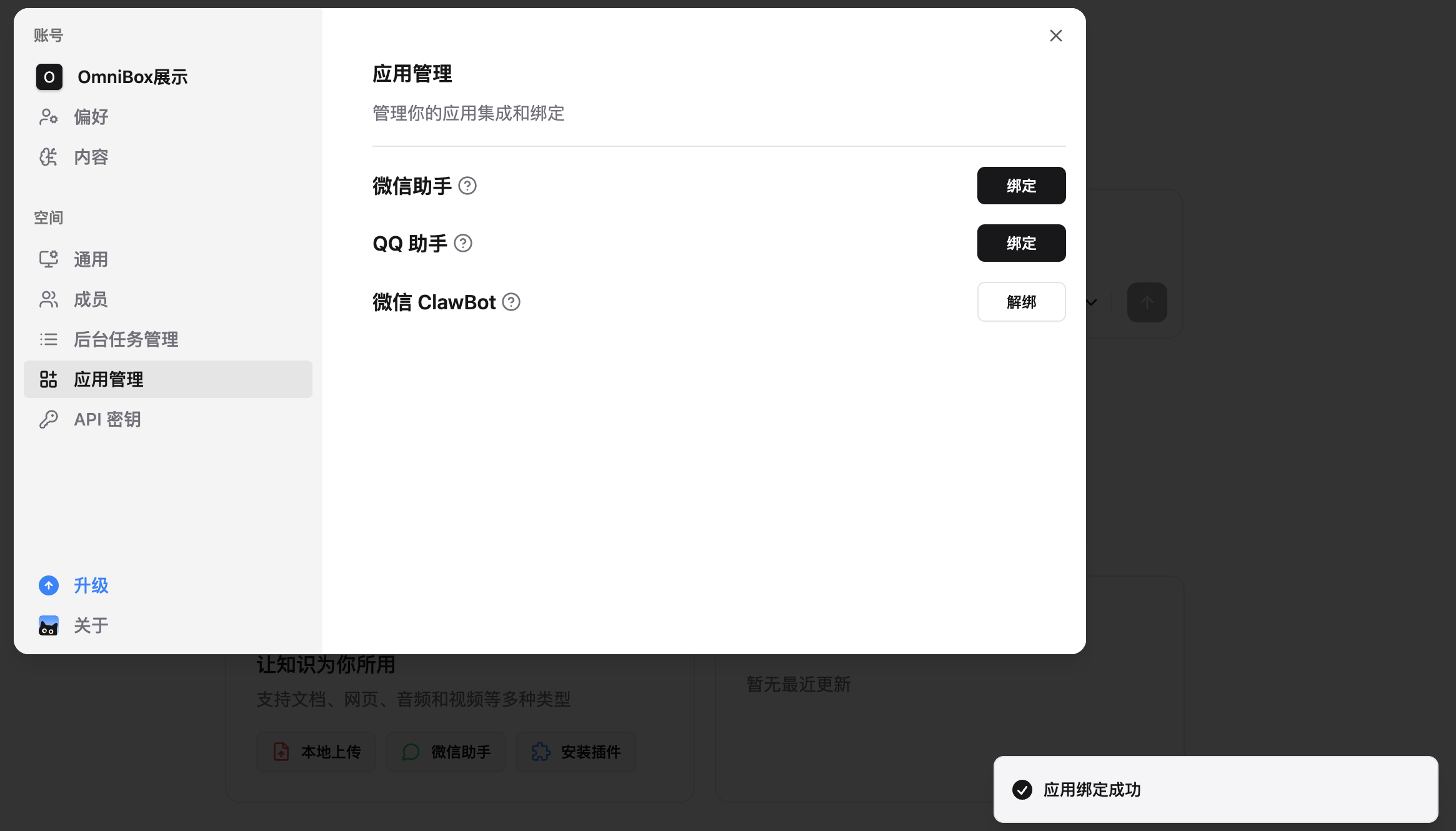
- Log in to OmniBox, click
Settingsin the top left corner, selectApp Management, and bind WeChat ClawBot
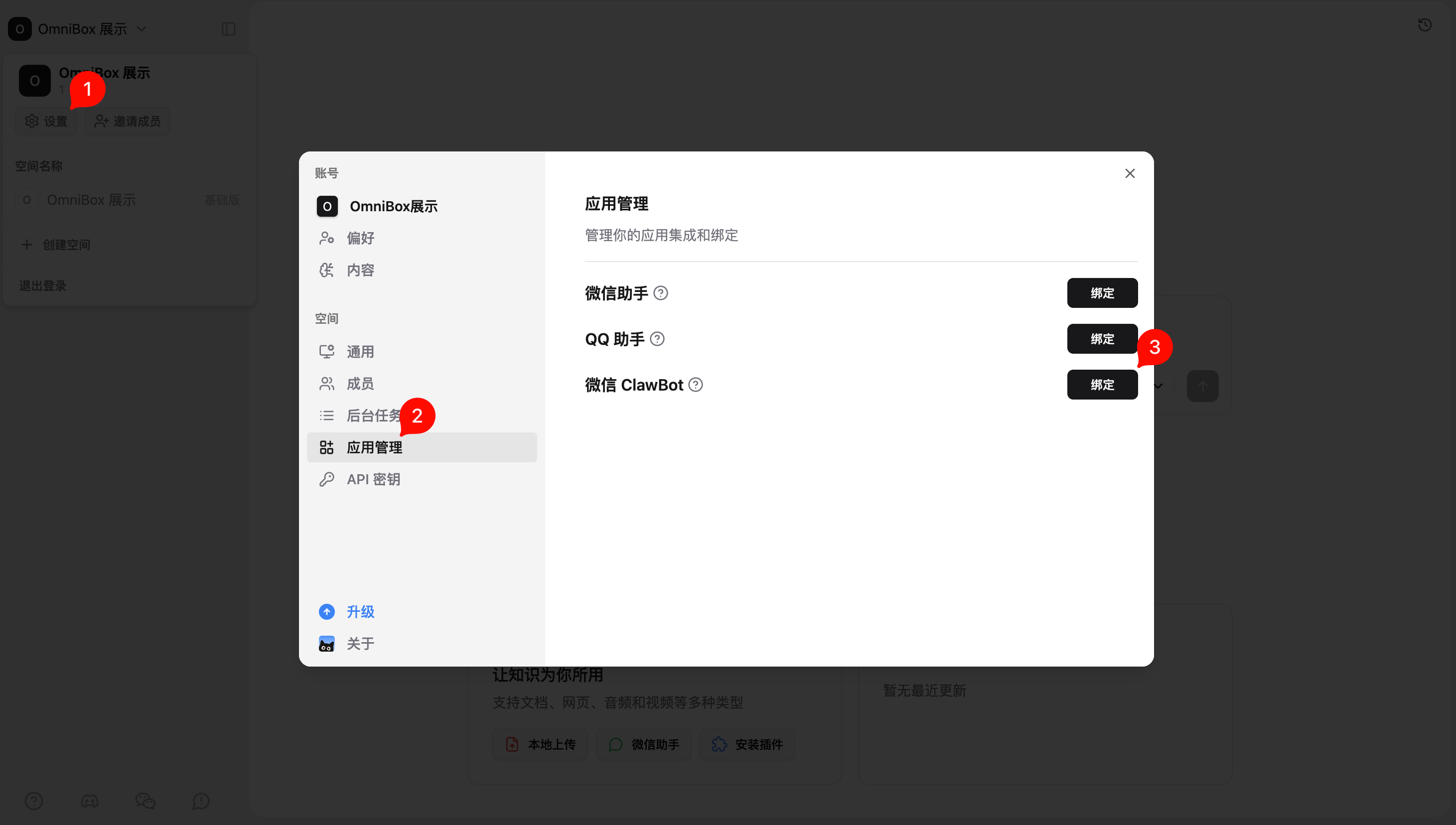
- Click
Bindand follow the prompts to scan the QR code to bind WeChat ClawBot (each QR code is unique, please do not share it with others)
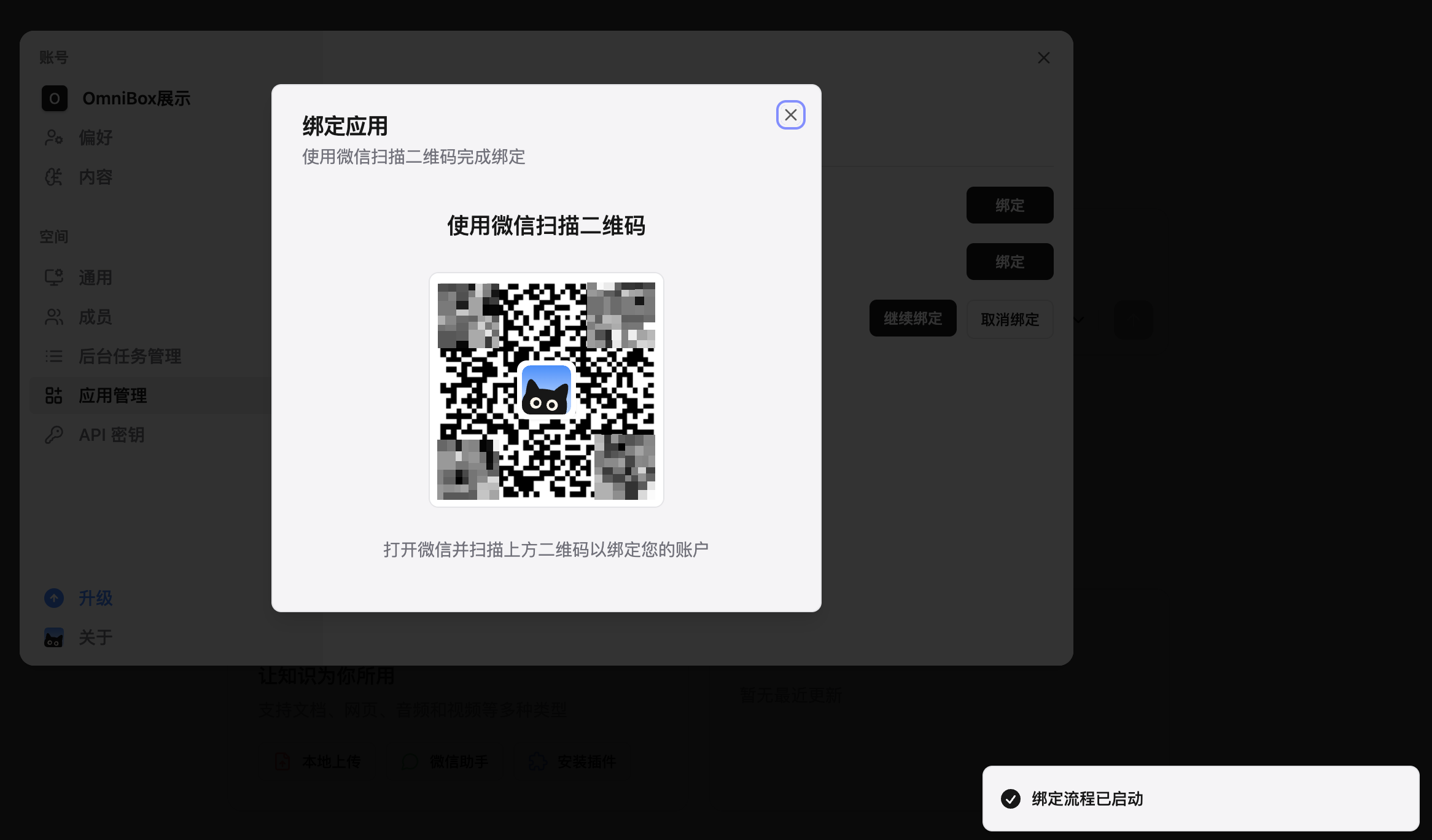
- In WeChat, click
ConnectorContinue Connectto complete the binding
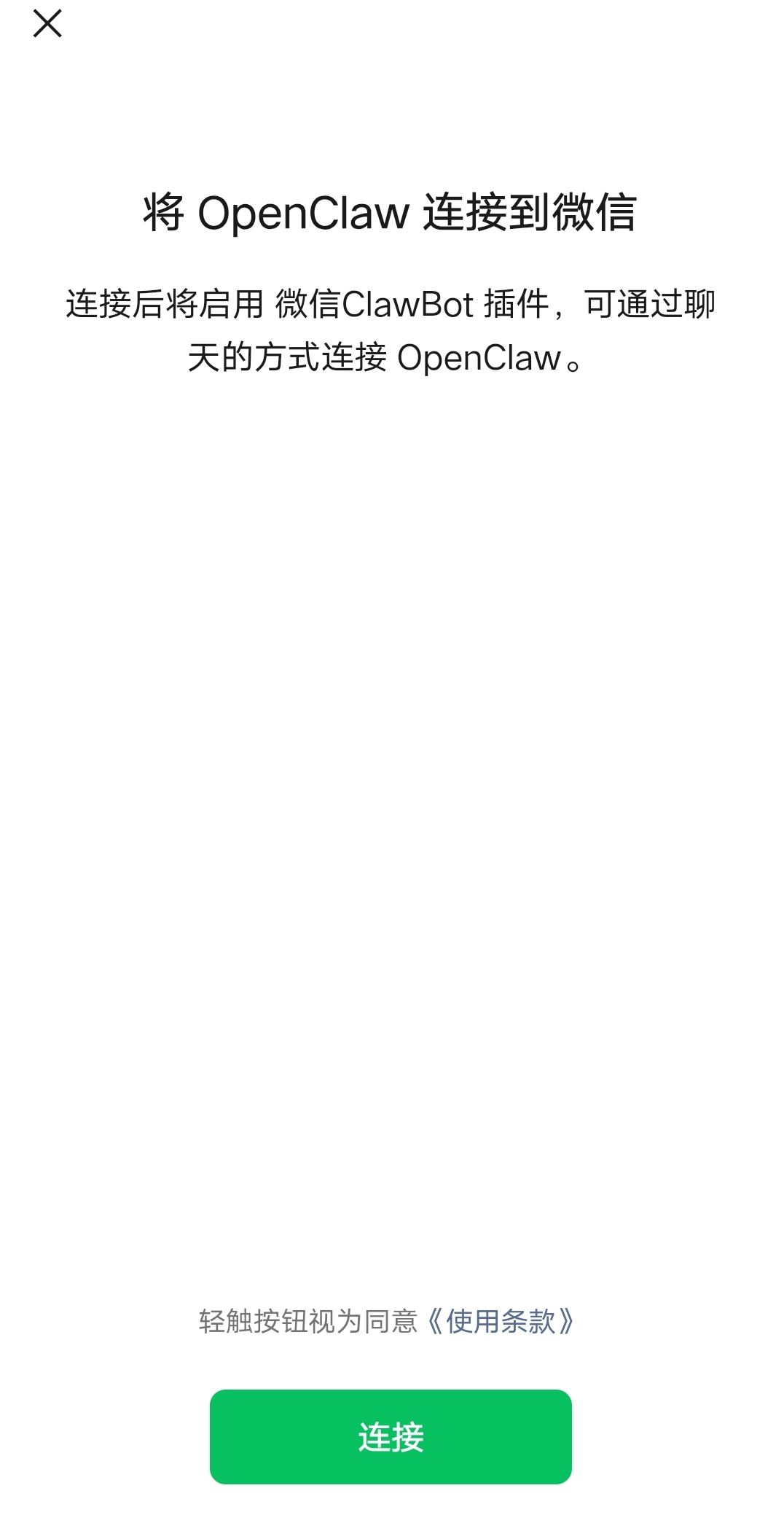
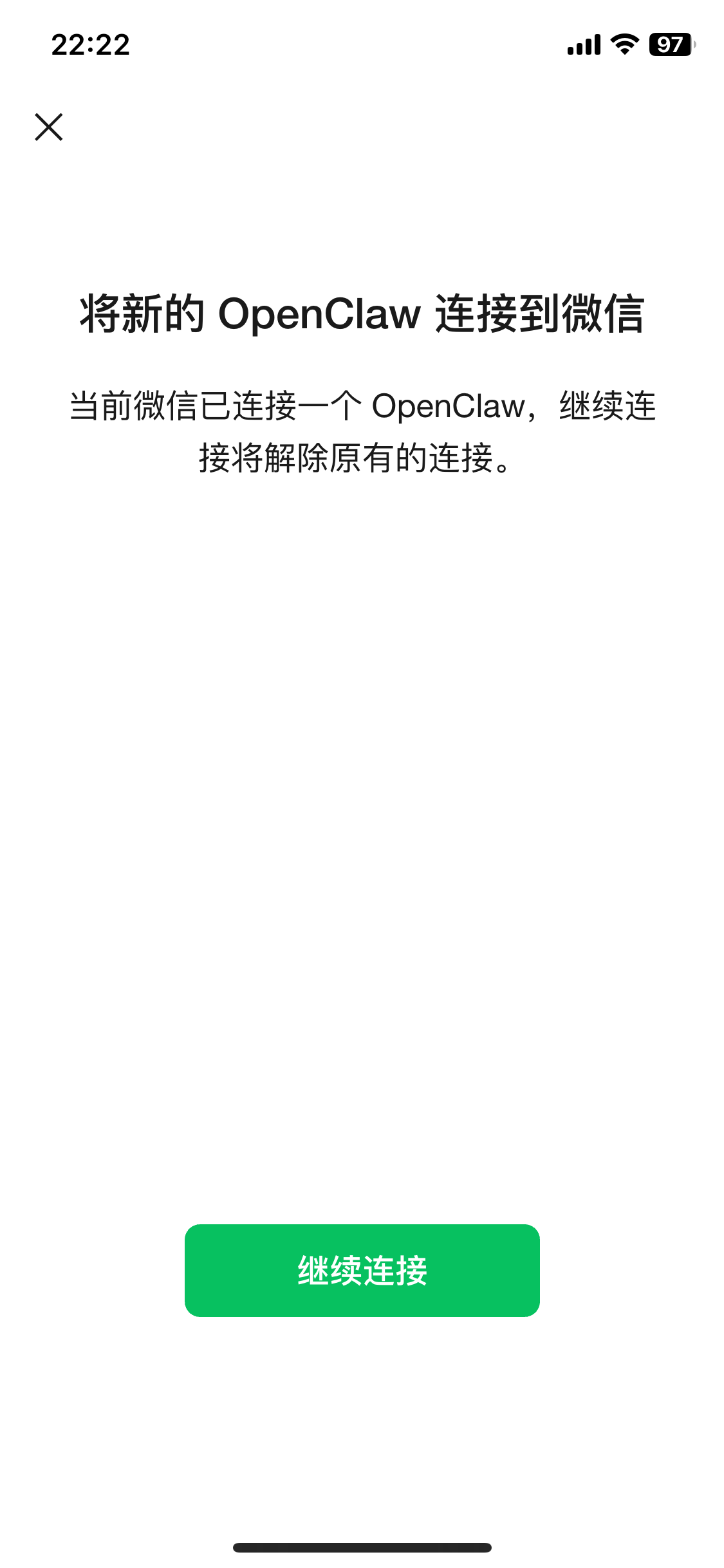
- Binding successful page
Supported Message Types
Currently Supported
- Text (save text)
- Text (Q&A)
- Web links
- Due to WeChat limitations, card-type links are not supported. Only copied links sent to WeChat ClawBot are supported
- Voice (save content)
- Voice (ask questions)
- Images
- Files (see supported file types: Upload Files)
Not Supported
- Merged forwarded messages
- Mini Programs
- Contact cards
- Stickers
- Red packets
- Location
Save Content
To ensure service stability and user experience, we have added message processing rate limits. For each user, the system will only process the 1st message received within 3 seconds
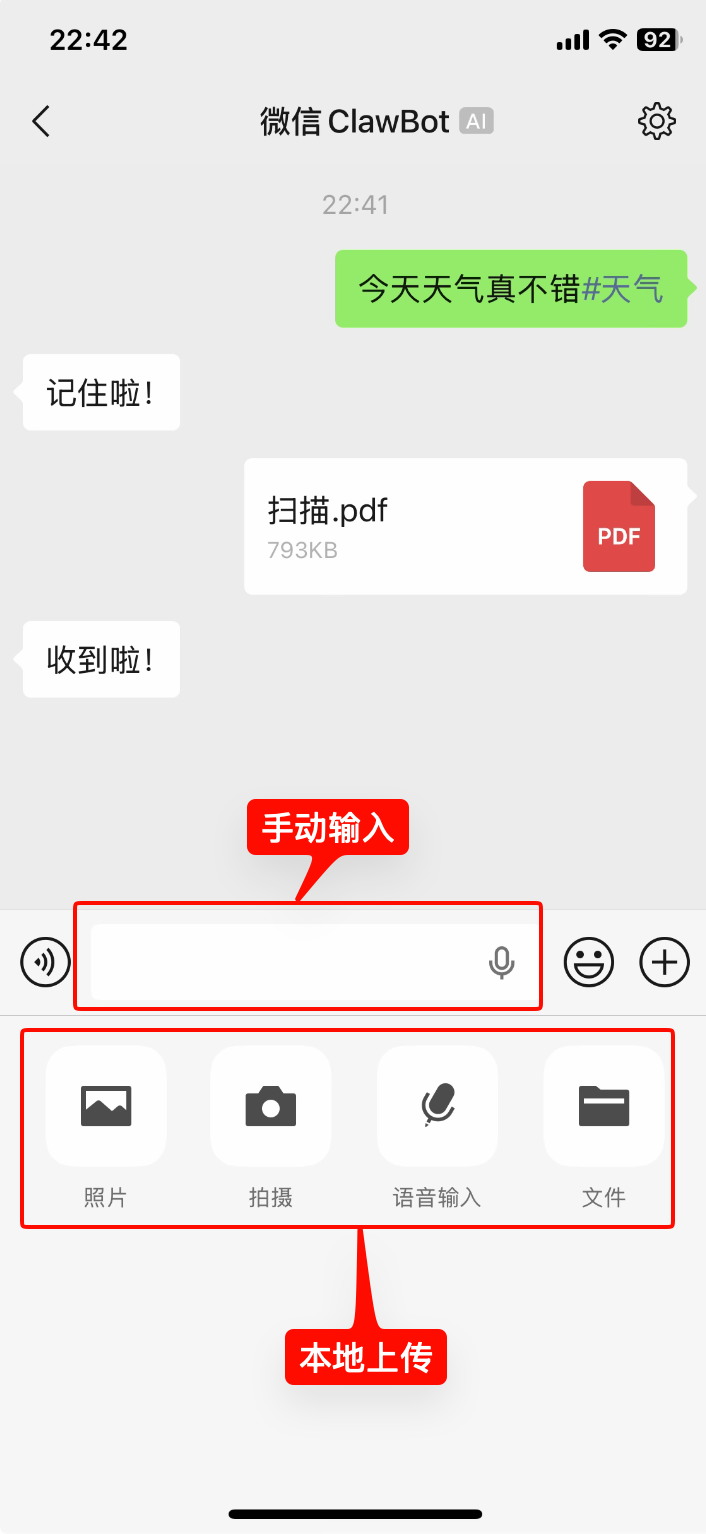
- Send content to
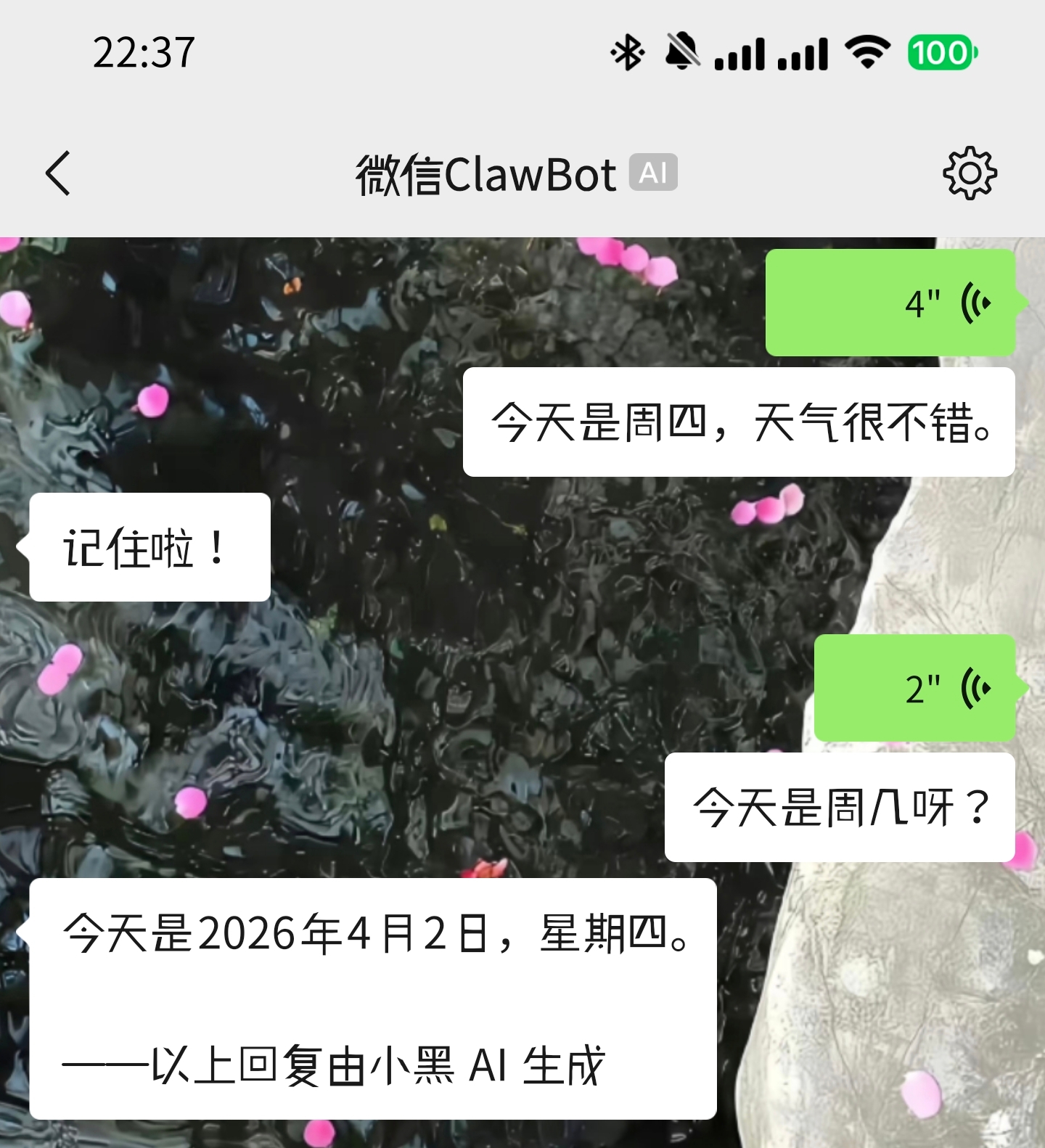
WeChat ClawBotin WeChat to save it. Supports sending voice, manual input, or local upload. - Sending voice can trigger either
SaveorQ&A - Saved content will be stored in your Personal resource list by default
- After saving, WeChat ClawBot will reply with a confirmation. The saved content will appear in your OmniBox after a short while
Specify Save Location
Specify Workspace
Currently, WeChat ClawBot is bound to a workspace. If you want to save information to a different workspace, you have two options:
- Unbind from the original workspace and rebind to the new workspace
- Go through the binding process in the new workspace directly, scan the new workspace's QR code with WeChat, and it will be bound to the new workspace
Specify Folder
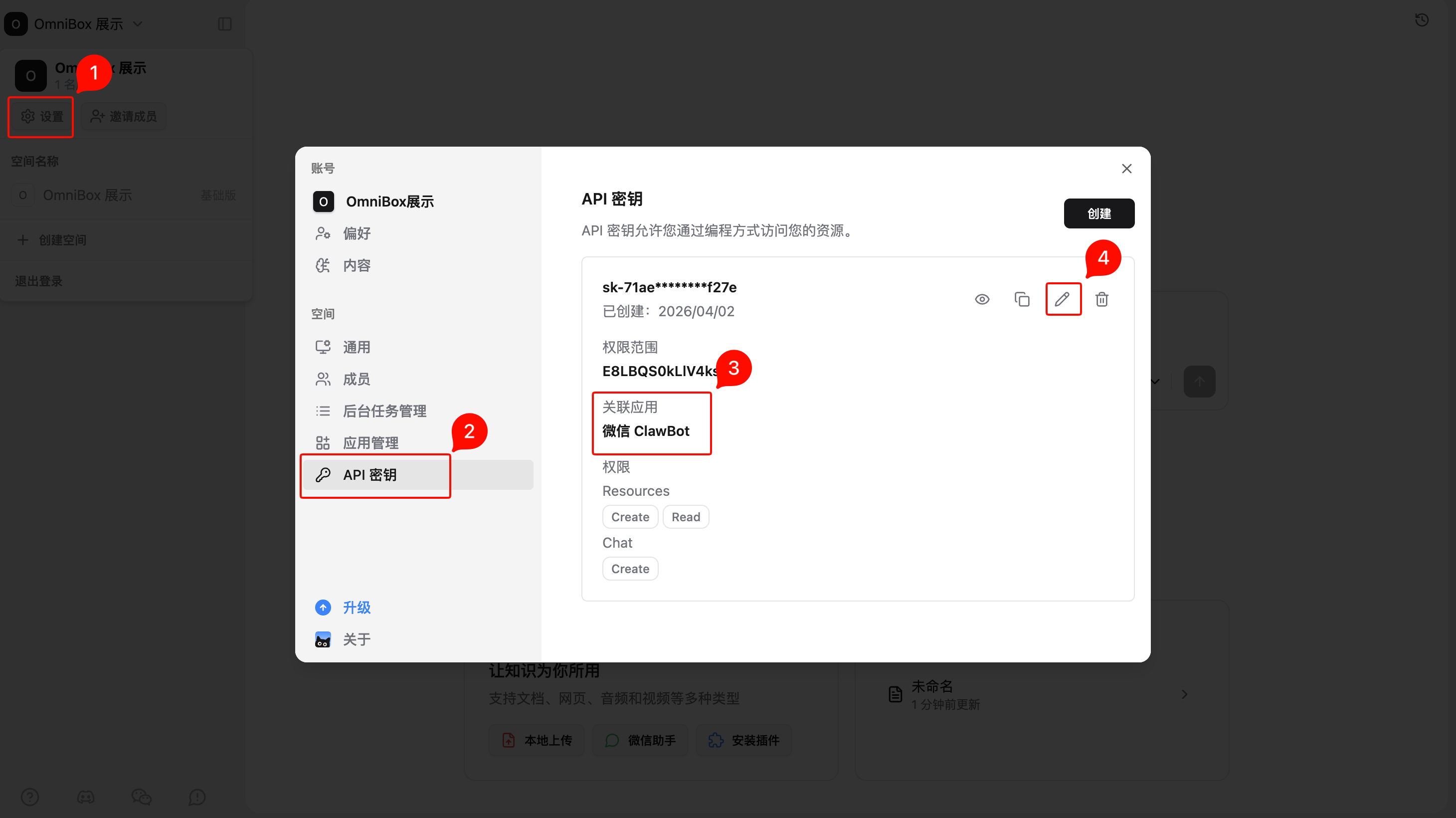
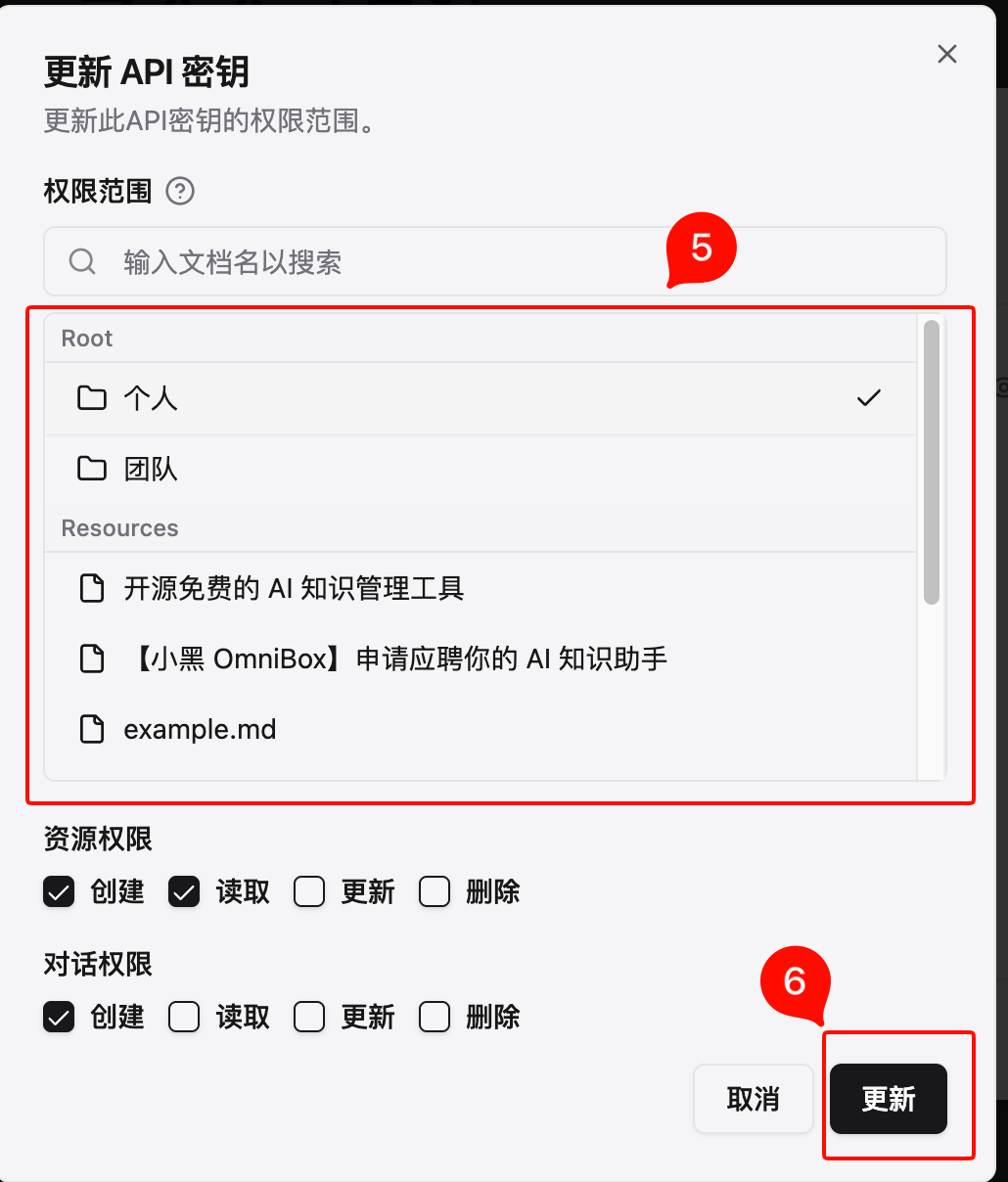
- Open
Settings - Select
API Keys - Find the API key associated with WeChat ClawBot
- Click
Edit - Select save location
- Click
Update
Add Tags When Saving Text
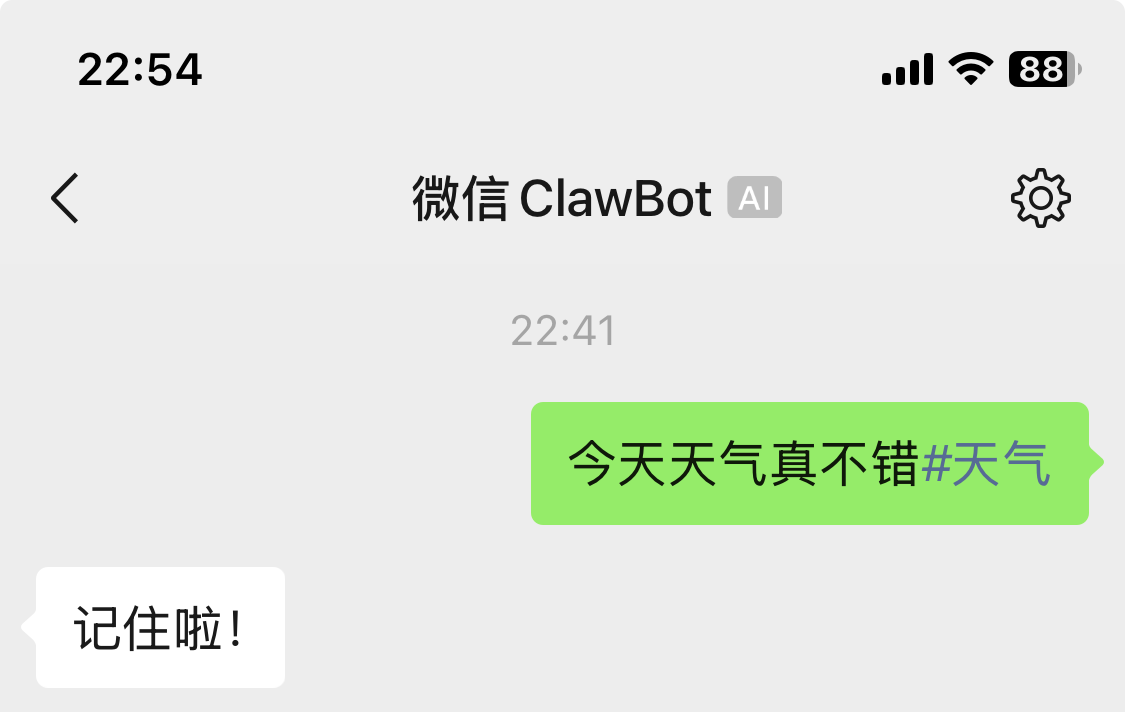
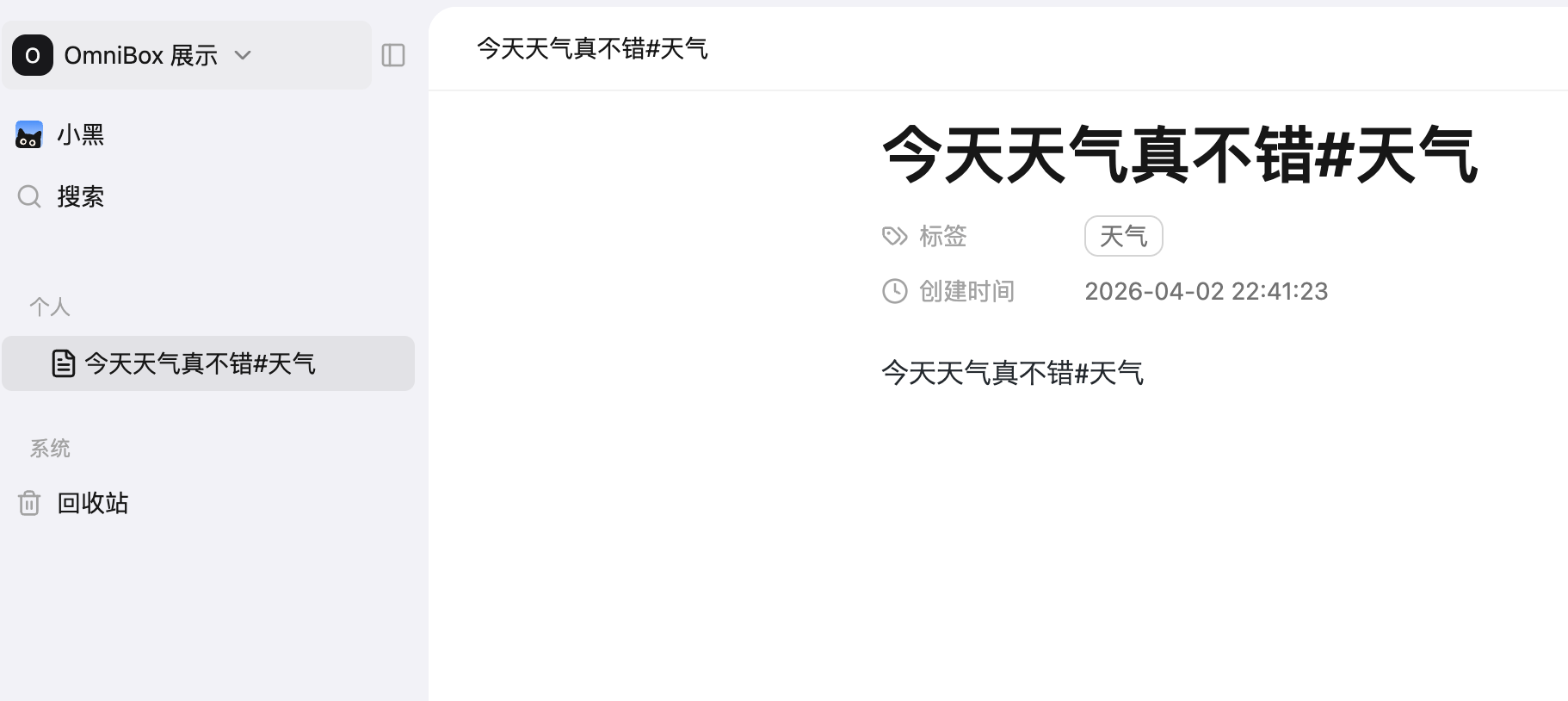
When sending text to WeChat ClawBot, you can add #tagcontent at the end to manually add tags, for example: The weather is nice today#weather.
FAQ
If you encounter issues with binding or saving, please contact us for help
How to ask WeChat ClawBot questions?
By default, the system will automatically trigger Q&A or Save based on the content you send.
You can add a ? at the beginning (both Chinese and English work) to force trigger Q&A (e.g., "?Who are you")
How to make WeChat ClawBot save text?
By default, the system will automatically trigger Q&A or Save based on the content you send.
You can add a ! at the beginning (both Chinese and English work) to force trigger Save (e.g., "!Who are you")
Can WeChat ClawBot bind to two WeChat accounts?
- Not supported at this time
- A workaround is to register two accounts, join the same workspace, and have the assistant save to the team workspace