

Collect Web Content
| Item | Details |
|---|---|
| Best for | Saving webpages, selected regions, public online videos, and supported social content to the knowledge base |
| Current limits | Page structures can affect completeness, WeChat Channels videos are not supported for parsing, and Xiaoyuzhou podcast website content must be saved via links or shared cards instead of the browser extension |
Collect web information through OmniBox's browser extension
| Type | Description |
|---|---|
| Web Page | Web page information, parsed into editable documents with one click |
| Snippet | Select a specific region of a web page, parsed into editable documents with one click |
| Online Video | Online videos, parsed into video content summaries and key frames with one click |
Common supported scenarios include:
- Regular web content such as articles, blogs, knowledge base pages, and forum posts
- Video content from platforms such as Douyin and Xiaohongshu
- Social platform content such as Xiaohongshu image-and-text posts, X (Twitter) posts, Reddit content, Instagram content, and Zhihu content
- Videos saved from browser recommendation feeds; OmniBox tries to preserve the original content page as the source link in resource details
Platform page structures change over time. If content is not saved completely, try opening the original detail page before collecting it, or use Share to OmniBox on the Mobile APP.
Read a Pasted Link
You can save a link directly from the web app without installing the browser extension:
- On the AI home page, click
Add linkin the import area. - Paste a URL starting with
http://orhttps://. Shared text containing a link is also accepted. - Choose the destination under
Save to; the default isPrivate. - Click
Saveor pressEnter. The saved resource opens while its content is parsed for reading.
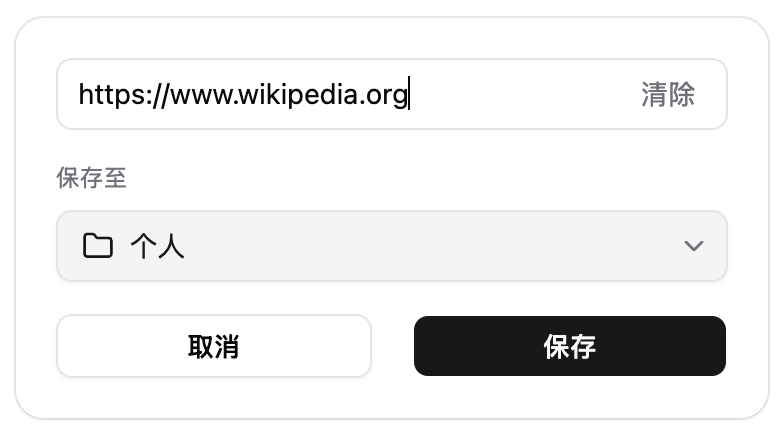
You can also use Add Link from the Private, Team, or resource menu in the left sidebar. Smart Folders, RSS Folders, RSS items, and read-only resources cannot be destinations for a new link. OmniBox's own links cannot be clipped again through this entry.
Use the browser extension to collect a selection from the current page. Completeness depends on access to the source page and parsing support.
Kibble is charged only after parsing successfully delivers content; failed, canceled, or timed-out parsing is not charged. Retries of the same task settle once; explicitly reparsing and obtaining a new result is charged again. File size, page count, and media duration limits are checked separately from Kibble balance. See Billing Rules.
Collect Web Page
Collect Selection
Collect Specific Content
Collect Online Video
When you save online videos with the browser extension, OmniBox tries to parse the video title, chapters, summary, and key frames so the content can be searched, read, and used in AI Q&A later.
Common supported scenarios include public video content from platforms such as Douyin, Xiaohongshu, and Bilibili. For Bilibili multi-part videos, OmniBox tries to parse the corresponding episode from link parameters. Douyin image-and-text content is not part of video parsing yet.
Social Platform Content
For social platform content such as X (Twitter) posts, Reddit content, Instagram content, Xiaohongshu image-and-text posts, WeChat Official Account articles, Xiaolushu image-and-text links, and Zhihu content, prefer one of these methods:
- Open the content detail page in a desktop browser and save it with the browser extension.
- In the mobile app where the content appears, use the system share sheet and choose
OmniBox.
If a card forwarded from a chat window cannot be parsed, go back to the original app content page and share it directly, or copy the link and save it.
FAQ
Why wasn't the entire web page content saved?
When parsing a webpage into a document, we first identify the main content. However, since there are many different types of web pages, errors can sometimes occur.
Which video platforms are not supported for parsing?
- WeChat Video accounts