

Smart Folders
Smart Folders are virtual folders that automatically collect matching resources based on filter rules. They do not move or copy the original files. When a resource matches the rules, it appears in the Smart Folder while staying in its original location.
When to Use Smart Folders
- Build dynamic views with titles, tags, web links, file names, body content, creation time, or update time
- Keep a folder-like context for AI Q&A and writing that updates as new resources match the rules
- Quickly review recently created or recently updated resources, or resources that match a specific tag or keyword
- Automatically gather filtered web collections, documents, and meeting materials without manually moving resources
- Combine resources scattered across private and team namespaces into one view for easier review
- Filter recently uploaded, recently collected, recently updated, or phase-specific resources by time for weekly reports, retrospectives, periodic organization, and more
- Combine conditions such as
Tags,Content, andTitleto build more precise topic-based folders
Create a Smart Folder
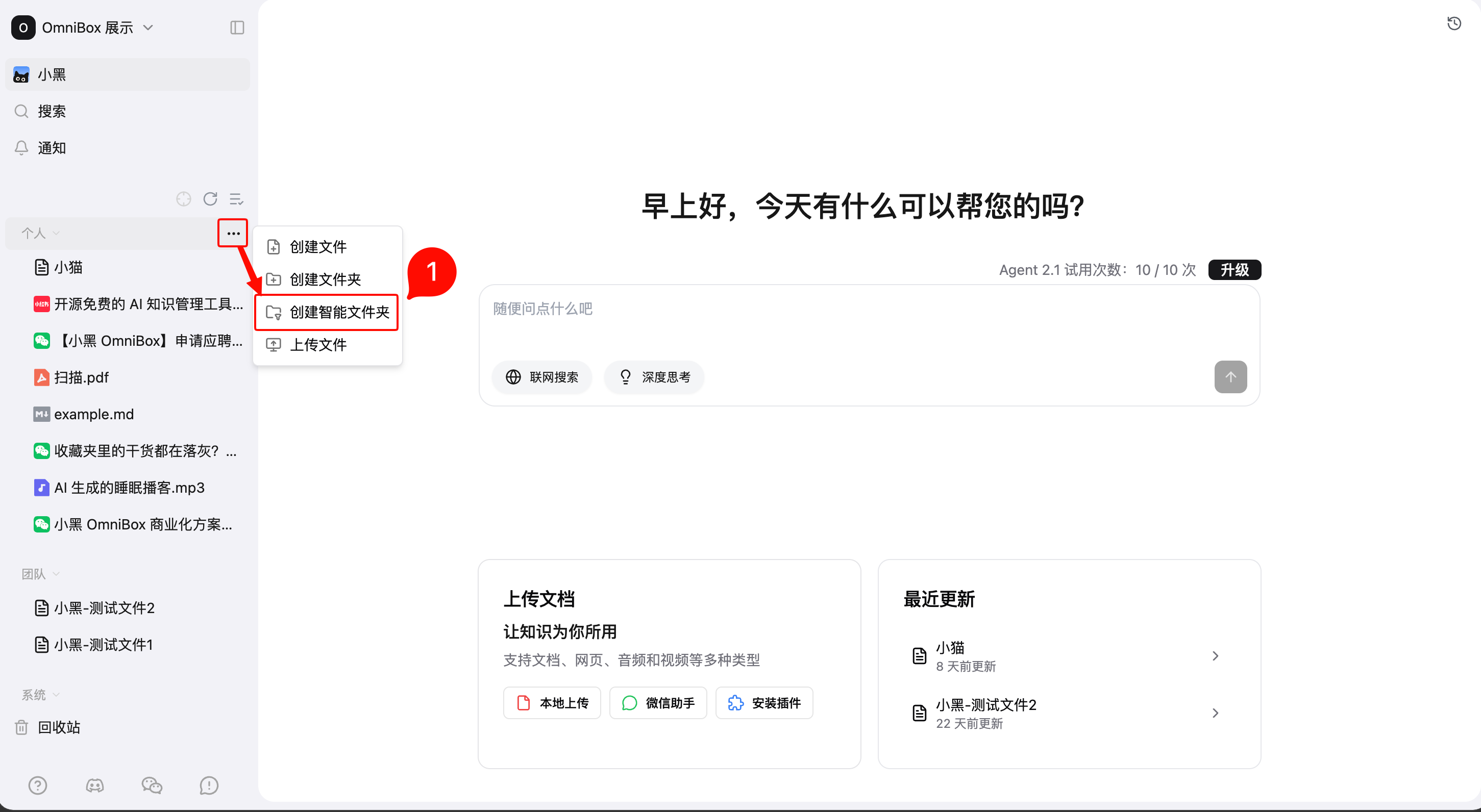
- On the web app, hover over the
PrivateorTeamsection title in the left resource list, click the menu on the right, then selectCreate Smart Folder. - If a team namespace exists, confirm where the Smart Folder belongs:
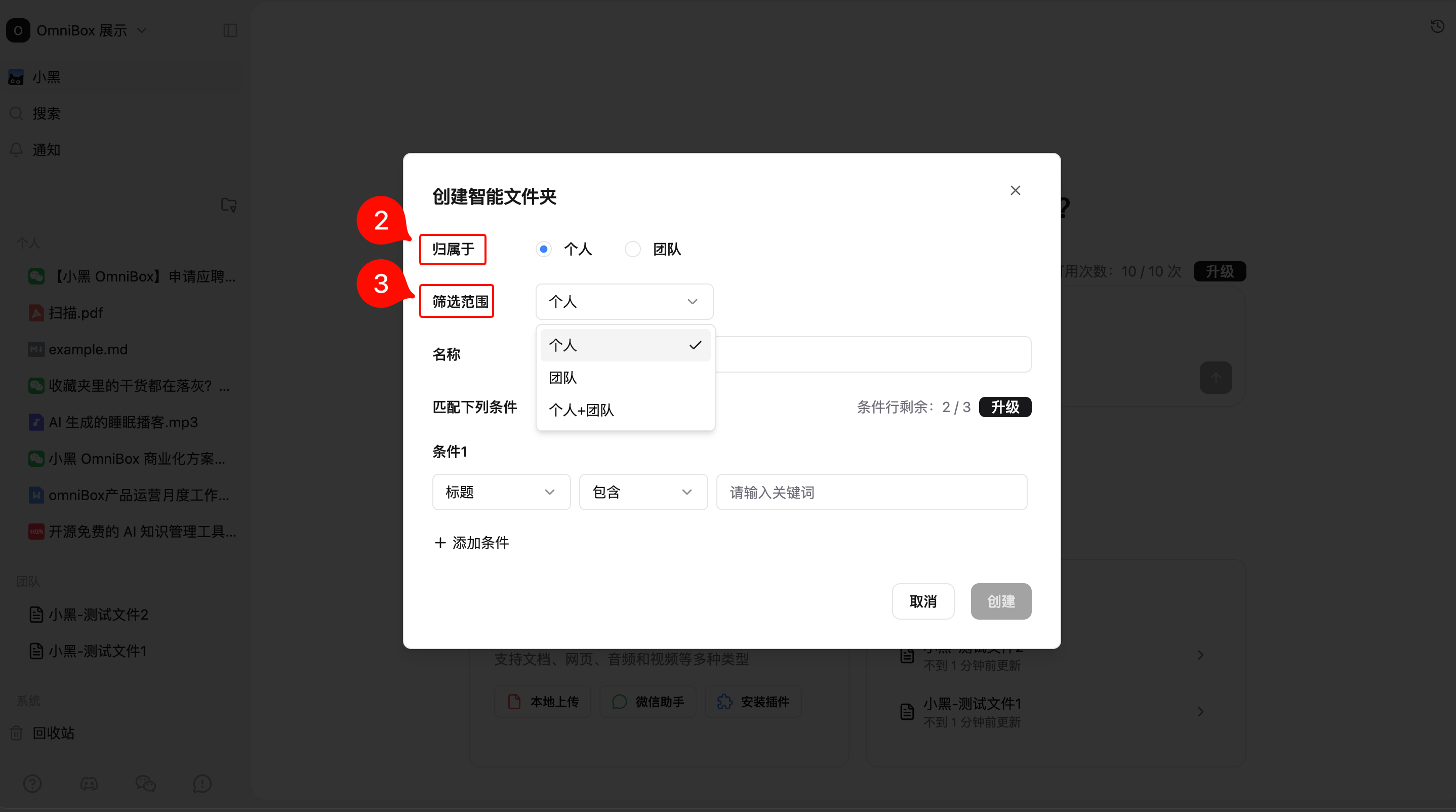
PrivateorTeam. - If a team namespace exists, select the filter scope:
- If the Smart Folder belongs to the
Privatenamespace, the filter scope can bePrivate,Team, orPrivate + Team. - If the Smart Folder belongs to the
Teamnamespace, the filter scope can only beTeam.
- If the Smart Folder belongs to the
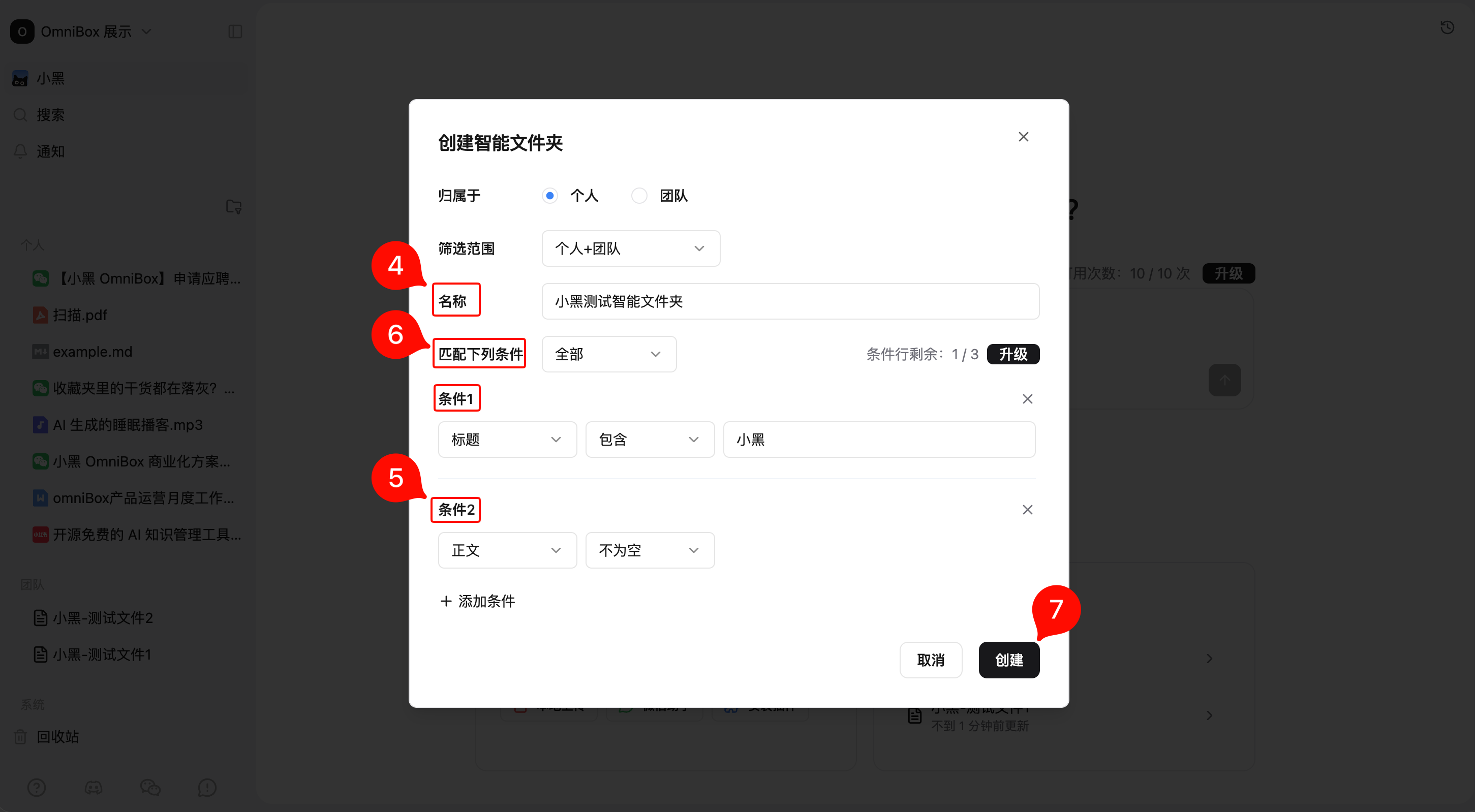
- Enter a name. The name is required, can contain up to 128 characters, and cannot duplicate another resource at the same level.
- Add one or more conditions.
- If there are multiple conditions, choose whether resources need to match
Allconditions orAnycondition. - Click
Create.
Conditions
Smart Folders support the following condition fields:
| Field | Description |
|---|---|
Title | Match by resource title |
Tags | Match by tags added to the resource |
Web link | Match by saved web page links; only link resources can match web link rules |
File name | Match by uploaded file names |
Content | Match by body text |
Created time | Match by resource creation time |
Updated time | Match by resource update time |
Text conditions support Contains, Does not contain, Equals, Does not equal, Is empty, and Is not empty. Text matching is case-insensitive.
Creation time and update time conditions support In the last, Not in the last, Before date, After date, and In range. Relative time conditions can use days, weeks, months, or years.
Use Smart Folders
- Open a Smart Folder to view all resources that currently match its rules. The list updates automatically when resources are created, edited, tagged, or otherwise changed in a way that affects the rules.
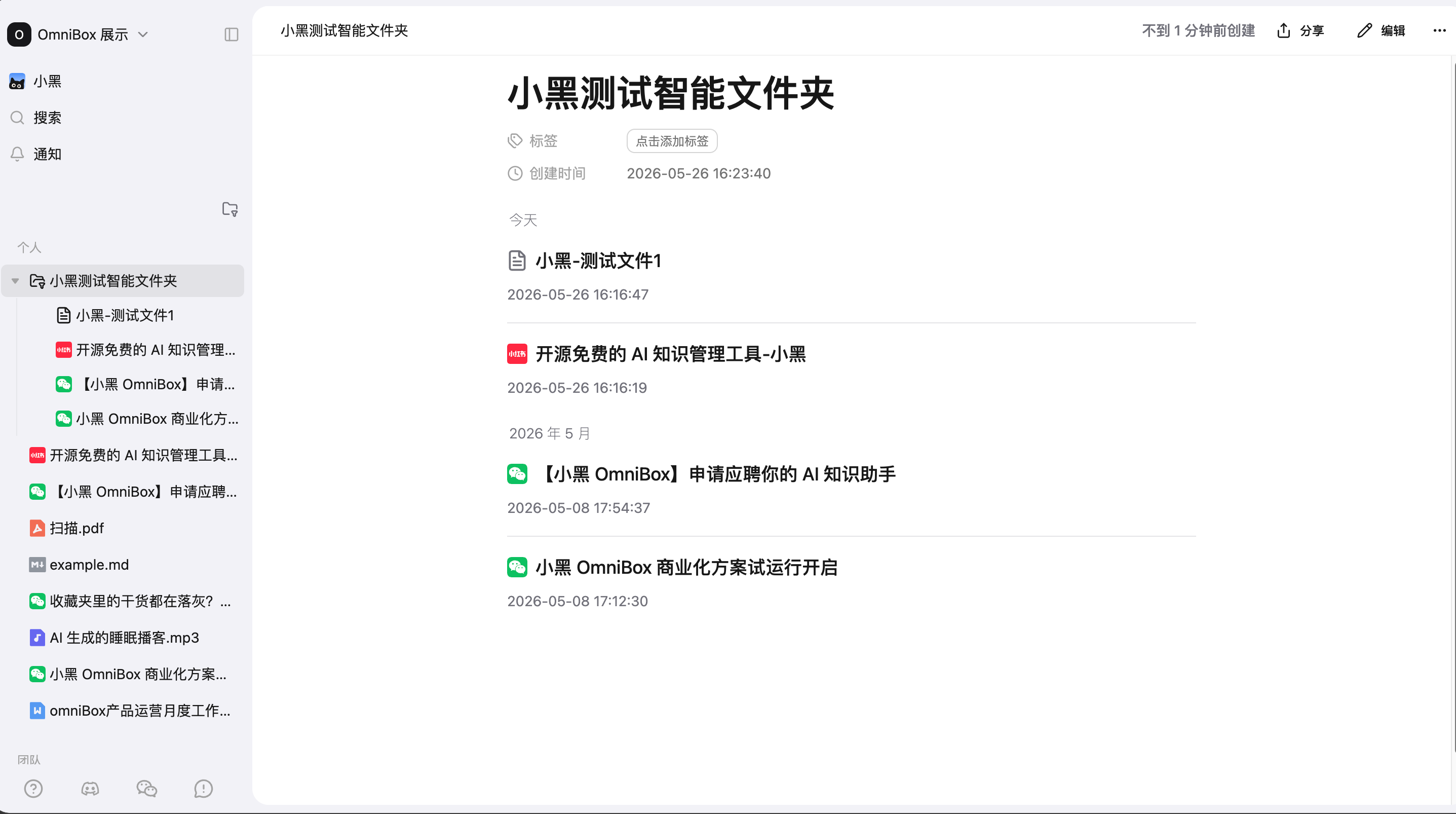
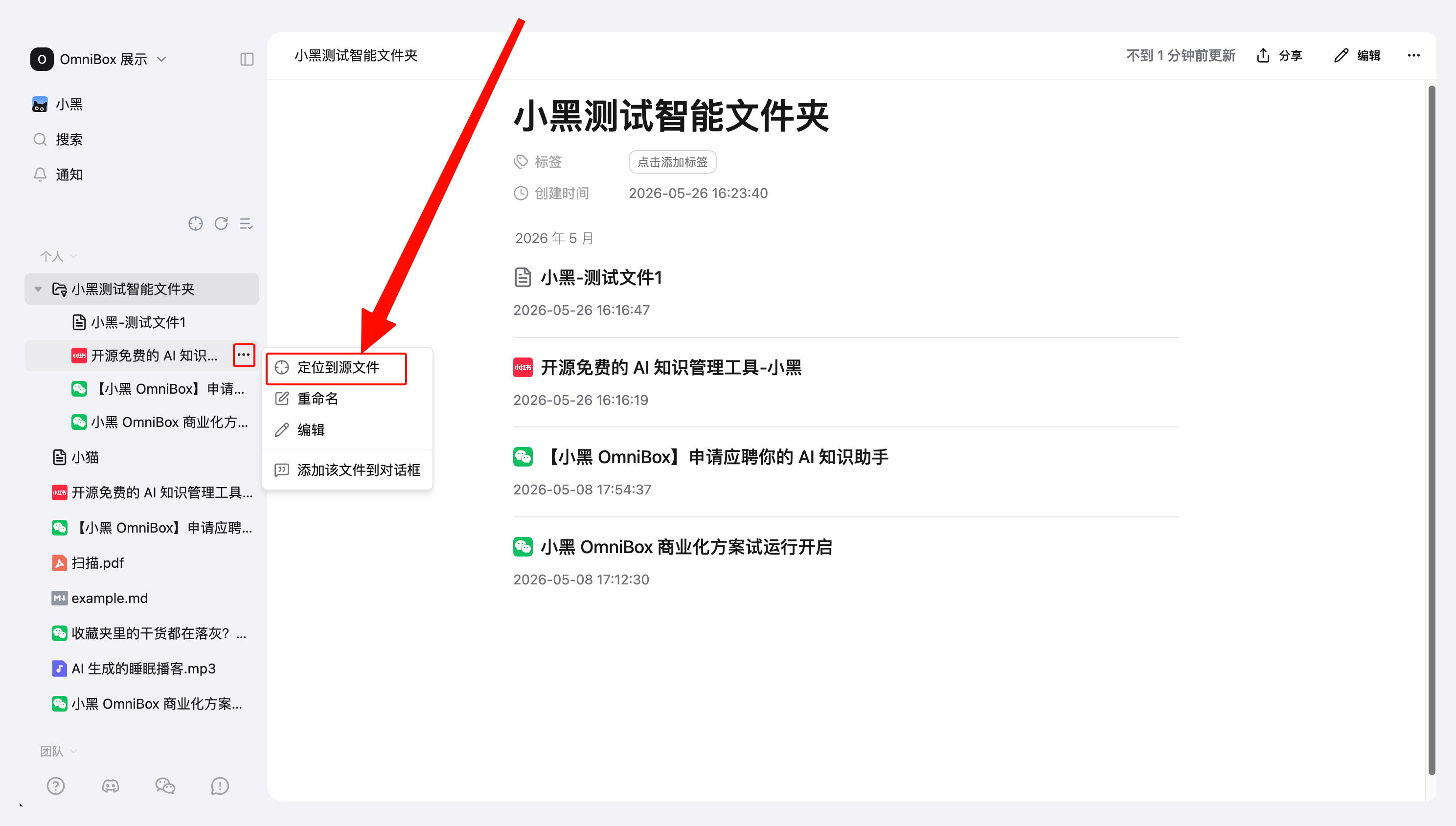
- Resources shown inside a Smart Folder are virtual results. You can use
Locate Source Fileto jump to the original resource in the knowledge base.
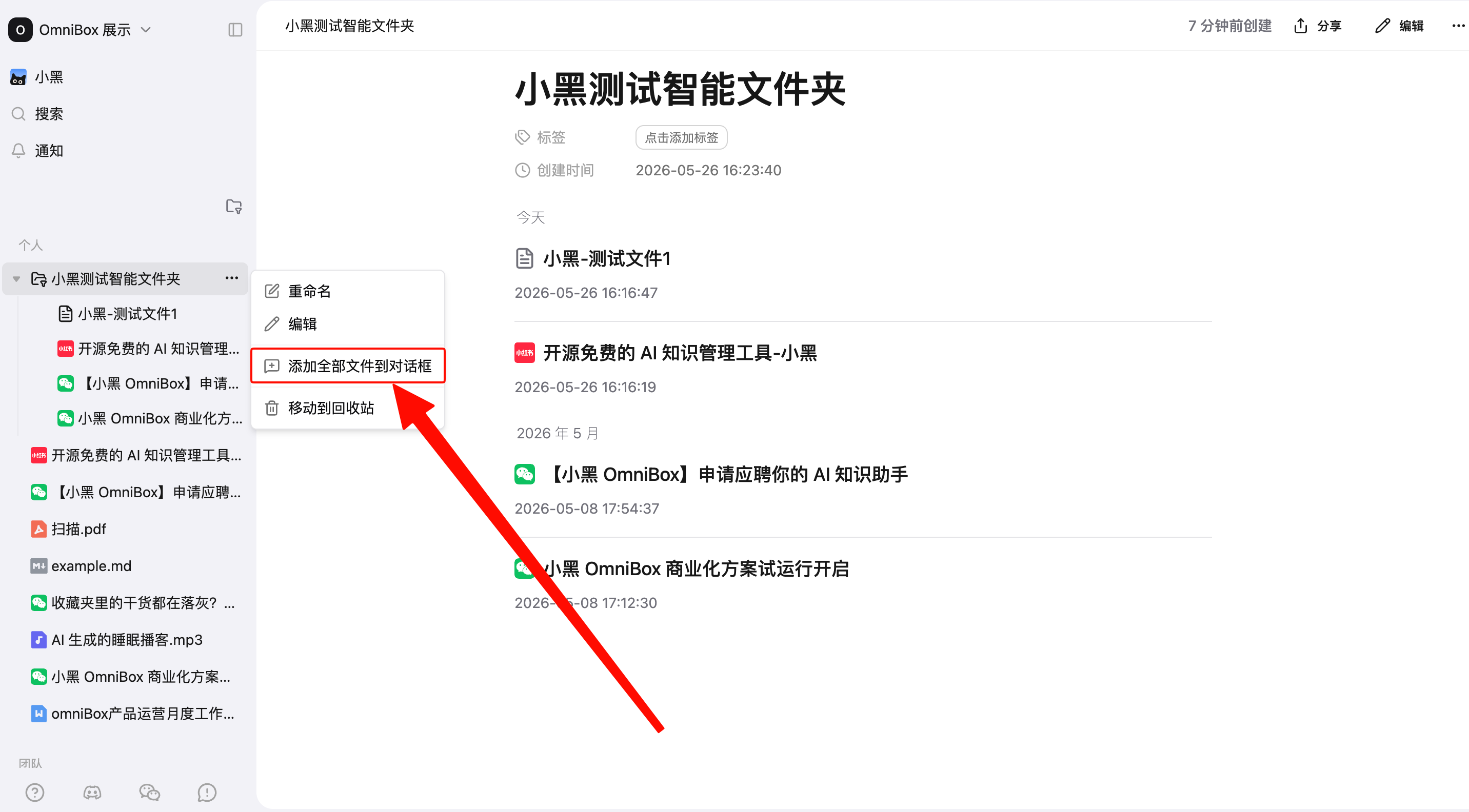
- Smart Folders can also be added to AI conversations as folder context. OmniBox uses the Smart Folder rules to include the current matching resources.
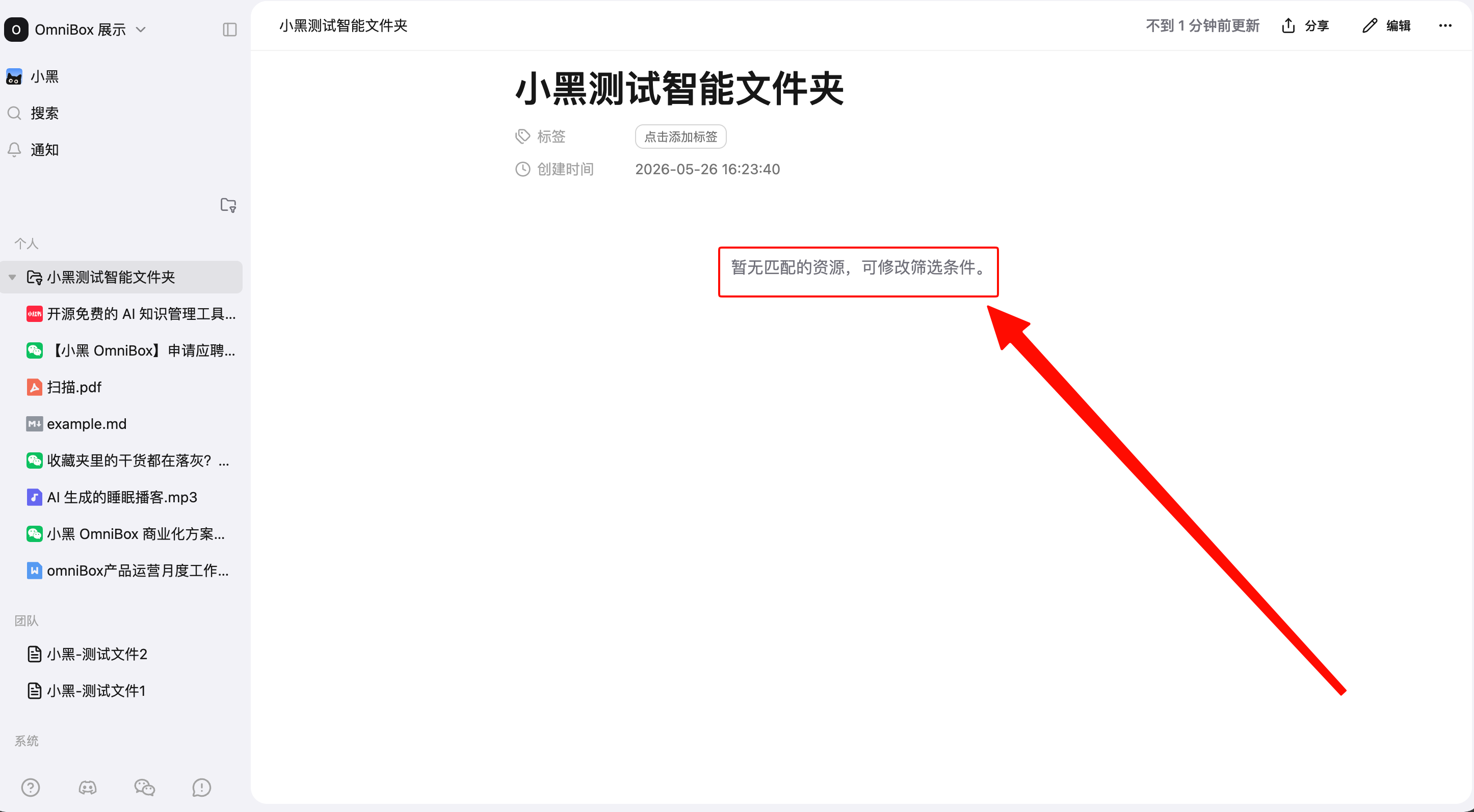
- If no resources match, the Smart Folder shows an empty state. You can edit the filter rules to broaden or adjust the results.
Manage Smart Folders
- Edit a Smart Folder to change its name, scope, match mode, or conditions.
- Moving a Smart Folder to trash only removes the Smart Folder itself. It does not delete the resources shown inside it.
- You cannot upload files, create files, create folders, or move resources into a Smart Folder.
- Smart Folders and regular resources cannot be moved into each other.
Manage Smart Folders with Agent 2.1
You can also ask Agent 2.1 to create, view, edit, or delete Smart Folders in AI conversations on the web or in the Mobile APP. For example, it can draft Smart Folder rules based on a project, tag, or time range, or review an existing Smart Folder and adjust its filter conditions.
When creating, editing, or deleting a Smart Folder, Agent 2.1 shows the action first and waits for your confirmation.
Plan Limits
If you reach the limit of your current plan, OmniBox will show an upgrade prompt.
Basic namespaces support 1
PrivateSmart Folder, 1TeamSmart Folder, and up to 3 conditions per Smart Folder.Pro namespaces support more Smart Folders and up to 10 conditions per Smart Folder.
Mobile APP
You can also create, view, and manage Smart Folders in the OmniBox Mobile APP.
Mobile Entry
You can create a new Smart Folder from the + in the top right of the App homepage.
Mobile Viewing and Management
- On the Smart Folder detail page, you can pull to refresh matching results and tap resources in the matching results to view their content.
- Long press a Smart Folder list item, or tap the menu in the top right of the Smart Folder detail page, to edit its filter conditions or move it to trash.
- Moving a Smart Folder to trash does not affect the resources shown inside it. You can restore it from trash before the retention period ends; after that, it is automatically deleted.