

Agent 1.1
Agent 1.1 is the standard OmniBox AI assistant for Q&A and writing. It connects large language models with your personal knowledge base, helping you answer everyday questions, search saved materials, search the web, and create content through natural conversation.
AI Q&A
New Conversation
Click OmniBox in the left sidebar to enter the Q&A page.
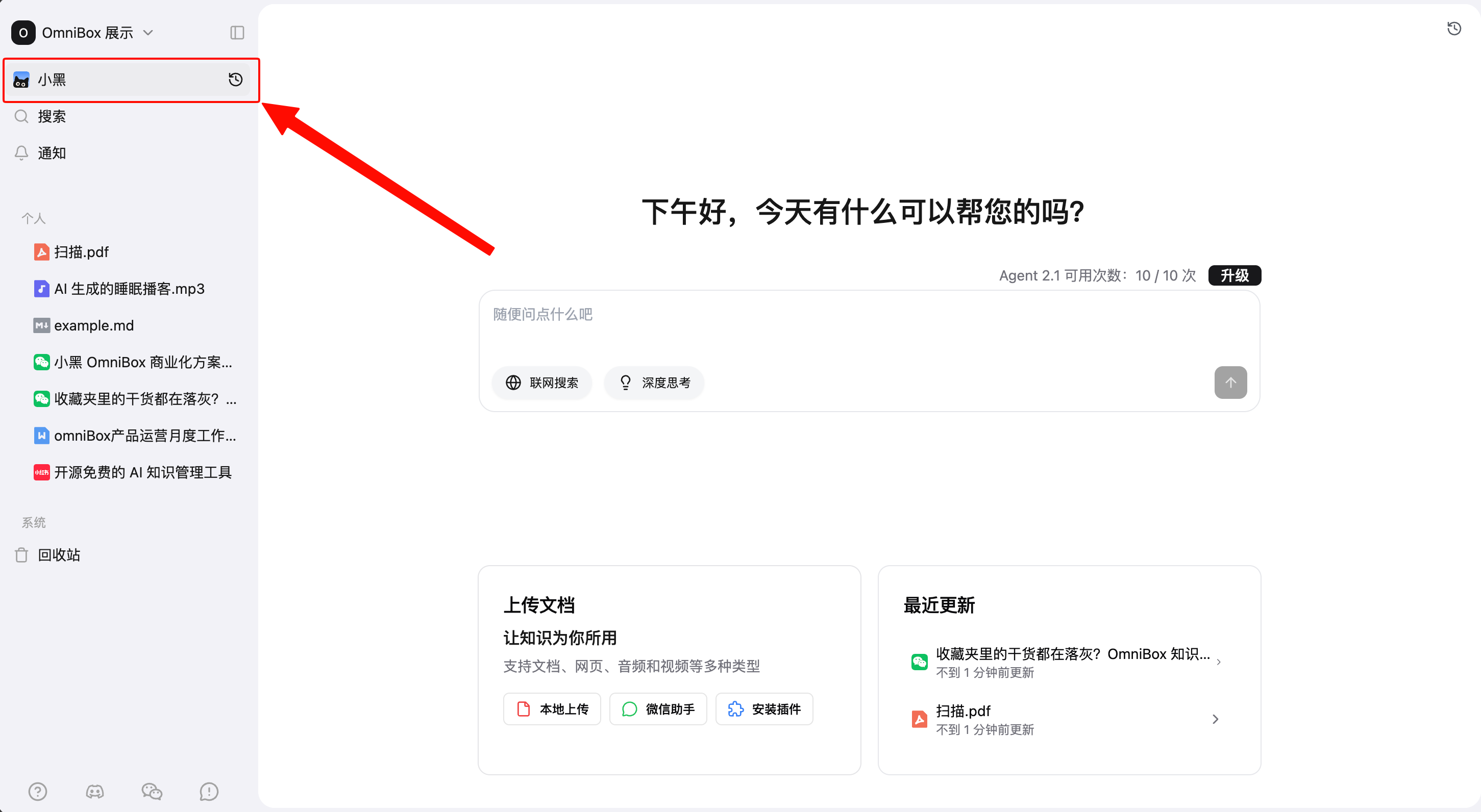
Knowledge Base Q&A
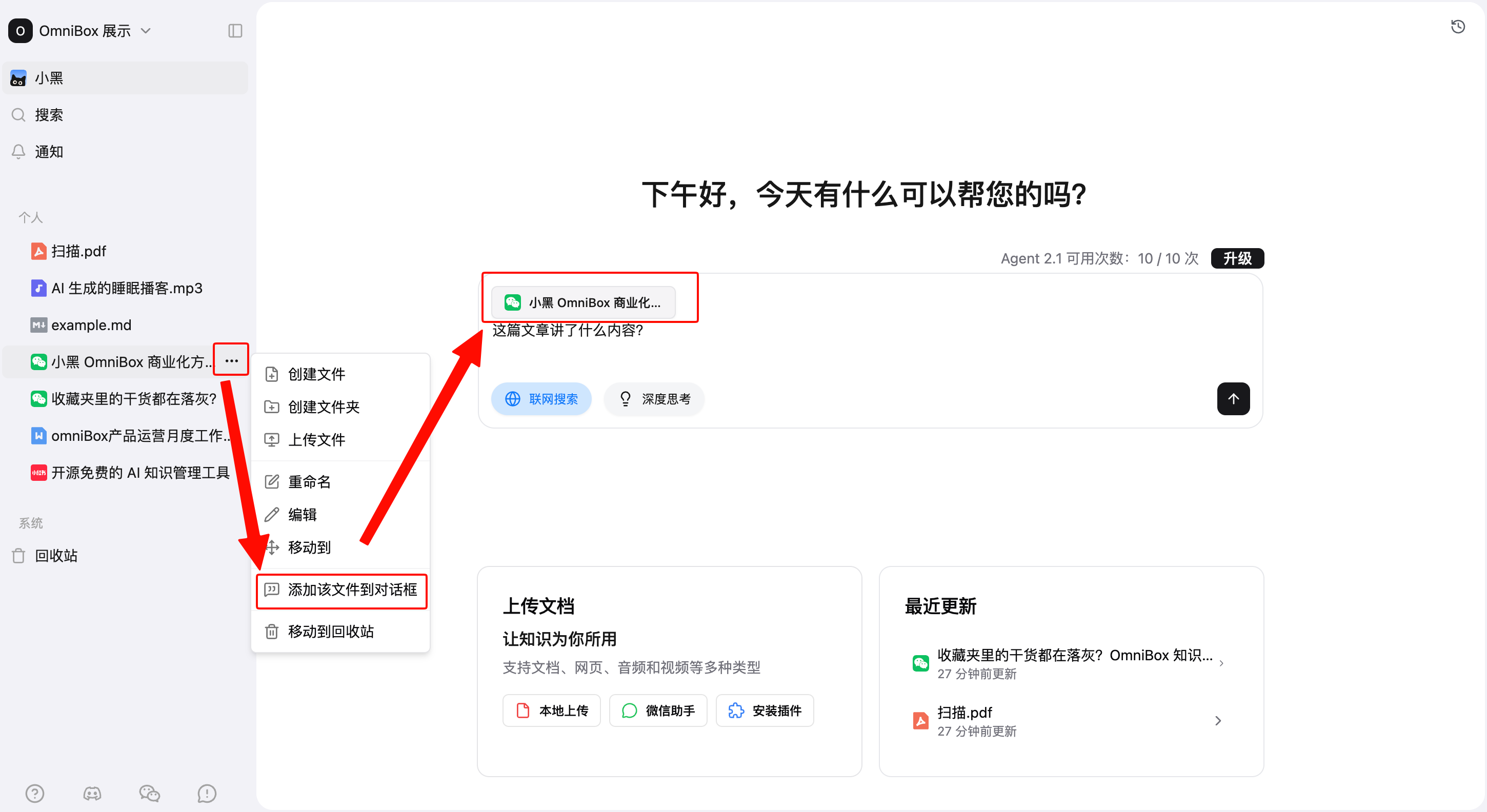
On this page, Local Search is enabled by default for Q&A. OmniBox AI will search your existing knowledge base, find relevant resources, and answer based on them.
You can also add specific resources as context for Q&A. Right-click a resource and click Add this file to chat, or drag resources directly into the chat box. RSS subscription content can also be added to the chat box. You can select one or multiple resources for Q&A.
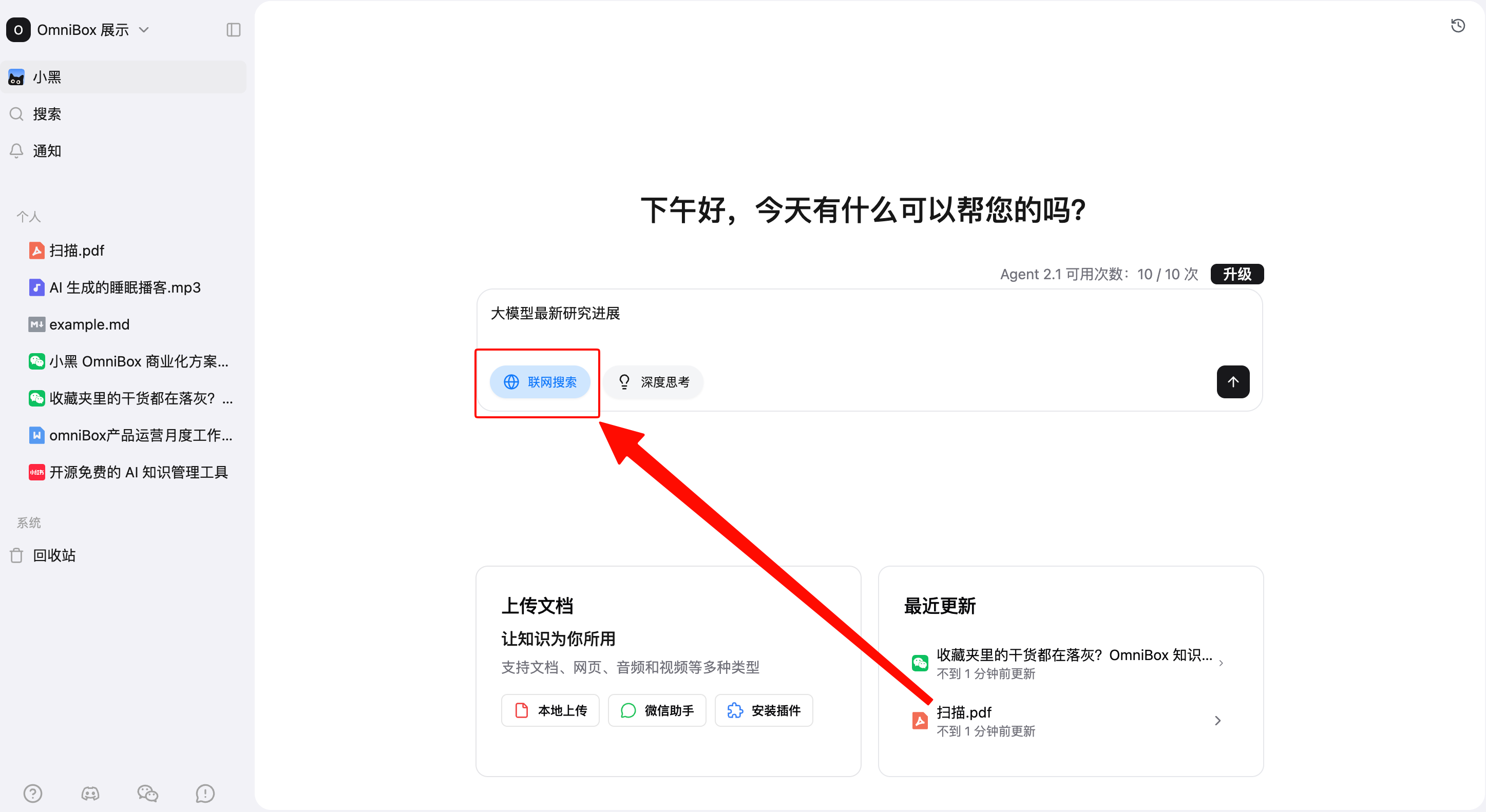
Web Search
When you want to search for the latest news, industry updates, real-time data, or other time-sensitive information, click Web Search, then enter and submit your question.
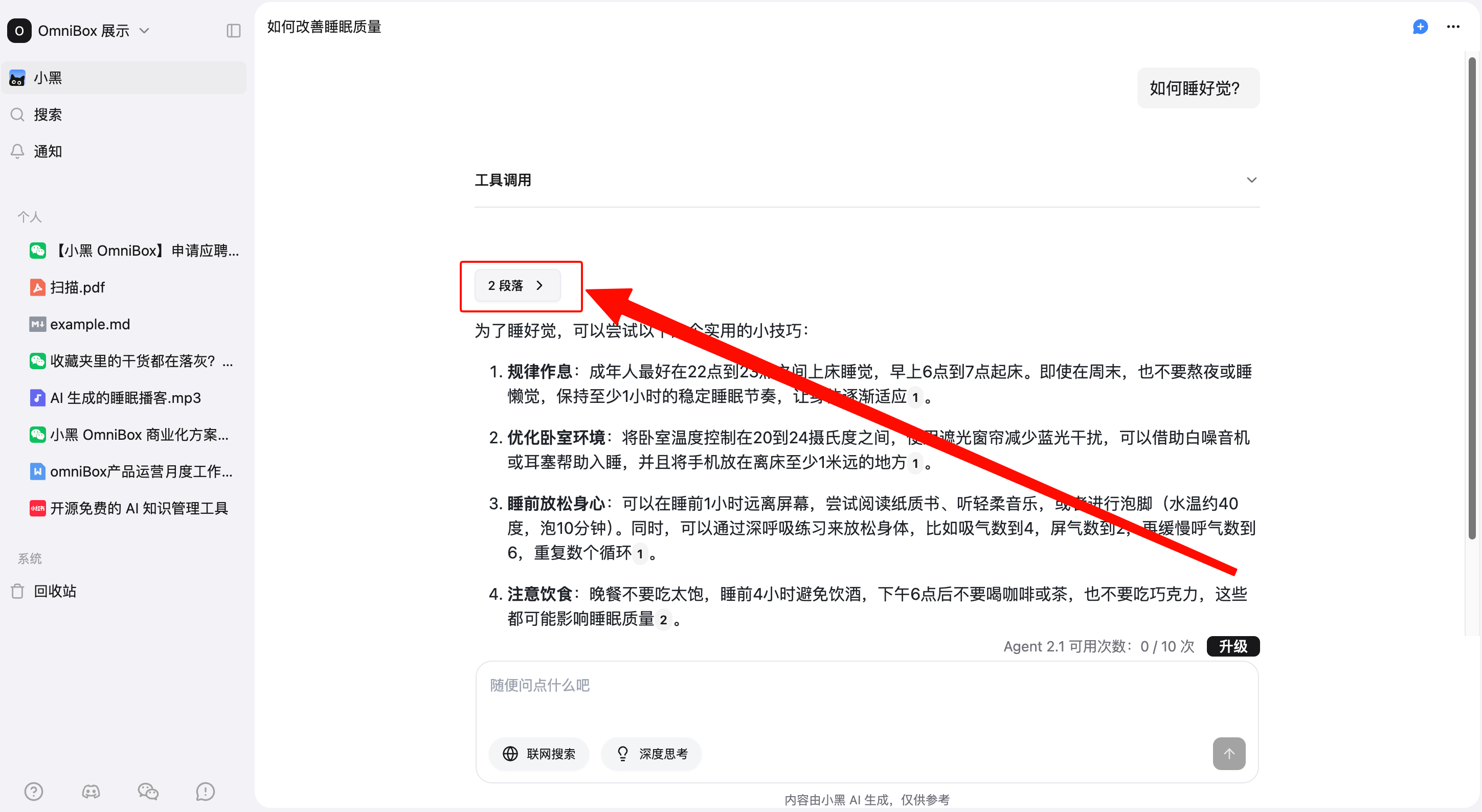
Answers & Citations
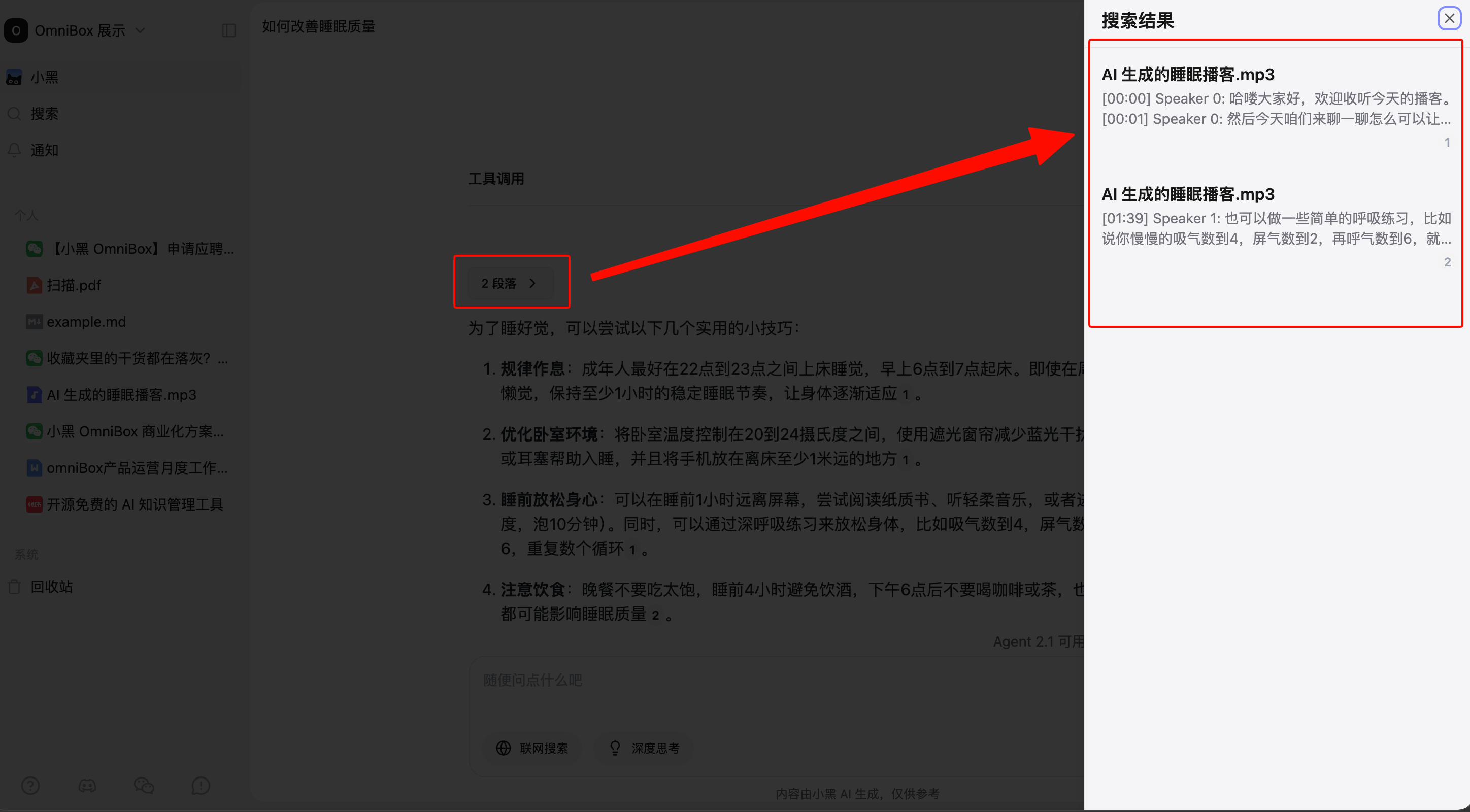
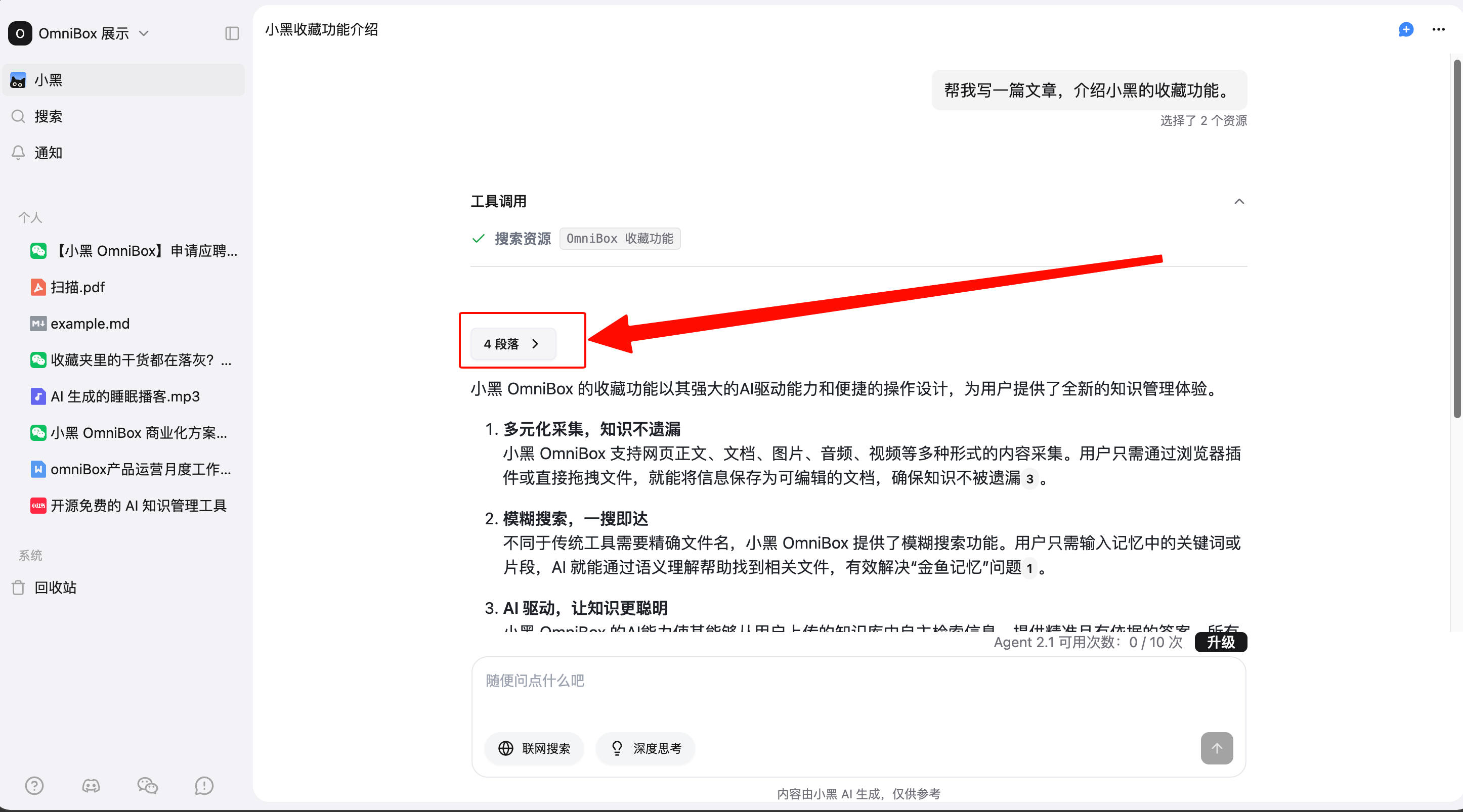
After knowledge base search or web search is enabled, enter your question and send it. AI will decide whether it needs to search, find relevant documents, and generate an answer with citations. Click Paragraphs to view all related knowledge base documents on the right, including document names and partial document information. Resource names in citations now jump directly to the corresponding line, making it easier to review the source text.
Conversation Process and Navigation
Agent 1.1 supports OmniBox AI Basic Conversation Features.
Edit Messages
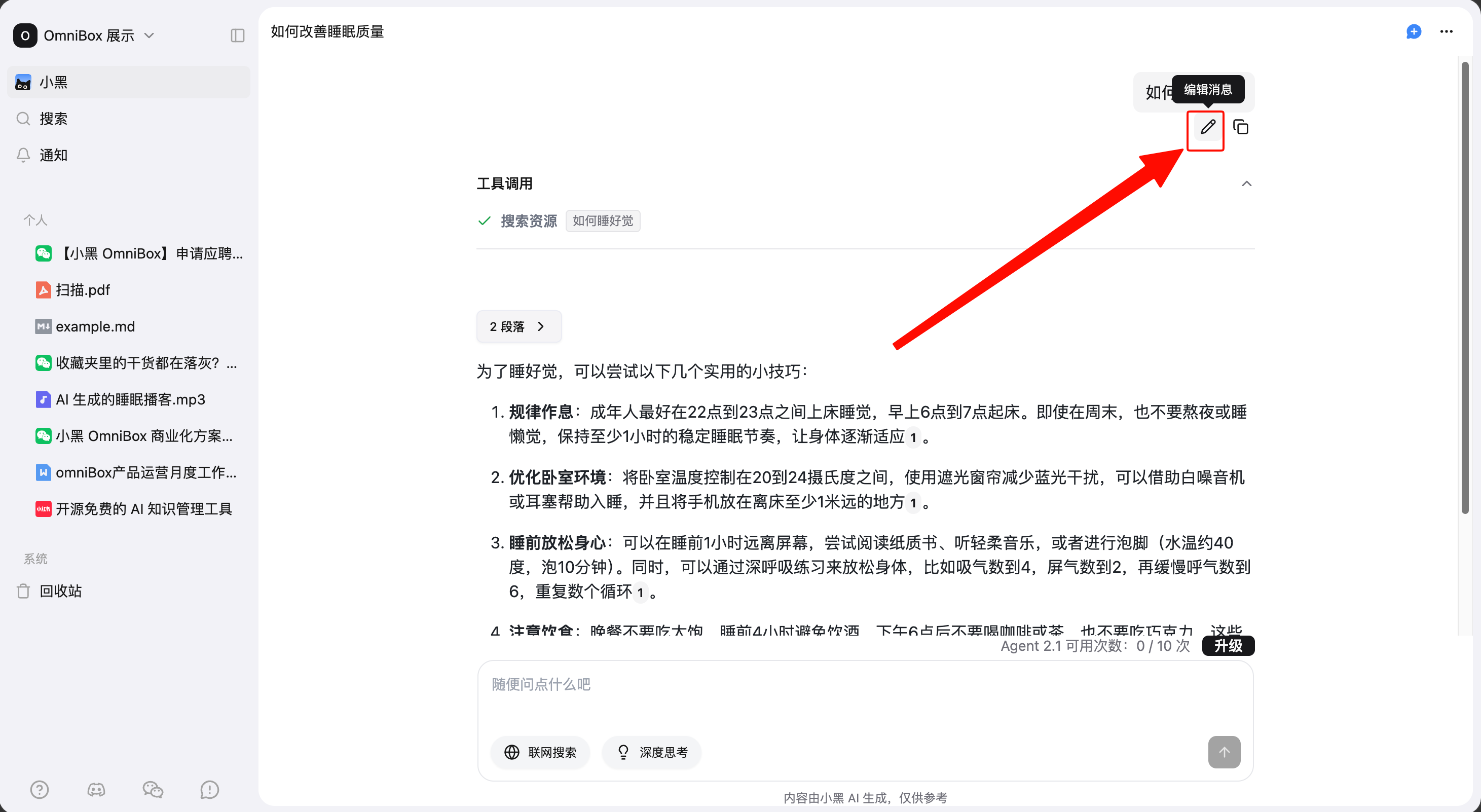
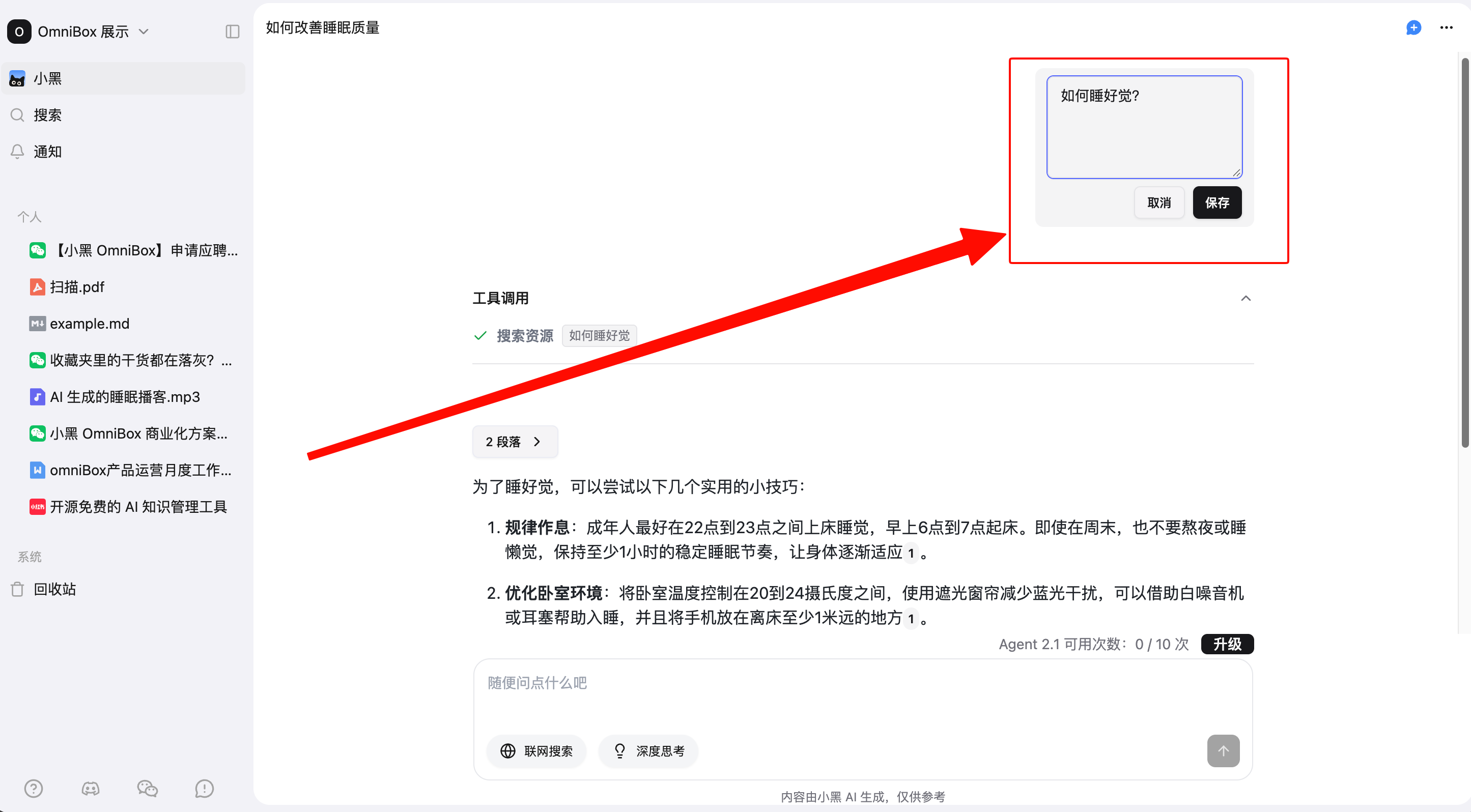
Hover over a sent message and click Edit message to edit it. After clicking Save, AI will answer the updated question.
Copy Messages
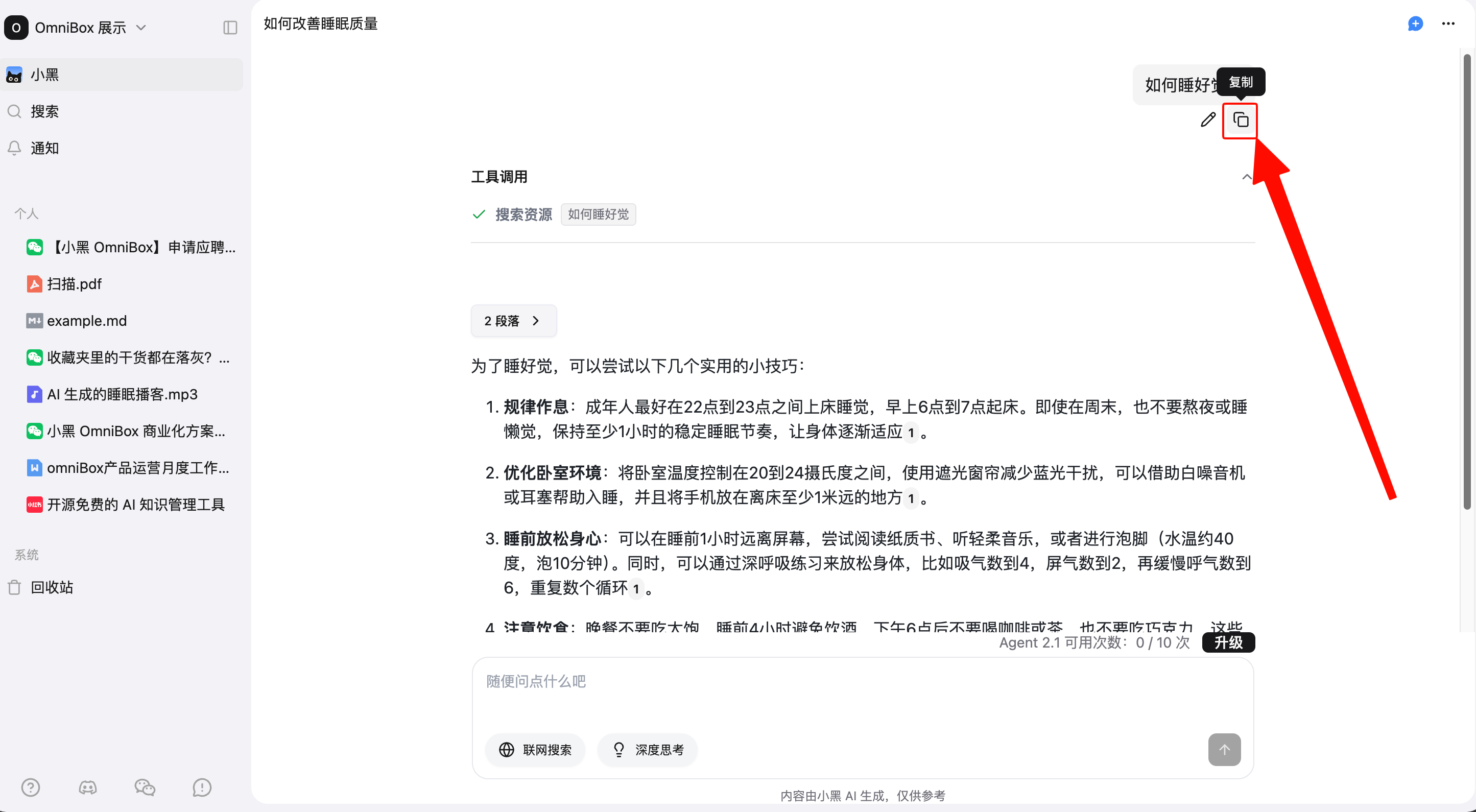
Hover over a sent message and click Copy to copy the message.
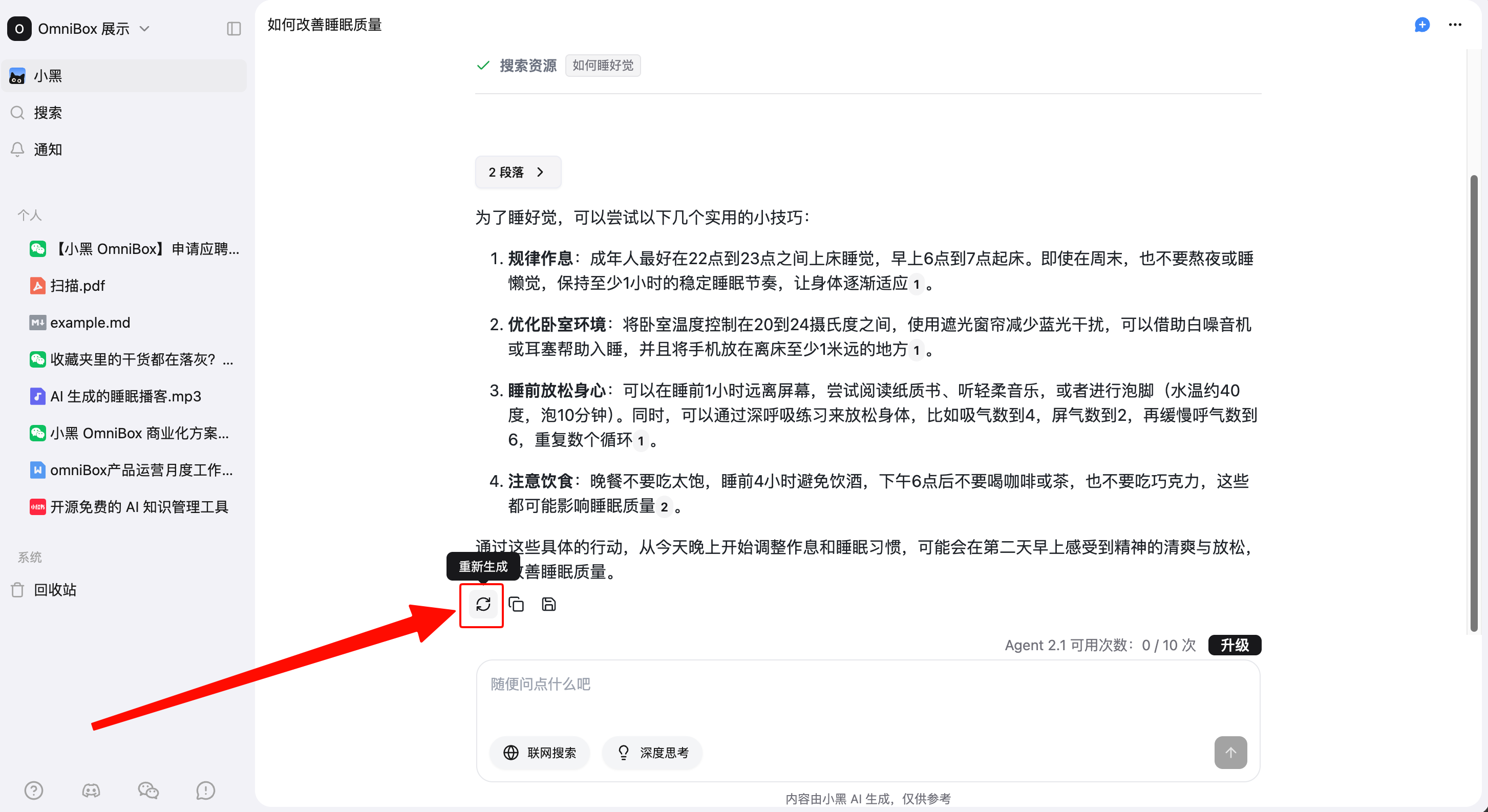
Regenerate Answer
Click Regenerate below an answer to ask AI to generate the answer again.
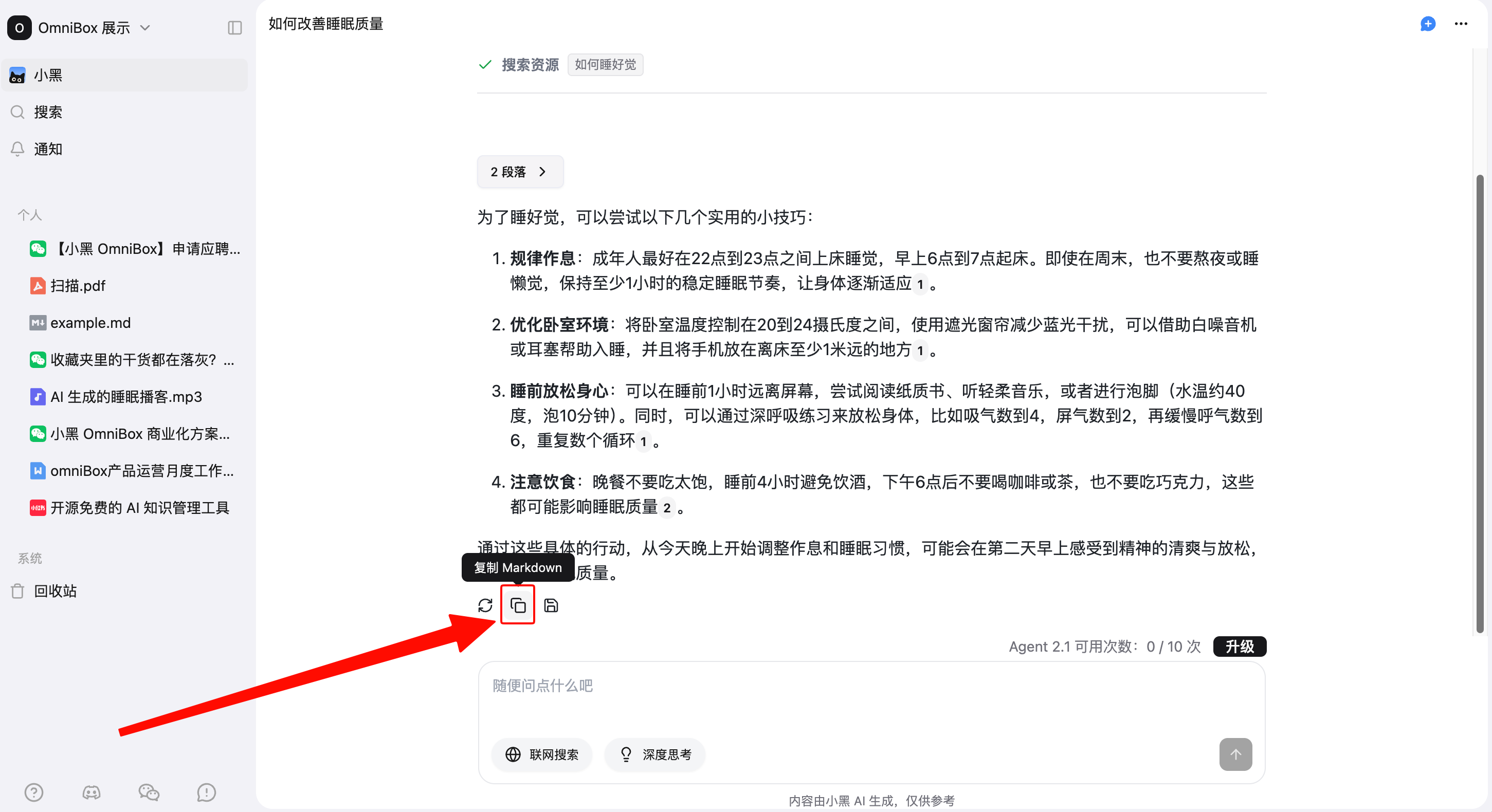
Copy Answer
Click Copy Markdown below an answer to copy the answer in Markdown format.
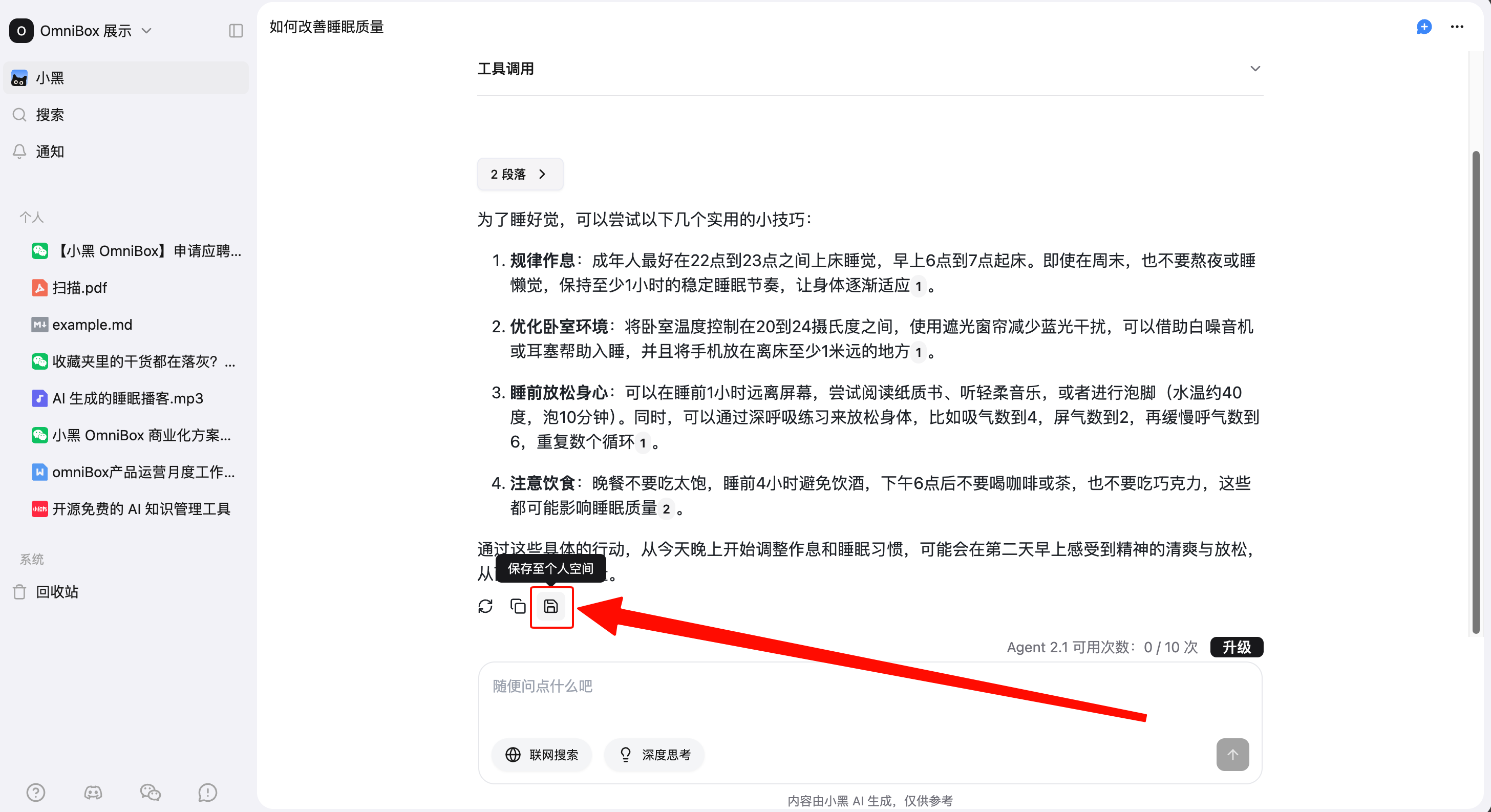
Save Answers to Knowledge Base
Click Save current reply to personal namespace below an answer to save the content to your knowledge base for later reference.
AI Writing
Enter your writing request in the chat box to start writing.
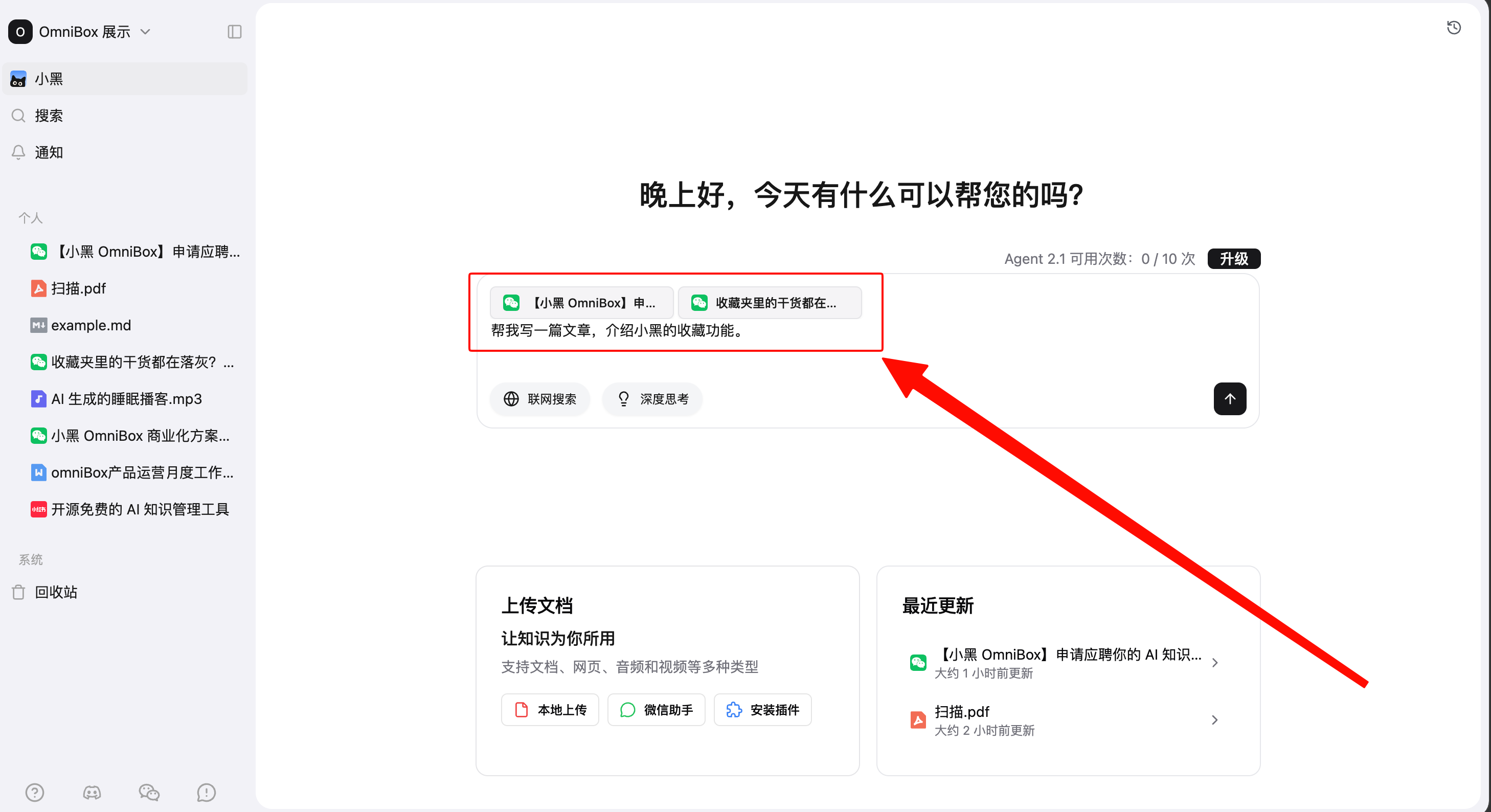
After the writing is complete, you can find related cited files in the content, for example:
Thinking Level
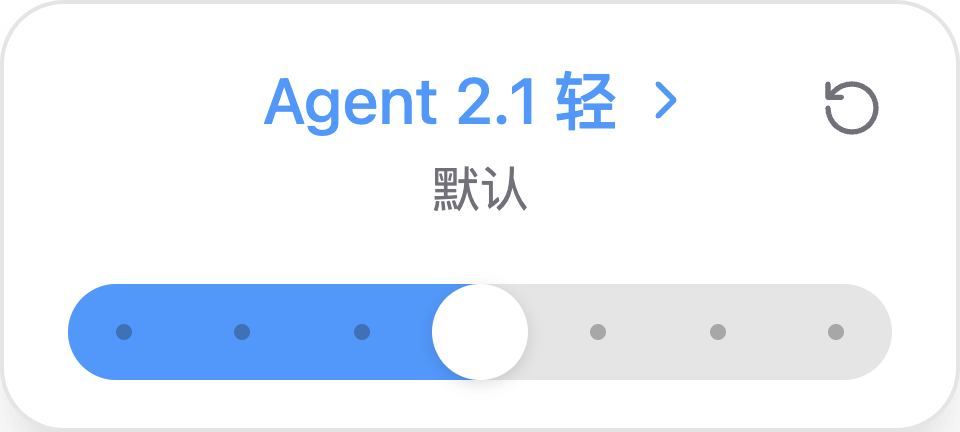
Agent 1.1 does not consume credits. Open the model selector in the lower-right corner of the chat box, set the model type to Agent 1.1, then choose a thinking level: Low, High, or Max.
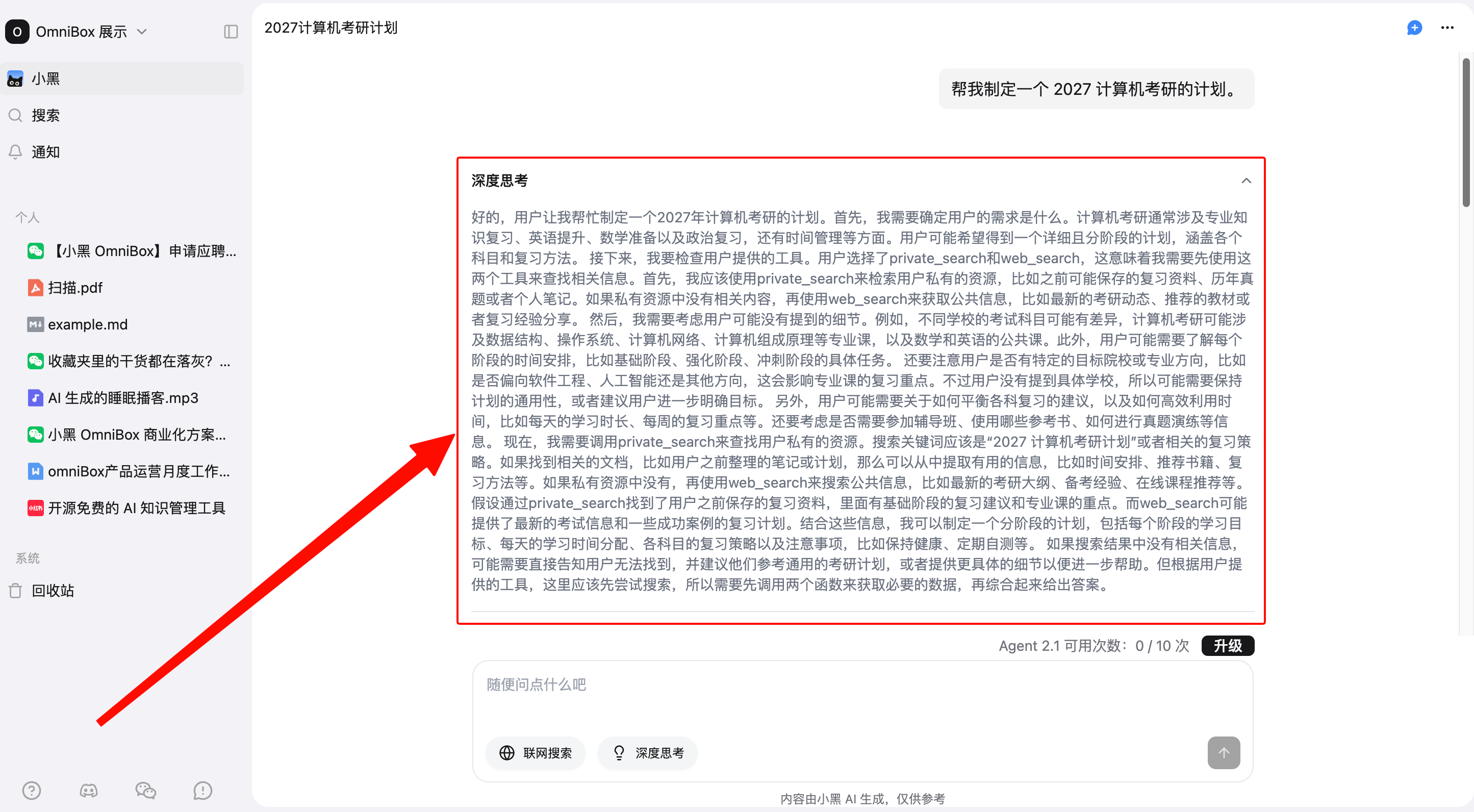
A higher thinking level makes AI analyze the question more thoroughly before answering. The answer also shows the reasoning process.
For switching model types and Agent 2.1 credit rates, see Model Type and Thinking Level.
Chat History
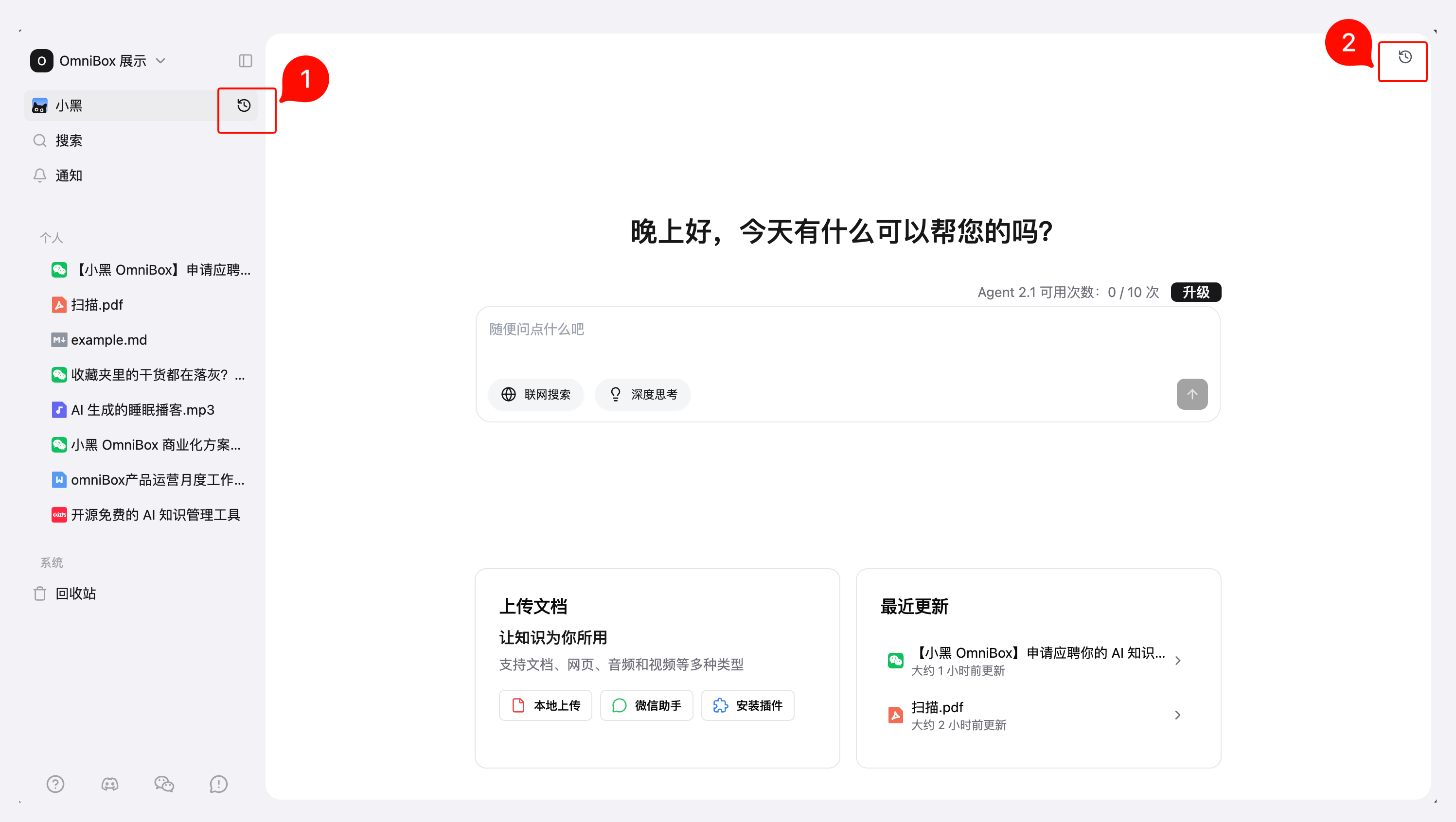
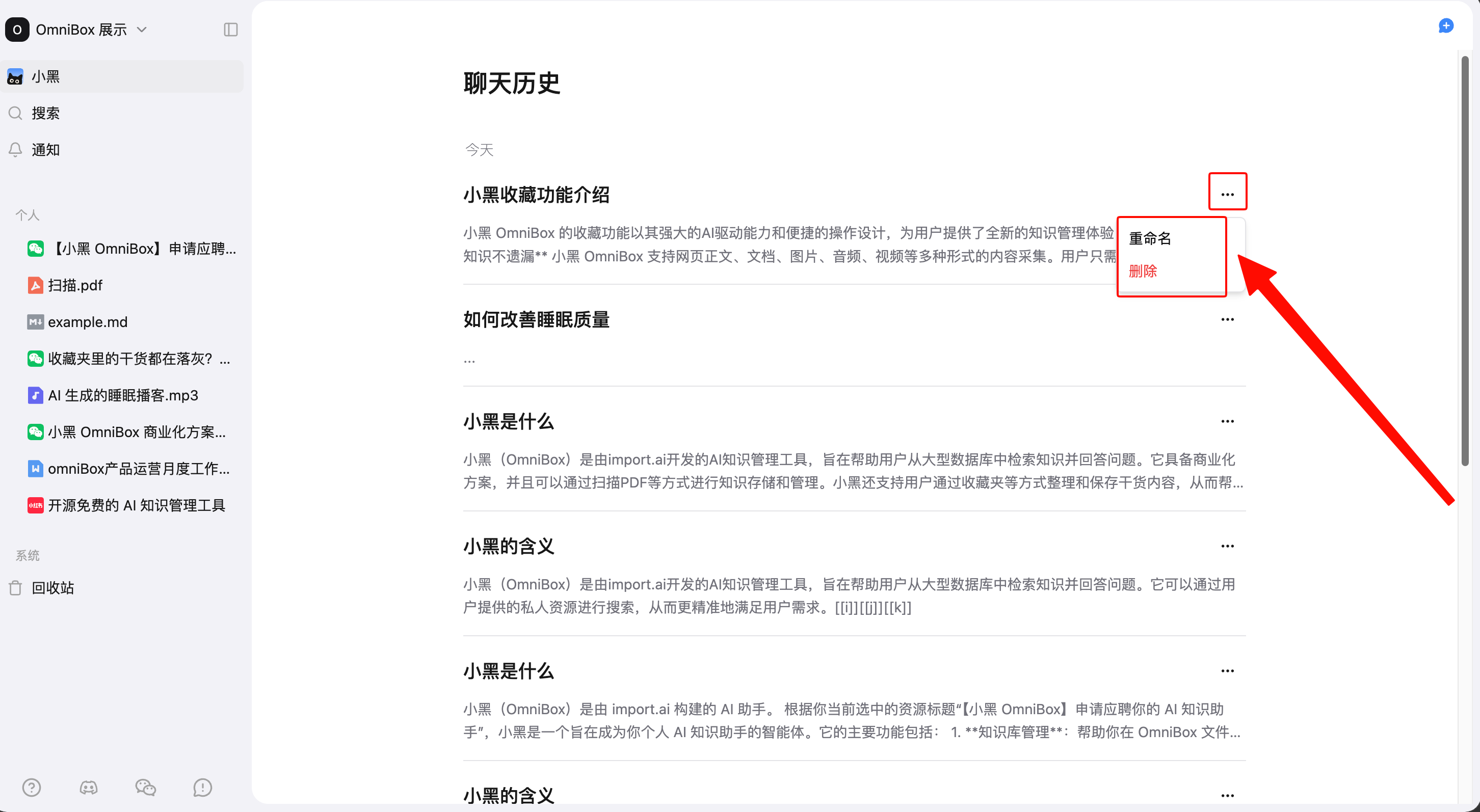
Hover over OmniBox in the left sidebar and click Chat History, or click Chat History in the upper-right corner of the chat page to open chat history. On this page, you can view previous conversations; click the search button in the upper-right corner to search chat history. Previous conversations support Rename and Delete.
Tips
- Use
Shift + Enterto create a new line in the chat box - When a question is beyond Agent 1.1's capability scope, the answer shows a capability-boundary prompt and guides you to upgrade to Agent 2.1
- When Agent 2.1 credits run out, new chats switch to Agent 1.1
- Agent 1.1 does not consume credits. See Agent Credit Usage for Agent 2.1 rates