Notification Center
The Notification Center is the message hub for OmniBox. It brings important updates related to you into one place, such as replies from WeChat Assistant, processing results from WeChat Assistant, system notifications, marketing campaigns, changelogs, surveys, community messages, and more.
Whether you use OmniBox on the web or in the Mobile APP, you can use the Notification Center to check unread messages, view notification details, and open related resources or external links.
Entry Points
Web
On the web app, the notification entry is in the left sidebar. The icon changes based on unread status:
- When there are no unread notifications, it shows a normal bell icon.
- When there are unread notifications, it shows a highlighted bell icon and an unread count.
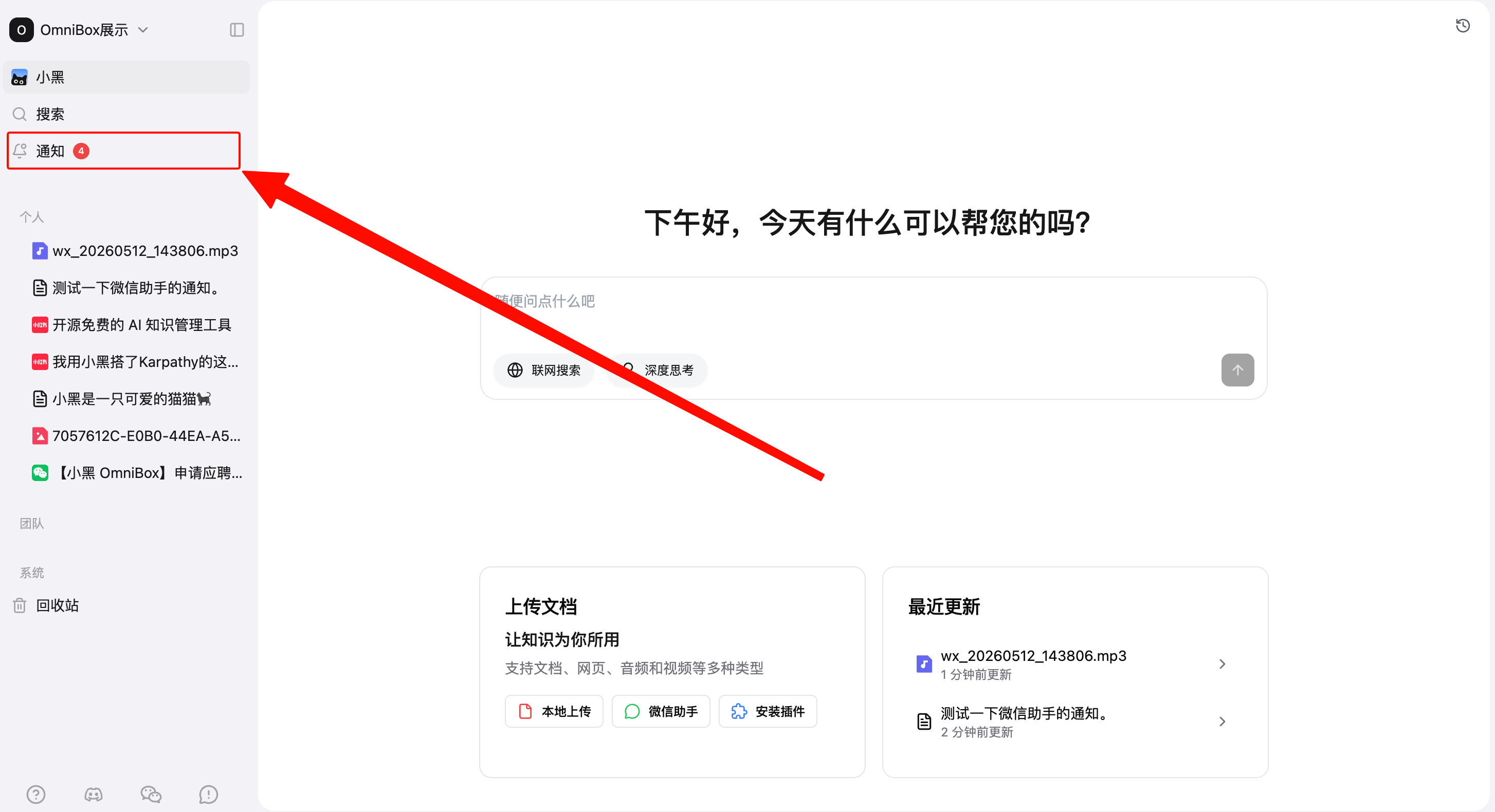
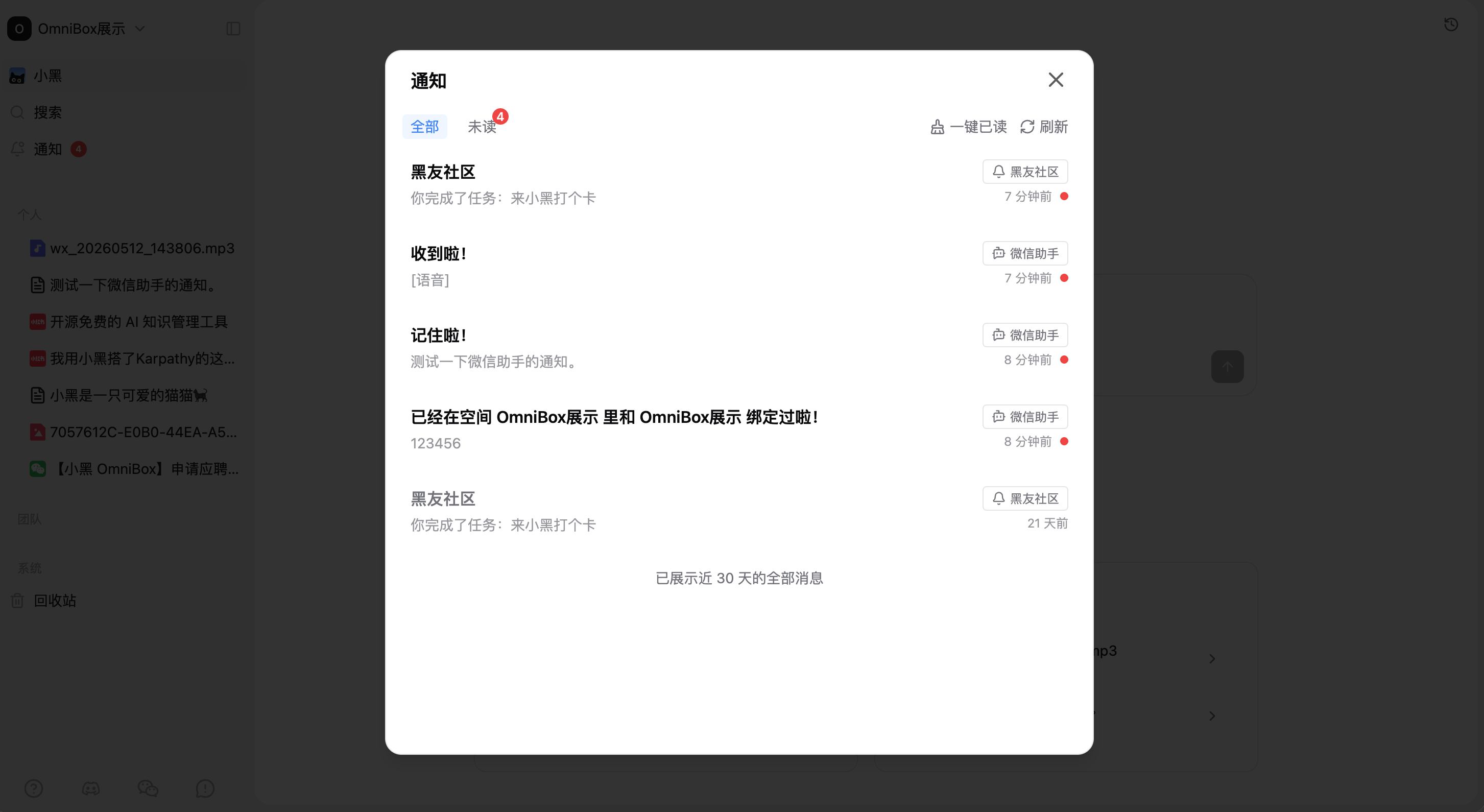
Click Notification to open the Notification Center dialog.
Mobile APP
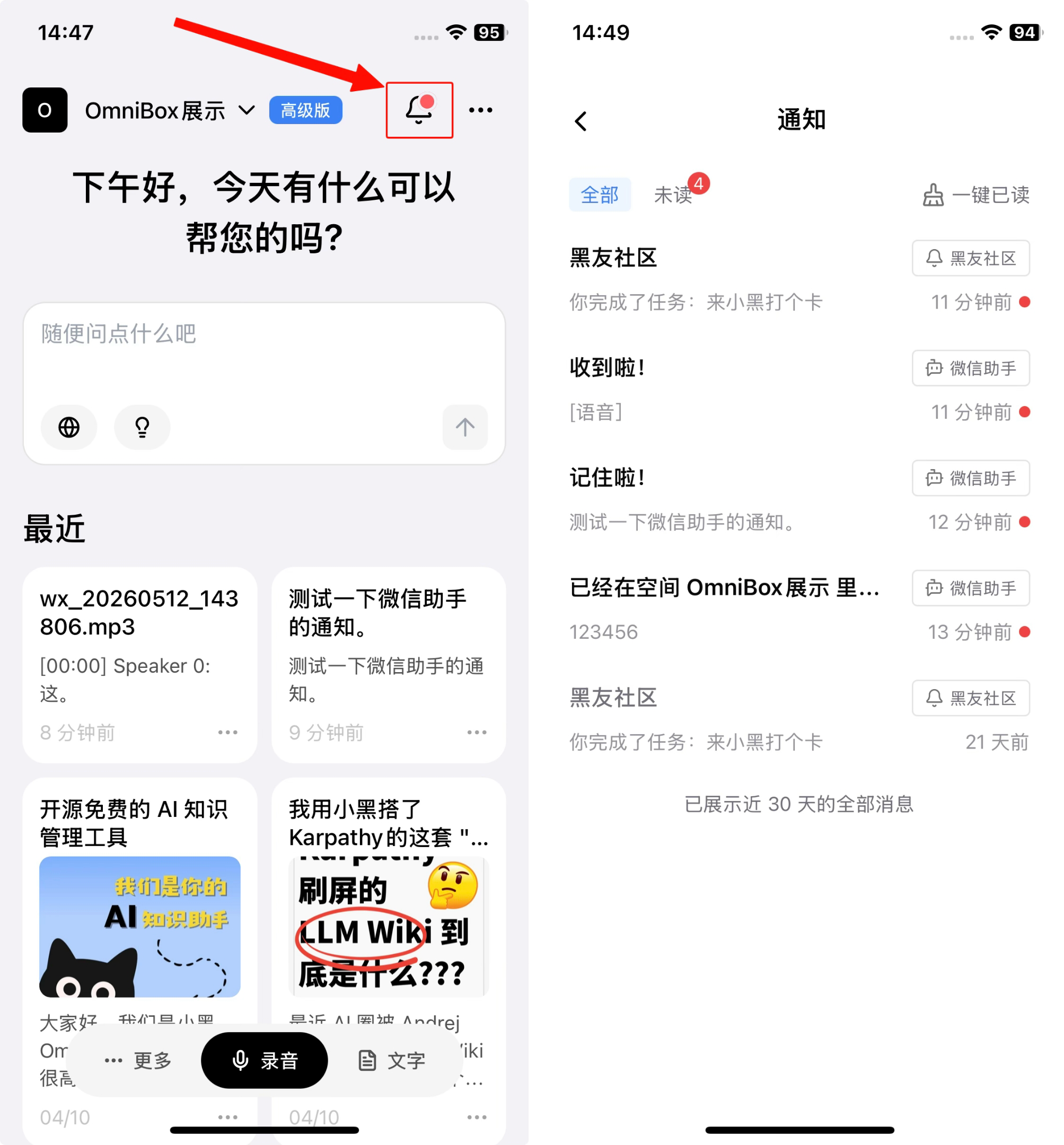
In the Mobile APP, tap the notification bell at the top of the home page to open the Notification Center.
If the current namespace has unread notifications, the bell icon shows a red dot.
What Notifications You May See
The Notification Center displays notifications related to your account and the current namespace. Common types include:
- Assistant results: Replies from WeChat Assistant and reminders when WeChat Assistant finishes processing content.
- Resource reminders: Open the related knowledge base resource directly from the notification.
- Community messages: Notifications from the OmniBox Community.
- System Notifications: Product announcements, service reminders, and other system messages.
- Marketing Campaigns: Events, campaigns, and product operation messages.
- Changelogs: Product version updates and capability changes.
- Surveys: Questionnaires, research, and user feedback messages.
Each notification has a tag, such as System Notifications, Marketing Campaigns, Changelogs, or Surveys, so you can quickly understand where it came from.
Notification List
Each notification shows key information:
- Title: The main message.
- Summary: A short preview of the content.
- Tags and icons: Message source or type, such as WeChat Assistant, OmniBox Community, System Notifications, Marketing Campaigns, Changelogs, or Surveys.
- Time: Displayed as relative time, such as “minutes ago” or “days ago.”
- Unread status: Unread notifications use a stronger title style and a red dot.
The Notification Center shows messages from the last 30 days by default. If the list is long, scroll down to load more.
Filters
You can filter notifications by status:
All: Show all notifications.Unread: Show only unread notifications.
When there are unread notifications, the Unread tab shows the unread count.
Details and Navigation
When you click or tap a notification, OmniBox handles it based on the notification type:
- If the notification is linked to a knowledge base resource, OmniBox opens that resource.
- If the notification is linked to an external URL, OmniBox opens the webpage.
- If there is no direct target, OmniBox opens a detail dialog with the full content.
Notification details support Markdown content, which is useful for longer announcements, explanations, or assistant results.
Notification details show an icon for the notification type, making it easier to distinguish different notification types.
After you open a notification, it is automatically marked as read.
Unread Management
The Notification Center automatically counts unread notifications in the current namespace and shows the reminder at the entry point.
You can also use Mark all read to mark all unread notifications in the current scope as read.
If you only want to handle one notification, open that notification and it will be marked as read automatically.
Refresh and Auto Updates
The Notification Center regularly checks for new notifications and unread counts so you can see updates in time.
You can also click Refresh to update the notification list immediately.
On Mobile APP, notifications are refreshed when the app returns to the foreground or when you reopen the Notification Center.
Relationship With Namespaces
Notifications are shown based on your account and the current namespace:
- Personal notifications are visible only to you.
- Namespace notifications are shown in the related namespace.
- When you switch namespaces, namespace-related notifications change accordingly.
If you do not see an expected notification, first check whether you are in the correct namespace.
Common Actions
View Unread Notifications
- Open the Notification Center.
- Click
Unread. - Click a notification to view details or open the related resource.
Mark All as Read
- Open the Notification Center.
- Click
Mark all read. - The unread count will clear, and unread red dots in the list will disappear.
Open a Resource From a Notification
- Open the Notification Center.
- Click a resource-related notification.
- OmniBox opens the related knowledge base resource automatically.
Tips
- The Notification Center mainly shows messages from the last 30 days. Older messages may no longer appear.
- If a notification comes from an assistant result, opening it usually takes you to the related saved resource.
- If the unread count does not update immediately, refresh the Notification Center manually.
- The Mobile APP also supports system notifications, where you can view push notification content.