

WeChat AI Chat Assistant
The WeChat AI Chat Assistant runs through the WeChat official account 小黑 OmniBox. It is separate from the save-only WeChat Collection Assistant and does not require adding a WeChat ClawBot contact.
Requirements
- Sign in to OmniBox and bind the official account to the namespace you want to use.
- Chat and saving through the official account are available only while the bound namespace has an active Pro entitlement. Basic namespaces cannot use this assistant; expired Pro namespaces must renew to resume access. Following the account alone does not enable these features.
- While Pro entitlement remains active, the namespace uses Agent 2.1 when credits remain and falls back to Agent 1.1 when credits are exhausted. This fallback does not provide access to Basic namespaces.
- For free, save-only access, use the WeChat Collection Assistant.
Binding
- On the web, switch to the target namespace and open
Settings>Assistants. - Find
WeChat AI Chat Assistant, clickBind, and scan the QR code in WeChat. Follow the official account and complete the prompts. - Return to Assistants and confirm the bound status. If you already follow the official account, send
绑定and follow its instructions. - Check the namespace name in the official account reply to confirm where chat and saved content will be handled.
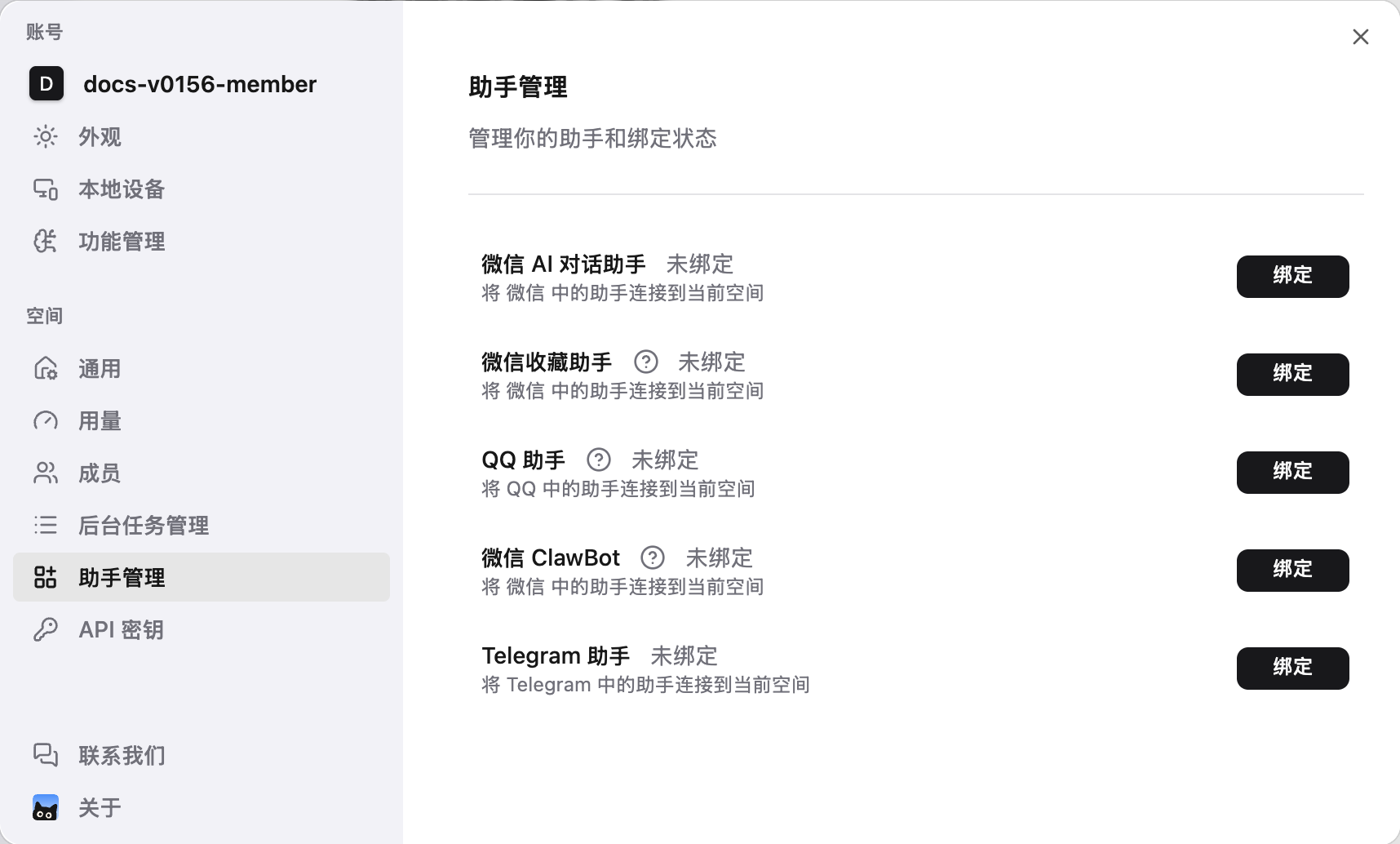
The mobile app also supports binding in Settings > Assistants. To change namespaces, unbind in the original namespace before binding in the target one.
Chat and Saving
Send text, images, or web links and let OmniBox determine whether to save or answer. Use commands when you want to make your intent explicit:
/ask Summarize this week's project materials in my knowledge base
/write Draft a weekly report outline from these materials
/save Project idea: organize the materials before discussing the plan/askand/问答ask questions;/writeand/写作request writing;/saveand/保存explicitly save text./newstarts a new conversation without the previous topic's context.- Save confirmations can include a resource link that opens the saved content in OmniBox.
- Voice messages can be used directly for Q&A; see Voice Questions. To save audio or files, use the appropriate WeChat Collection Assistant or file upload entry.
Voice Questions
- After binding, record and send a voice question to the 小黑 OmniBox official account in WeChat.
- OmniBox recognizes the speech and answers the question; you do not need to transcribe it manually first.
- If the reply says no speech was recognized, record it again or send your question as text.
Voice messages are questions, not audio files automatically saved to your knowledge base. Use an audio collection or upload entry when you want to save a recording.
While waiting, WeChat may show a typing status to indicate that OmniBox is processing the question. This does not mean the answer is complete.
Guided Tutorial
After binding, tap 带咪上岗 in the reply to try recording text, sending an image, and asking questions. 跳过 advances to the next tutorial step; 跳过教程 ends the tutorial.
Namespaces, Permissions, and Tips
- Save destinations and accessible materials follow the bound namespace and your permissions. Following the account does not merge materials from other namespaces.
- Tool approvals through the official account are approved automatically by default. For changes to your knowledge base, explicitly ask for a proposal without modifications first. Use manual approval in web chat when you need to confirm actions individually.
- If you do not own the bound namespace, contact its owner to upgrade or renew, or follow the instructions to rebind to your own namespace.
- Rewards can be granted to another eligible namespace you own. Check the notification's namespace name; a reward does not automatically change the assistant's binding.