

Agent 1.1
Agent 1.1 is the standard OmniBox AI assistant for Q&A and writing. It connects large language models with your personal knowledge base, helping you answer everyday questions, search saved materials, search the web, and create content through natural conversation.
AI Q&A
New Conversation
Click OmniBox in the left sidebar to enter the Q&A page.
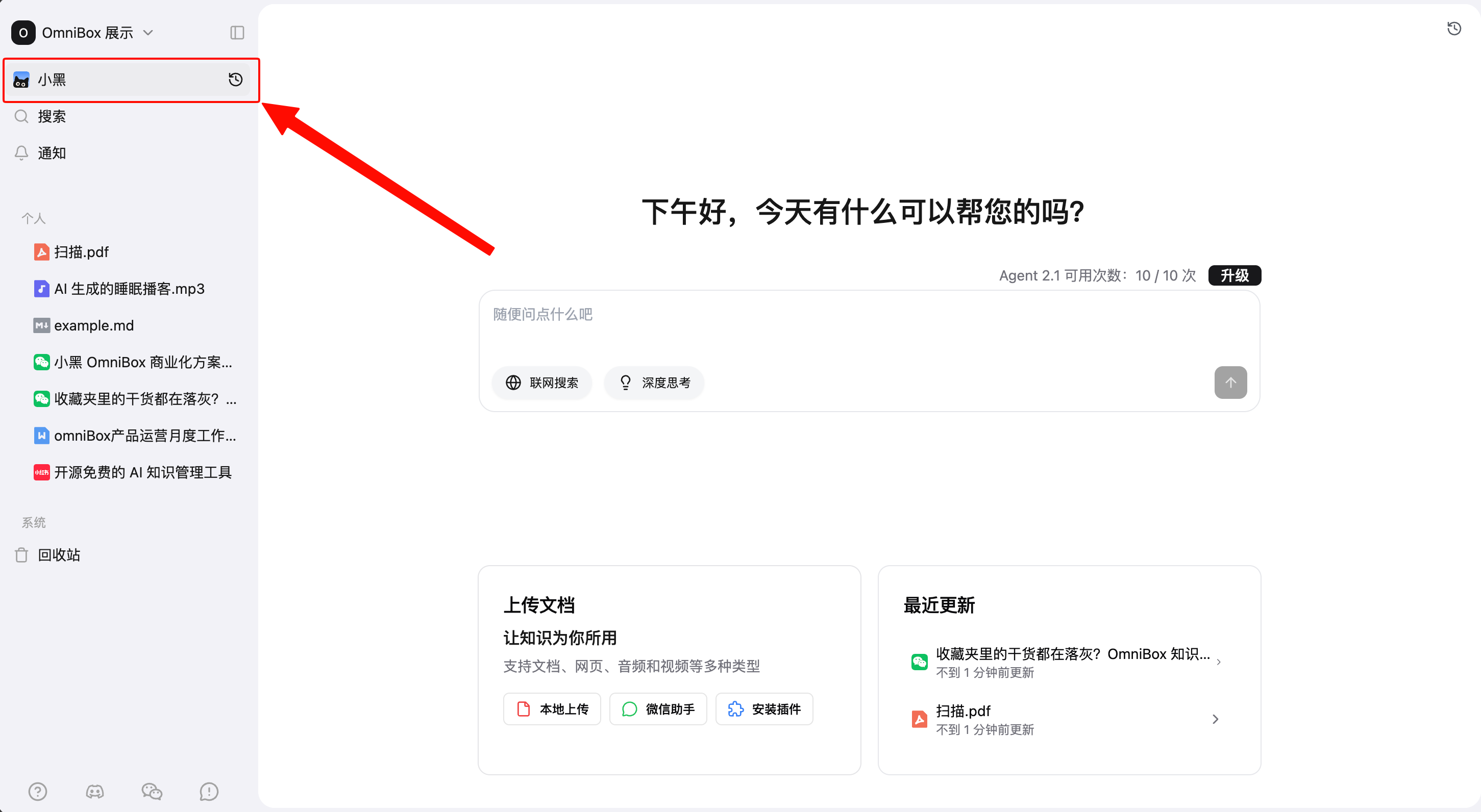
Knowledge Base Q&A
On this page, Local Search is enabled by default for Q&A. OmniBox AI will search your existing knowledge base, find relevant resources, and answer based on them.
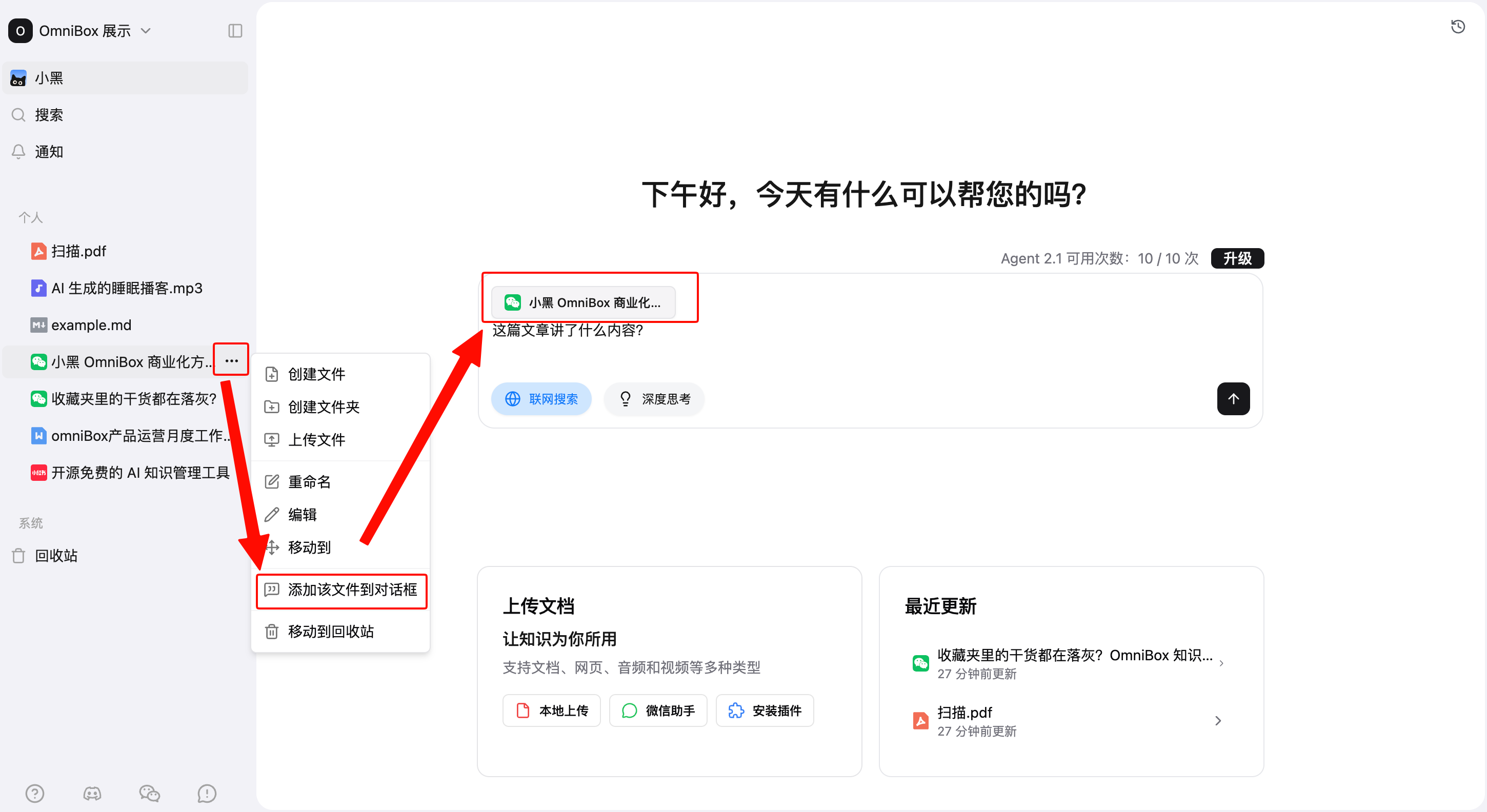
You can also add specific resources as context for Q&A. Right-click a resource and click Add this file to chat. You can select one or multiple resources for Q&A.
Web Search
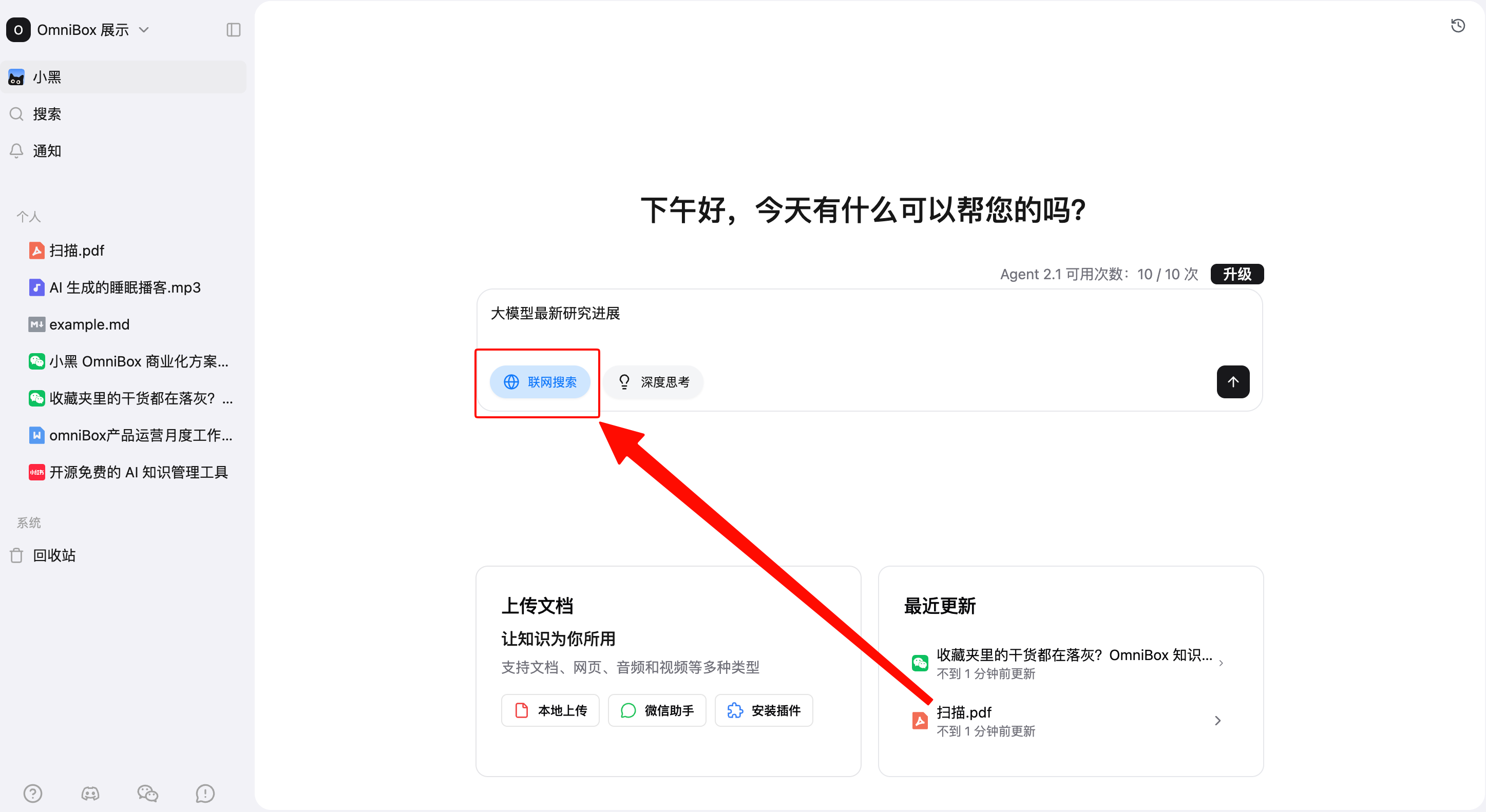
When you want to search for the latest news, industry updates, real-time data, or other time-sensitive information, click Web Search, then enter and submit your question.
Answers & Citations
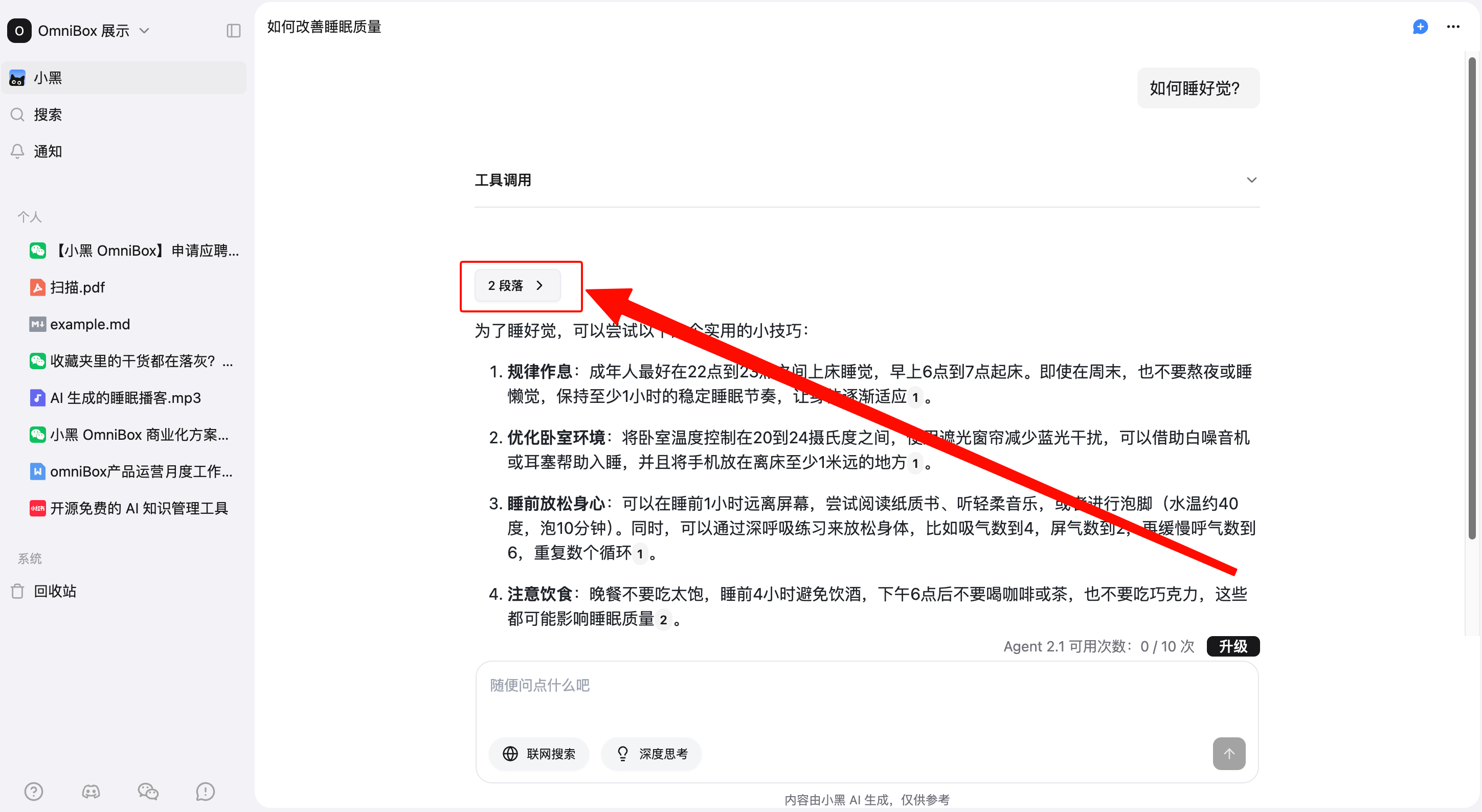
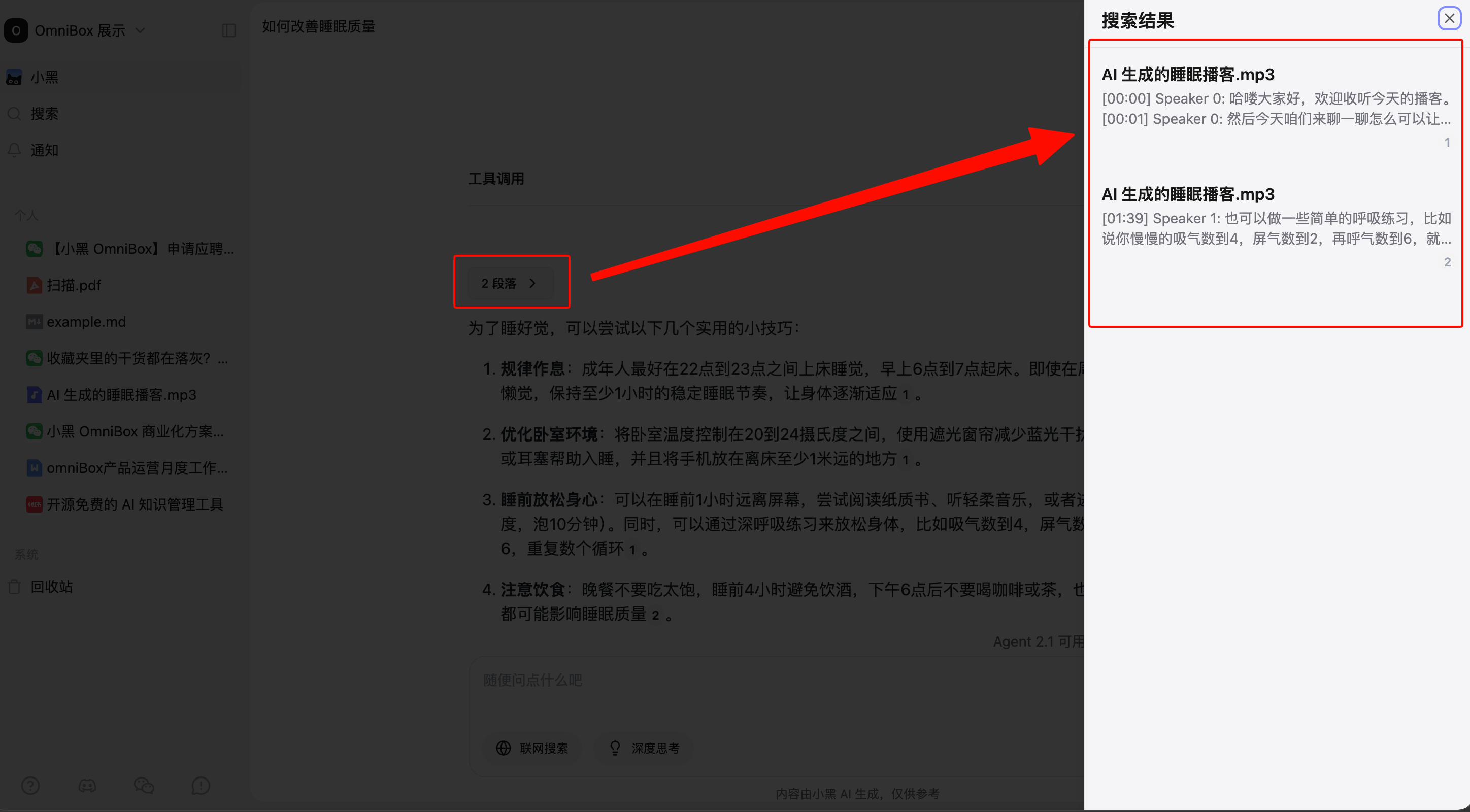
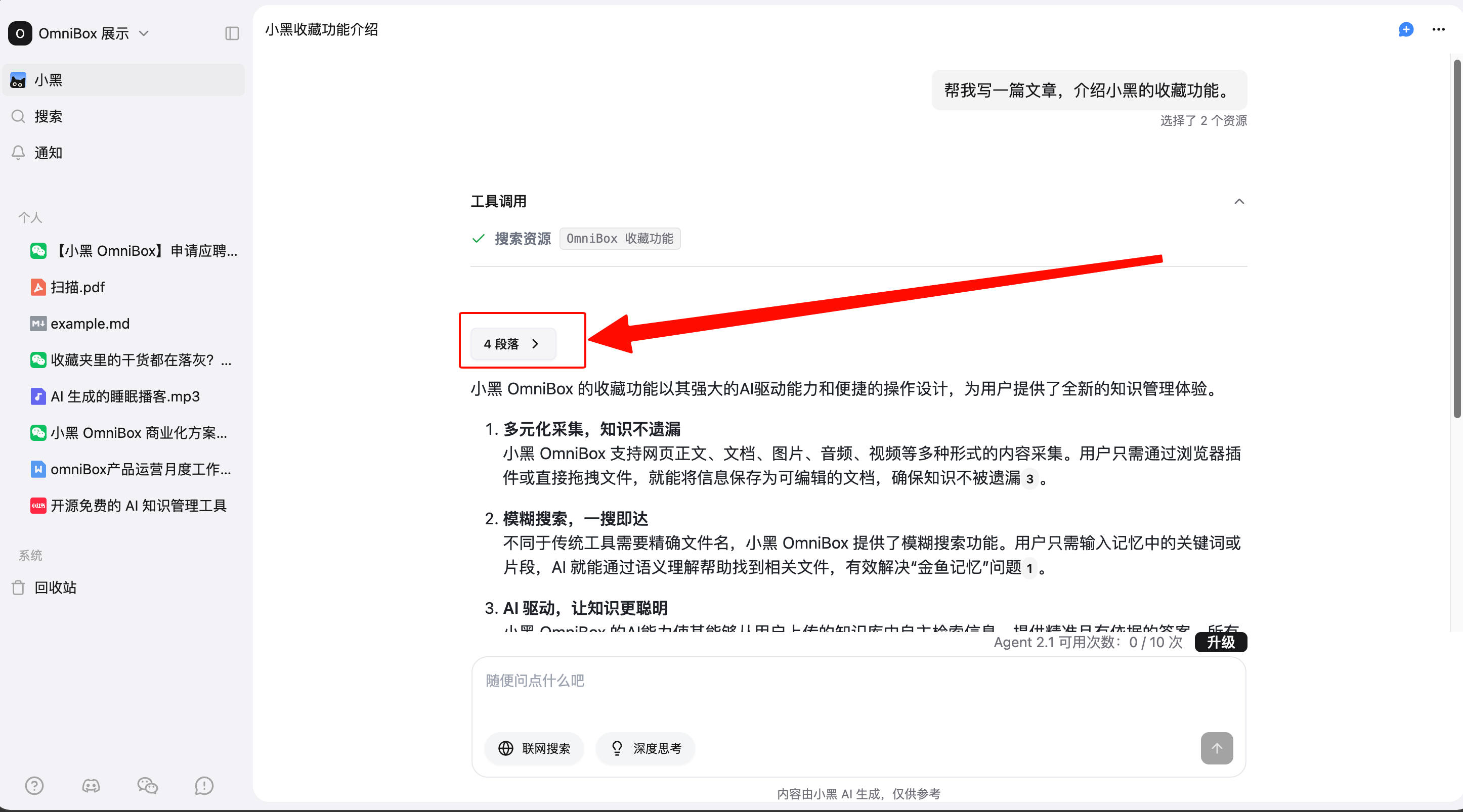
After knowledge base search or web search is enabled, enter your question and send it. AI will decide whether it needs to search, find relevant documents, and generate an answer with citations. Click Paragraphs to view all related knowledge base documents on the right, including document names and partial document information.
Conversation Process and Navigation
Agent 1.1 supports OmniBox AI Basic Conversation Features.
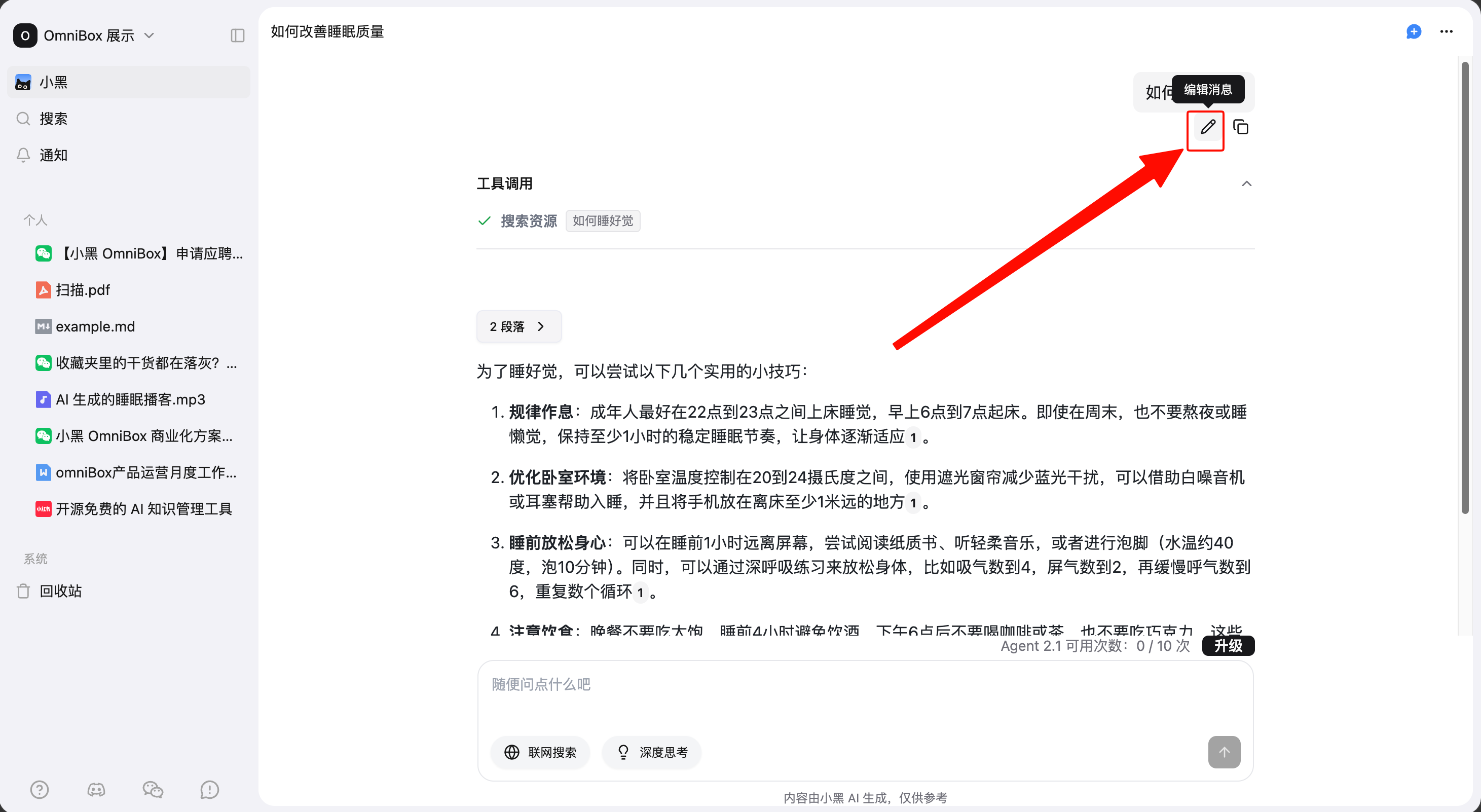
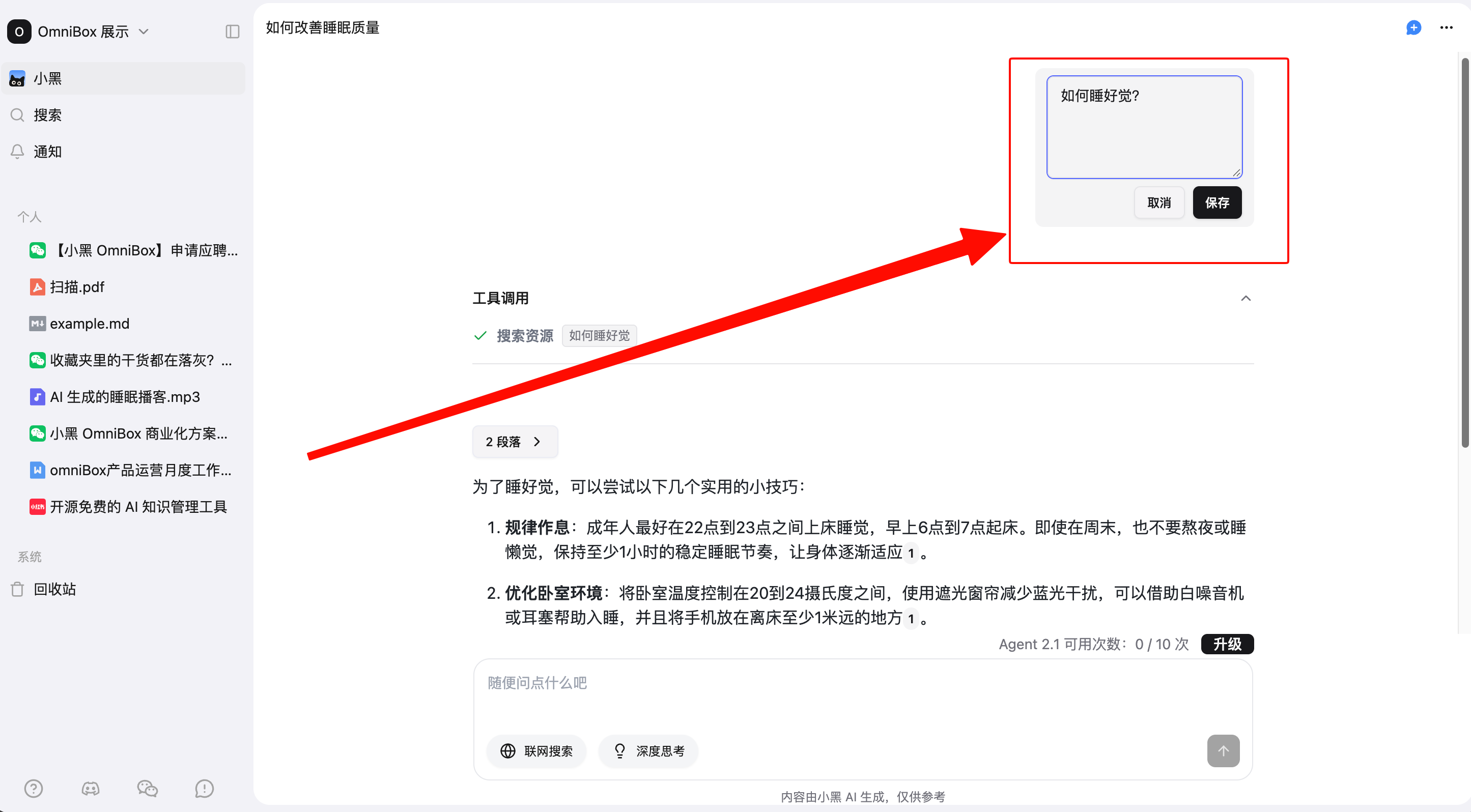
Edit Messages
Hover over a sent message and click Edit message to edit it. After clicking Save, AI will answer the updated question.
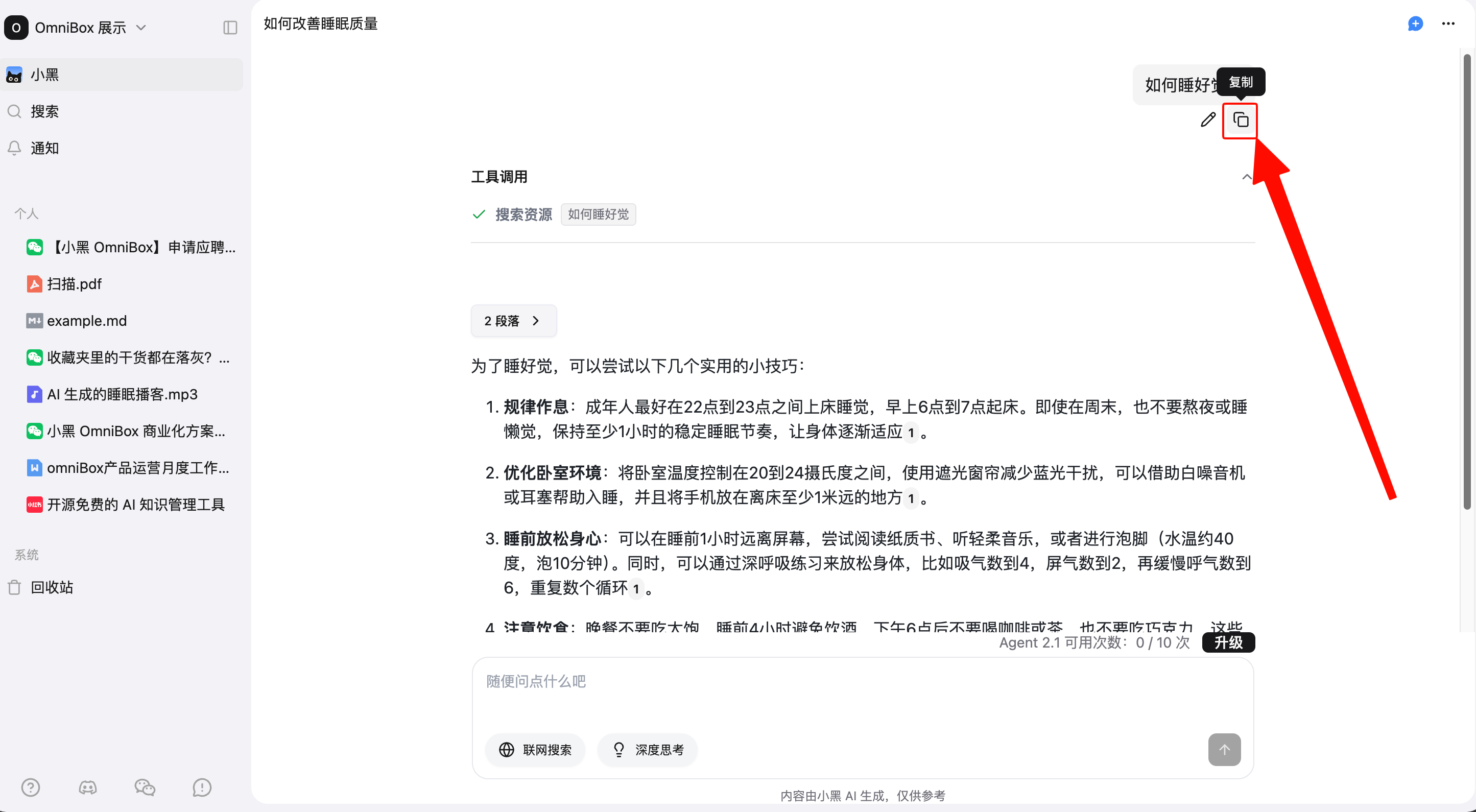
Copy Messages
Hover over a sent message and click Copy to copy the message.
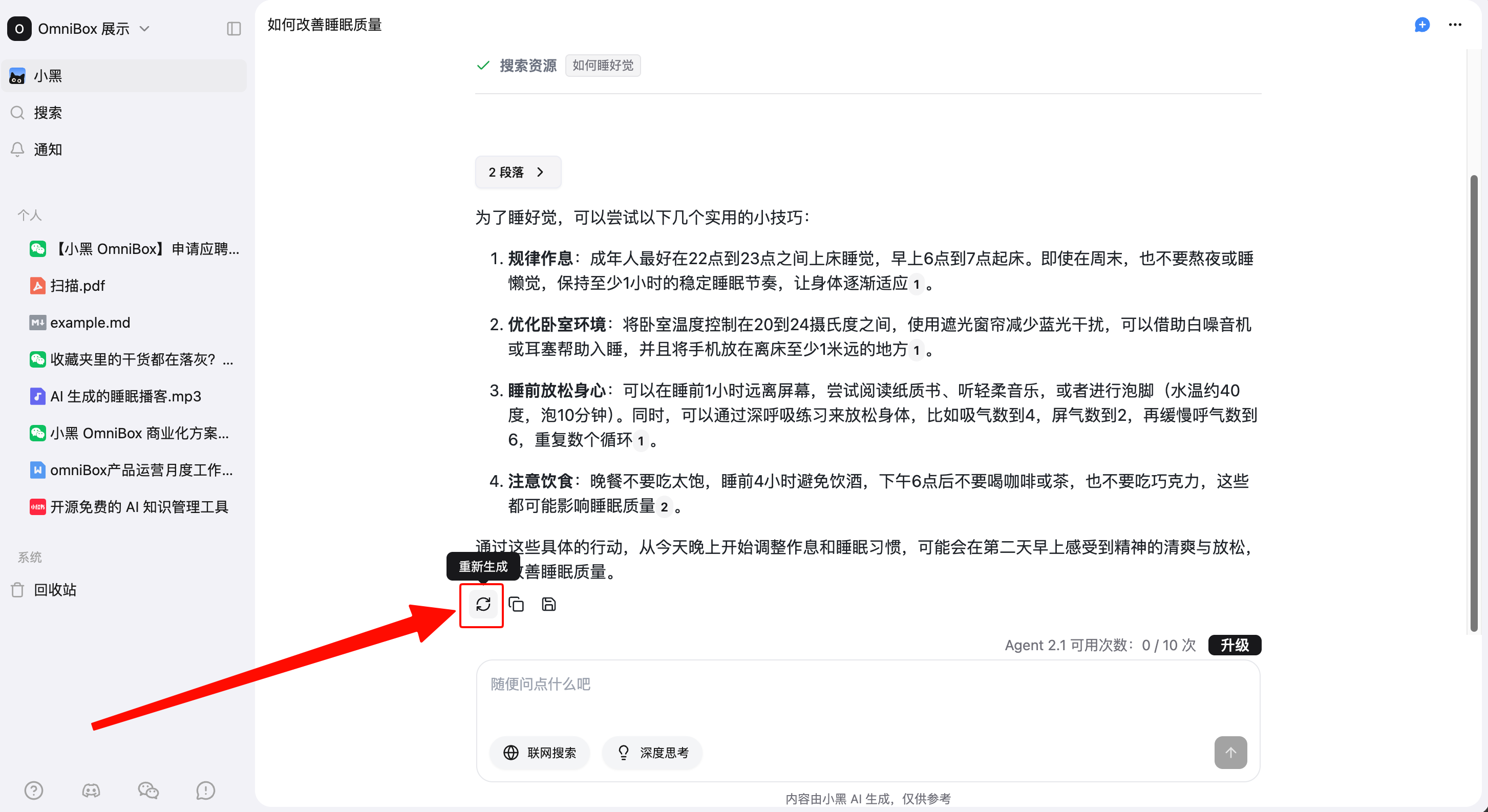
Regenerate Answer
Click Regenerate below an answer to ask AI to generate the answer again.
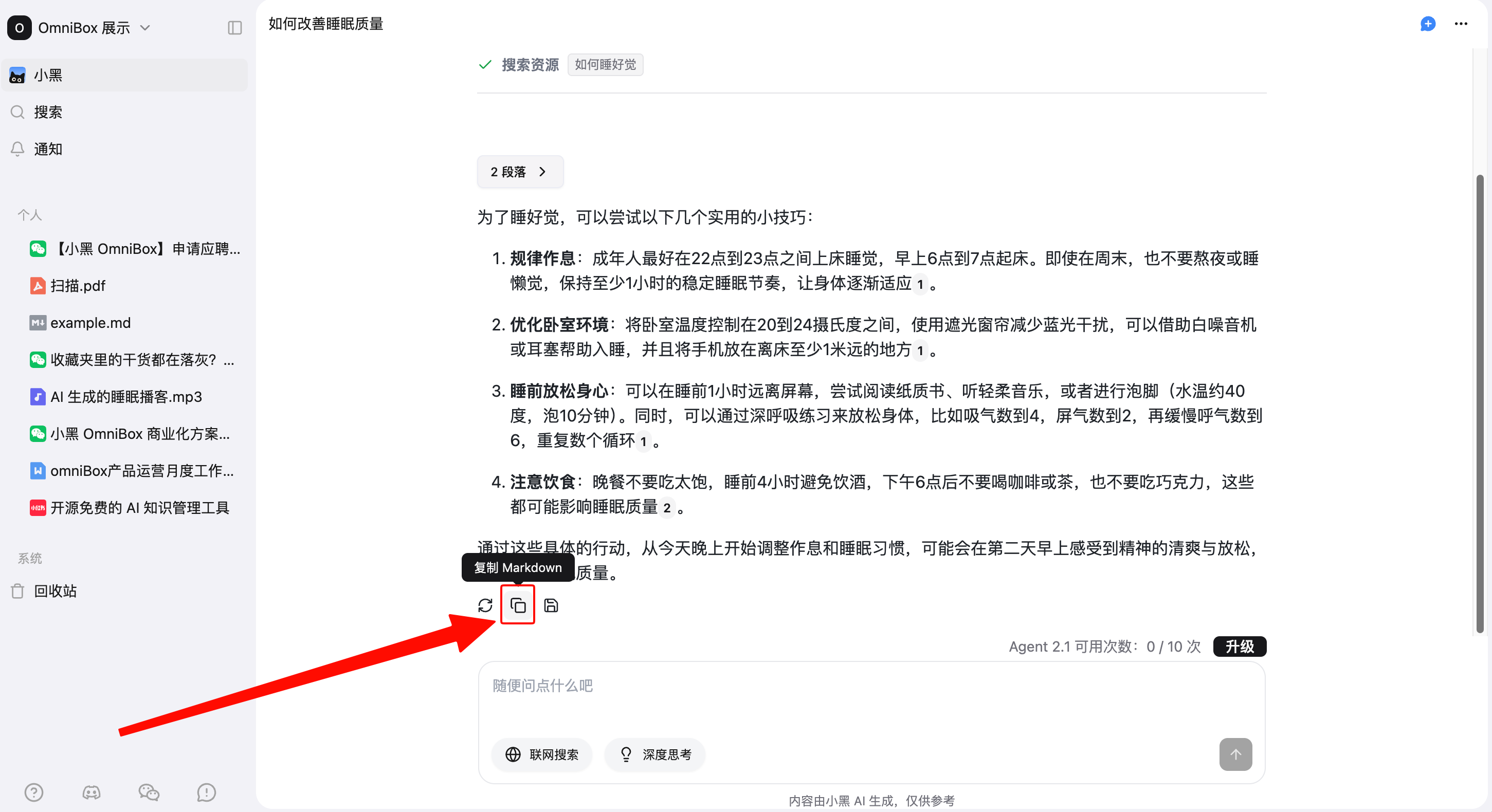
Copy Answer
Click Copy Markdown below an answer to copy the answer in Markdown format.
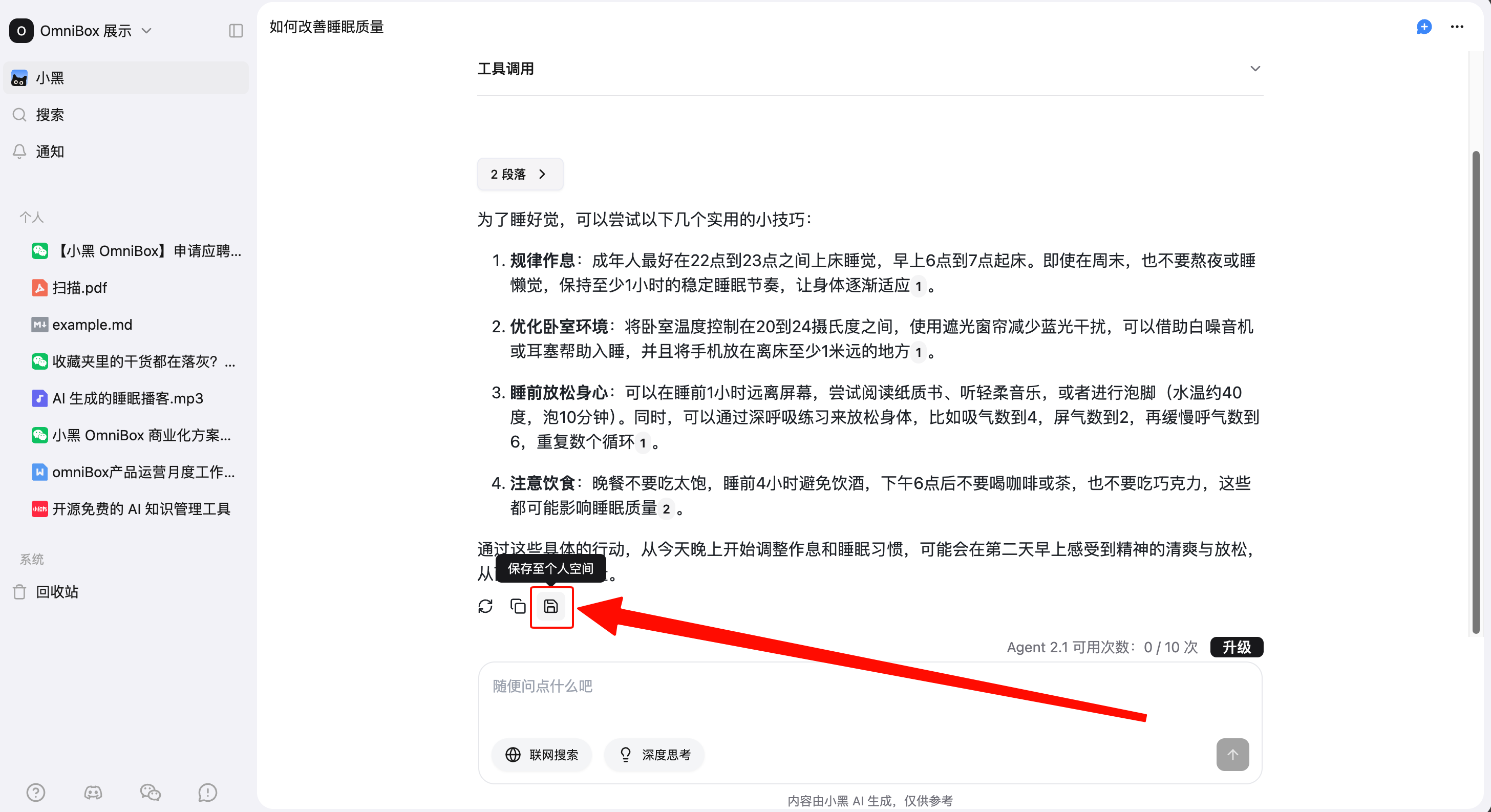
Save Answers to Knowledge Base
Click Save to Personal Namespace below an answer to save the content to your knowledge base for later reference.
AI Writing
Enter your writing request in the chat box to start writing.
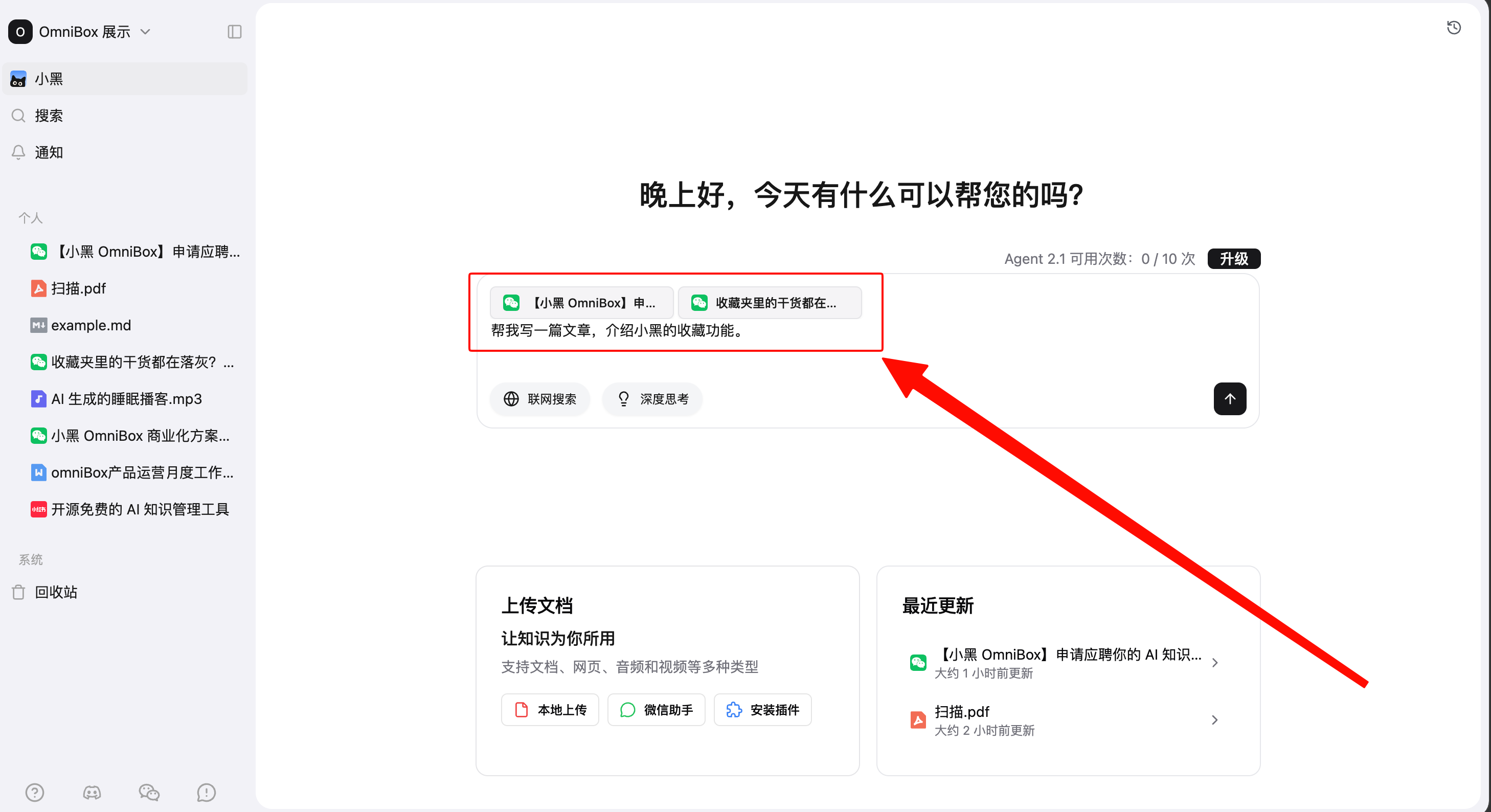
After the writing is complete, you can find related cited files in the content, for example:
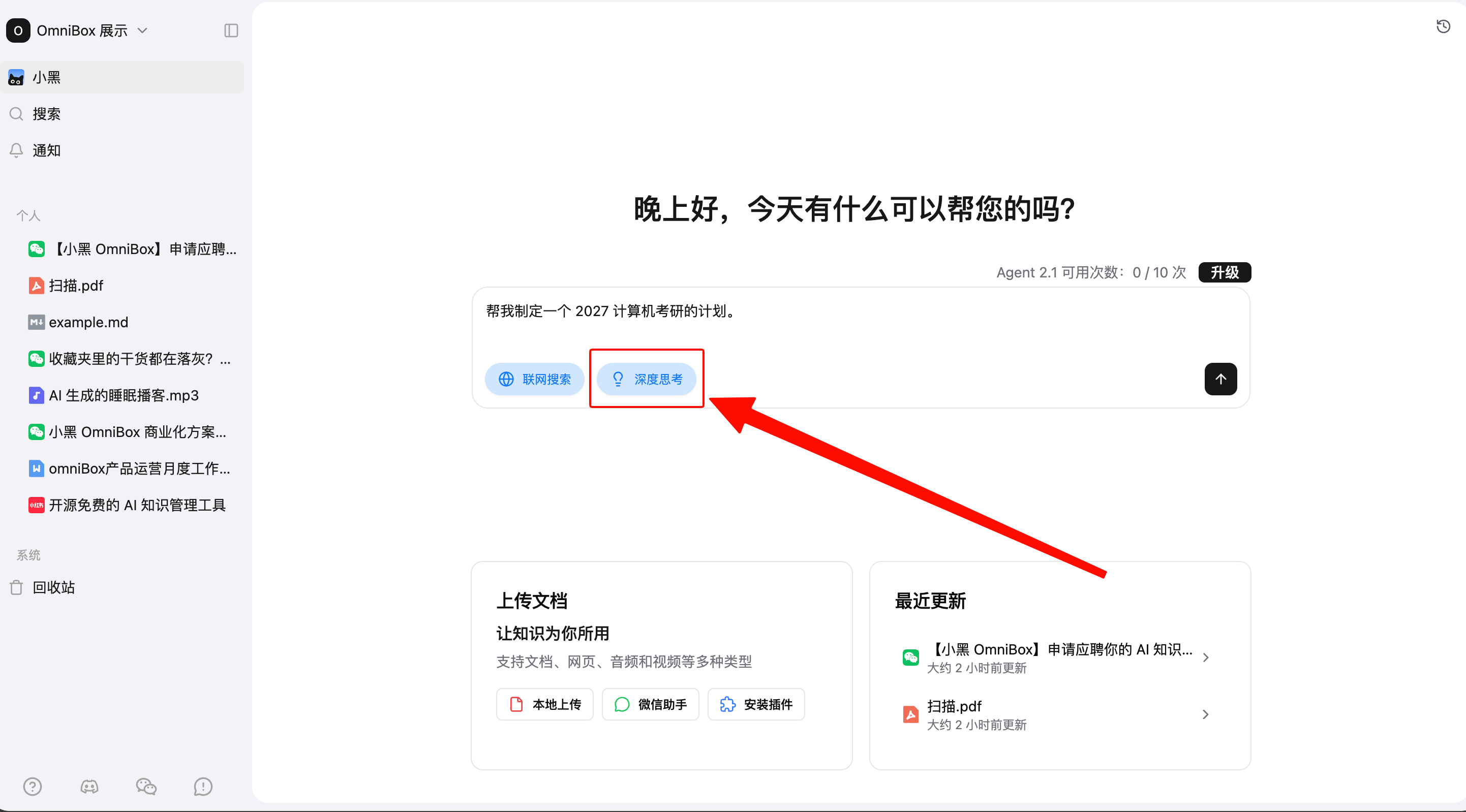
Reasoning
Click Reasoning, then enter and submit your question. AI will think more deeply before answering.
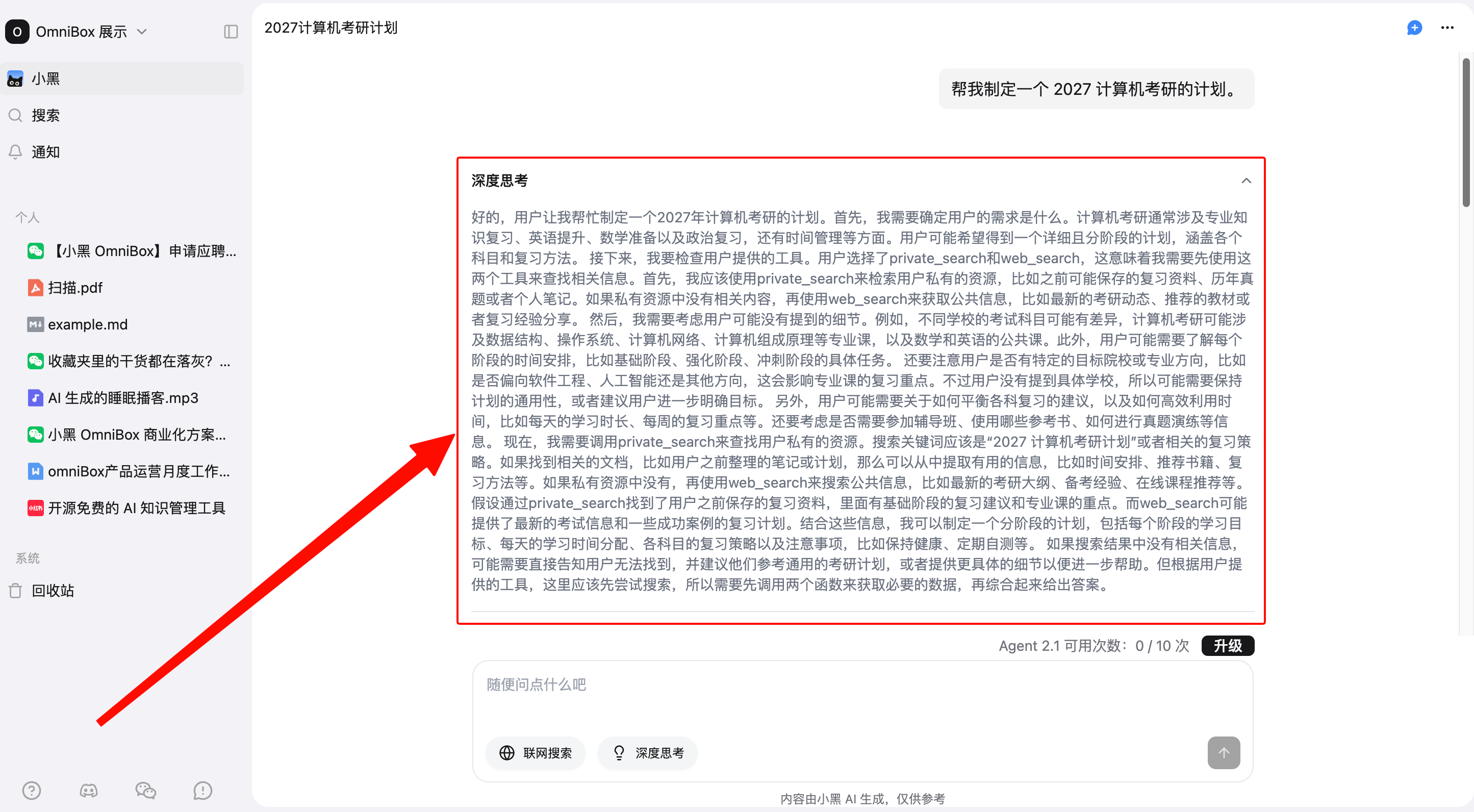
The answer will show the reasoning process.
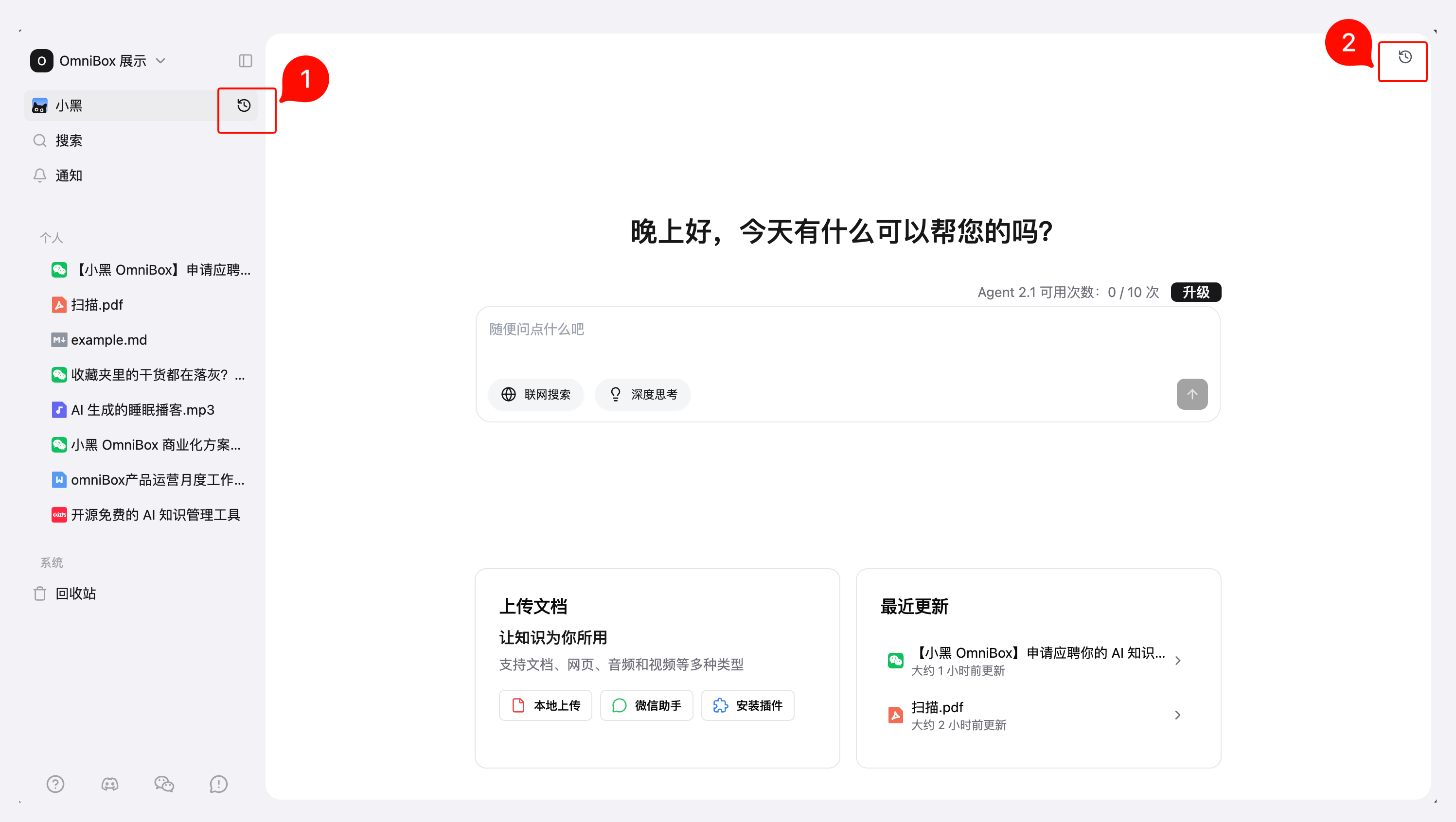
Chat History
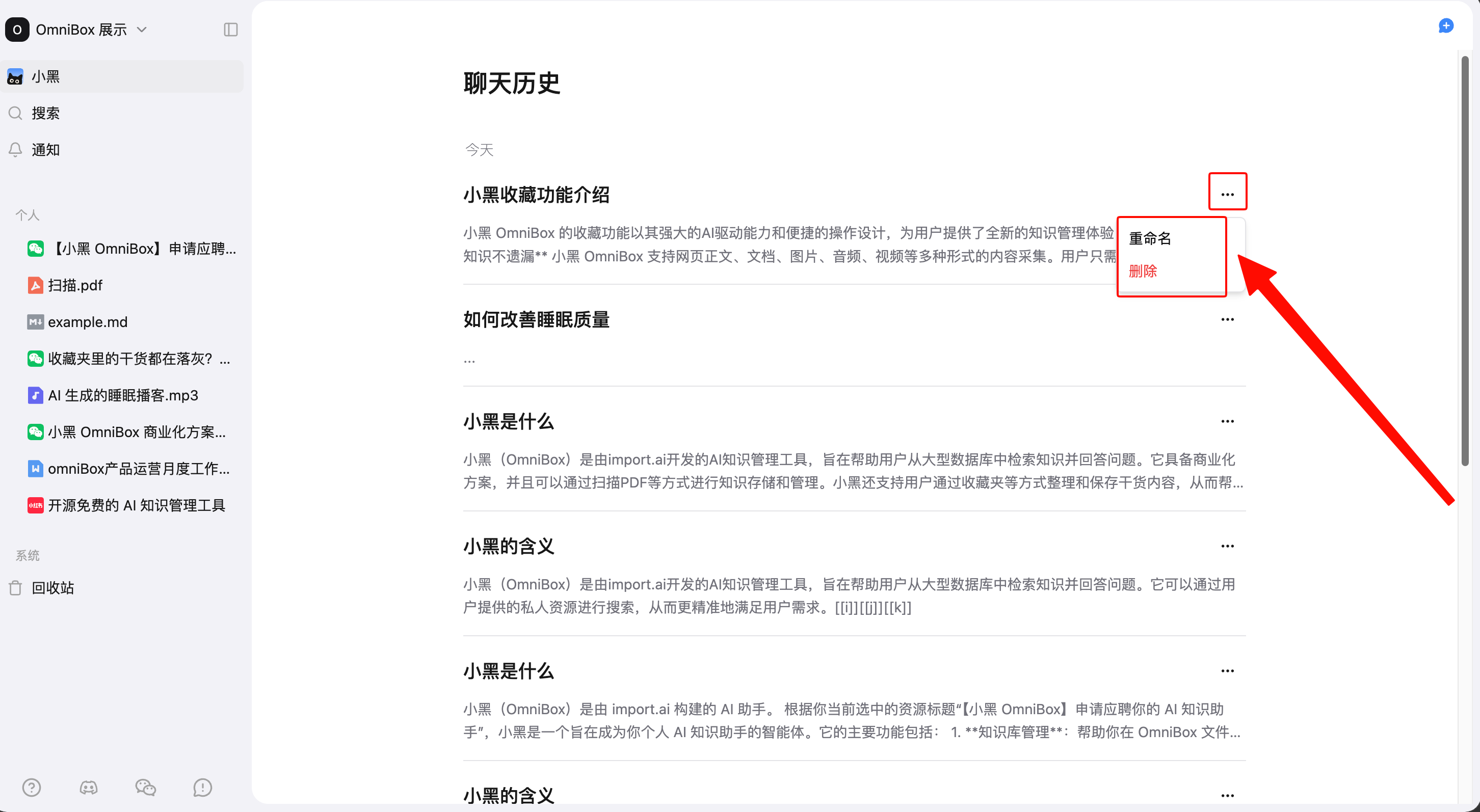
Hover over OmniBox in the left sidebar and click Chat History, or click Chat History in the upper-right corner of the chat page. On the chat history page, you can view all previous conversations and Rename or Delete them.
Tips
- Use
Shift + Enterto create a new line in the chat box - Basic namespaces can try Agent 2.1; each Basic namespace has 10 Agent 2.1 trial uses every 24 hours
- When Agent 2.1 trial uses run out, new chats switch to Agent 1.1